¶ PBXware - AI Hub Setup Guide (Business Edition)
This guide explains how to configure PBXware AI Hub features in the Business edition, including AI Providers, AI Voice Agents (with MCP Servers and DID routing), Live Transcription, Call Transcription, Text to Speech (TTS), and Voicemail Transcription.
Info: Some AI Hub features are currently in beta. In the PBXware GUI, these features are marked with a BETA label next to the feature name. Functionality, supported options, and behavior may change in future PBXware versions.
¶ AI Hub overview
PBXware AI Hub groups multiple AI-related features under one place. Depending on your needs, you can configure:
- AI Providers — vendor credentials/configurations used across AI features
- AI Voice Agents — inbound AI call handling (with optional MCP tool integration and DID routing)
- Live Transcription — real-time streaming transcription with WebSocket callbacks
- Call Transcription — transcription of recorded calls
- Text to Speech (TTS) — generating sound files from text
- Voicemail Transcription — transcription of voicemail messages
¶ AI Providers
An AI Provider is the external service PBXware uses to enable AI Hub features across the platform. Depending on your configuration, AI Providers can be used for AI Voice Agents, Live Transcription, Call Transcription, Text to Speech (TTS), and Voicemail Transcription. Before using any AI Hub feature that depends on a provider, you must first create at least one AI Provider.
To open AI Providers, navigate to:
Home -> AI Hub -> AI Providers
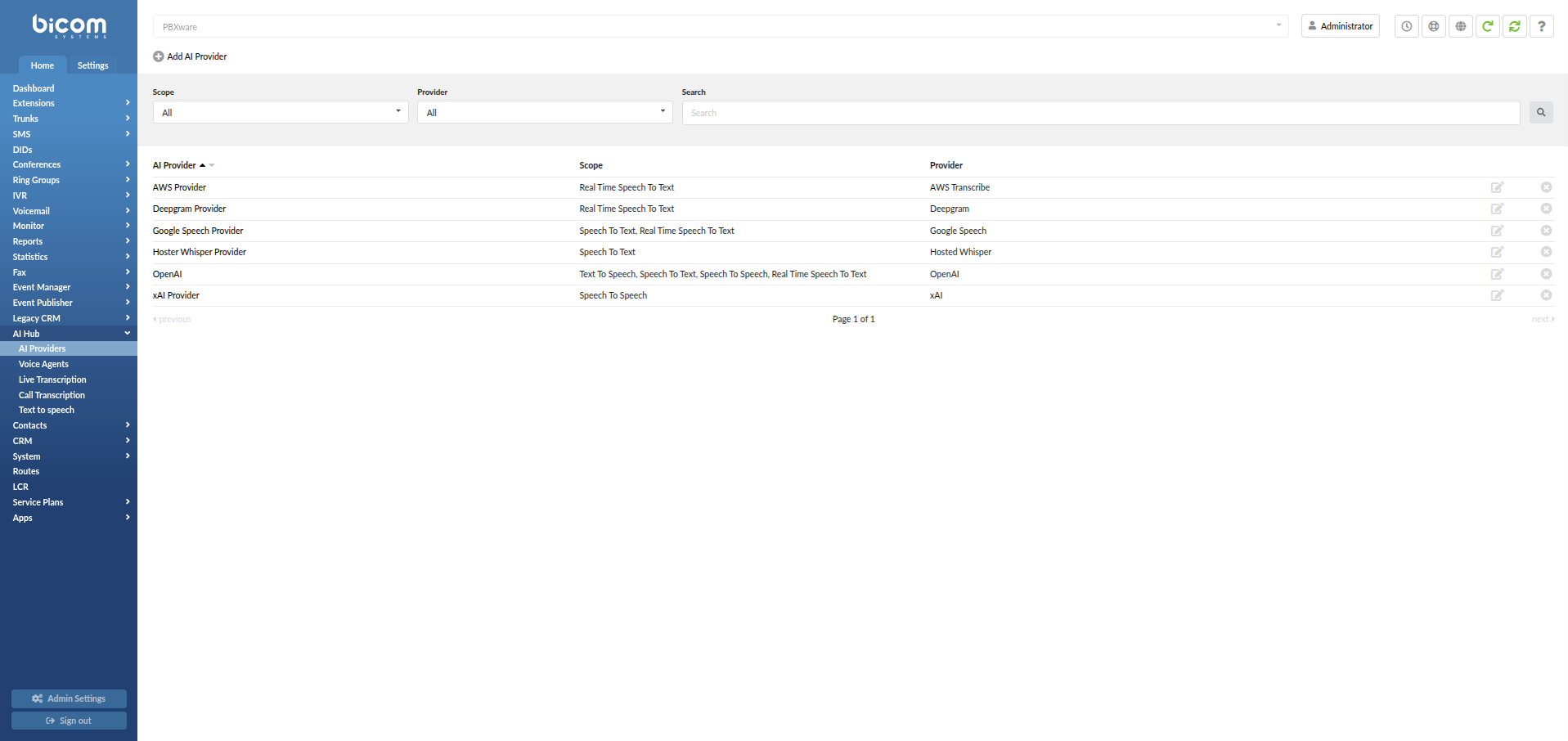
When you click Add AI Provider, you will fill in the fields below.
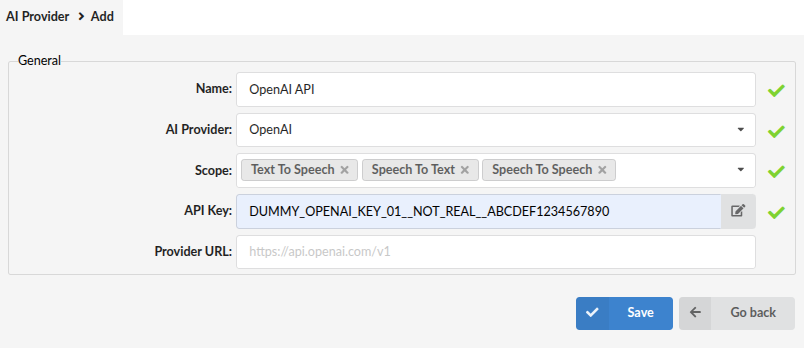
-
Name
A friendly label for this configuration (for example:OpenAI - Production). -
AI Provider
Select the provider. Available options may include:OpenAIGoogle SpeechIBM (Deprecated)DeepgramAWS TranscribexAIHosted WhisperEleven Labs
These providers can be used in multiple PBXware areas, not only AI Voice Agents.
For example, a provider that supports transcription can also be used for transcription-related features where applicable.
Note: IBM Watson voicemail transcription is deprecated since PBXware 8.0.0 and should no longer be used for new configurations. We recommend migrating to another supported provider.
-
Scope
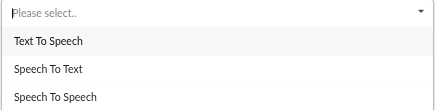
Select one or more scopes from the drop-down menu. Scopes define which capabilities PBXware can use through this provider. Available scopes:-
Text To Speech (TTS) — converts text into spoken voice
-
Speech To Text (STT) — converts spoken audio into text
-
Speech To Speech (STS) — converts spoken input into spoken AI-generated output
-
Real Time Speech To Text — converts spoken audio into text in real time (used by live/streaming transcription features where applicable)
-
-
Credentials
Enter the credentials required by the selected provider.- For most providers, this is a single API Key field.
- For AWS Transcribe, these fields are Access Key ID and Secret Access Key.
-
Provider URL
The provider API endpoint specified by your selected provider (for example:https://your-provider-endpoint).
When you finish, click Save. The provider becomes available across AI Hub features where applicable.
¶ Voice Agents
¶ Feature overview: AI Voice Agents
AI Voice Agents allow PBXware to answer inbound calls with an AI-driven voice experience. With the right configuration, an AI Voice Agent can:
- Answer calls automatically with a consistent greeting and tone
- Ask clarifying questions and guide the caller through a conversation
- Transfer the caller to the correct destination when needed
- End calls politely when the request is completed
In PBXware, this feature is configured through:
- AI Providers (the AI service connection used for speech, transcription, and/or real-time conversation)
- Voice Agents (the agent configuration, including provider selection, model/voice where applicable, prompt/behavior, call limits, fallback, and MCP Servers)
Where MCP fits: MCP Servers are configured inside the Voice Agent screen (as the last subsection).
MCP tools are not added directly in PBXware — they are hosted on your MCP Server, and PBXware connects to them through the MCP Server configuration in the Voice Agent.
A Voice Agent is the AI call handler. You assign it an AI Provider, select a model and voice, define how it should behave (Prompt), configure call handling options, and configure MCP Servers in the same Voice Agent form.
To open Voice Agents, navigate to:
Home -> AI Hub -> Voice Agents
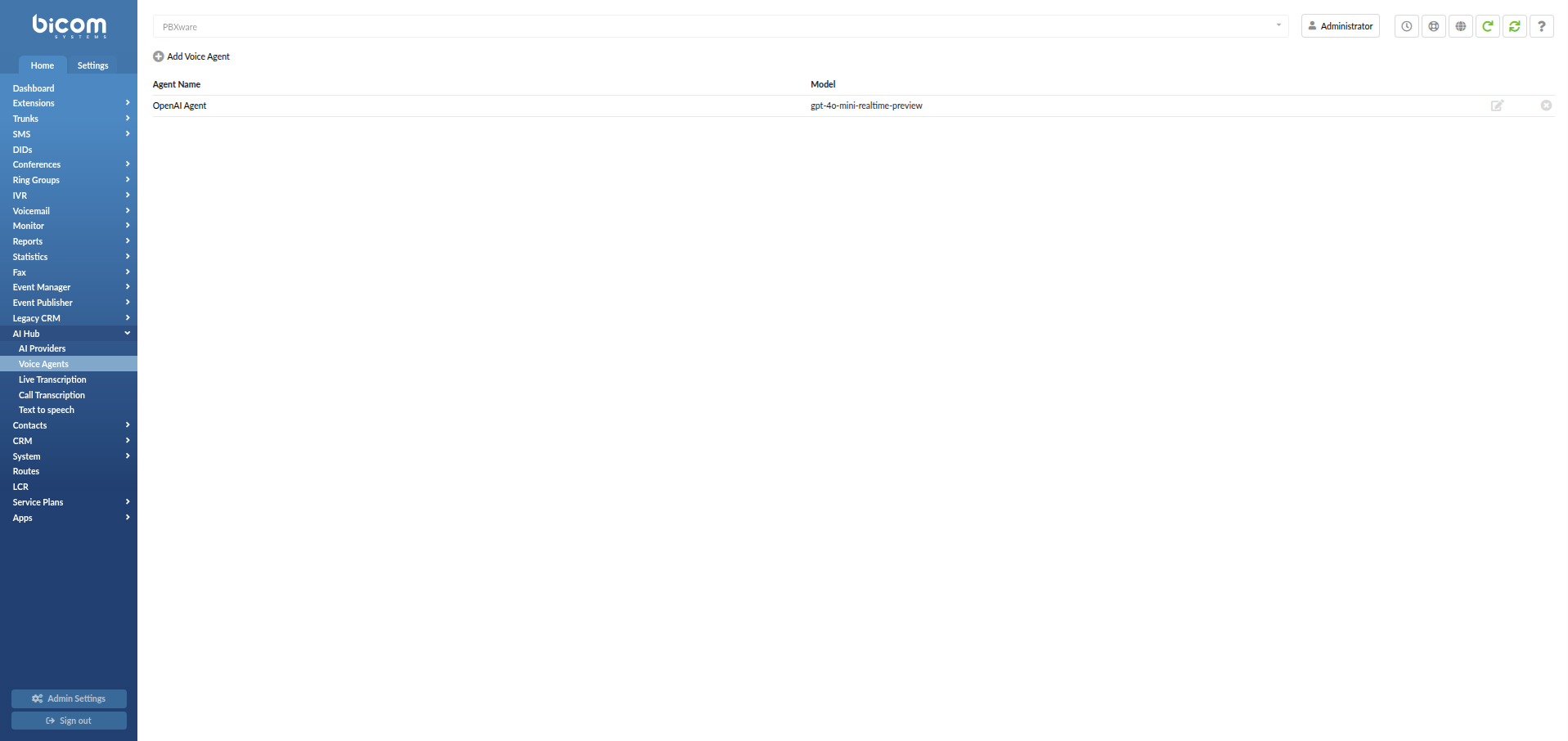
Click Add Voice Agent to open the configuration form.
¶ Voice Agent settings (General settings)
Supported AI Providers for AI Voice Agents: OpenAI, xAI, and Eleven Labs.
The Voice Agent form changes depending on the selected provider — some fields are common, while others are provider-specific.
All Voice Agent configuration is done inside the General settings form. Depending on your selected AI provider, the available fields may differ.
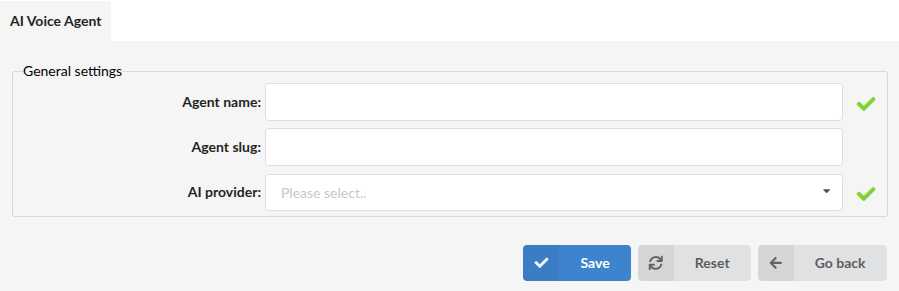
¶ Common fields (all providers)
These fields are available for OpenAI, xAI, and Eleven Labs Voice Agents:
-
Agent name (Bot name)
The name shown in PBXware (for example:Help Desk Agent). Choose a name that matches the role of the agent. -
Agent slug
A short, unique identifier used for agent-to-agent transfers.
The slug is referenced in prompts/transfer logic to specify which agent the call should be transferred to (instead of relying only on the display name). -
AI provider
Select the provider you created earlier from the drop-down list (OpenAI, xAI, or Eleven Labs). -
Dial Number
This is the agent's local/internal number in PBXware. You can dial it internally, route calls to it, or transfer calls to it. -
Agent enabled
Enables/disables the agent. -
Include conversation transcript for agent to agent transfer
When enabled, PBXware includes the current conversation transcript when transferring from one agent to another.
This helps the receiving agent continue the conversation with context. -
Limit call duration / Max call duration (min)
Restricts maximum call duration (when enabled). -
Fallback / Fallback timeout (sec) / Transfer call number
Defines what PBXware should do if the agent cannot continue (transfer, end call, or no fallback). -
Silence detection / Silence timeout (sec)
Controls automatic call termination when continuous silence is detected during the call.
When Silence detection is enabled, PBXware monitors the call and ends it if silence continues for the configured Silence timeout (sec) value.
¶ Provider-specific fields and configuration
This section highlights which fields are available per provider and what to configure.
¶ OpenAI Voice Agent configuration (PBXware-managed)
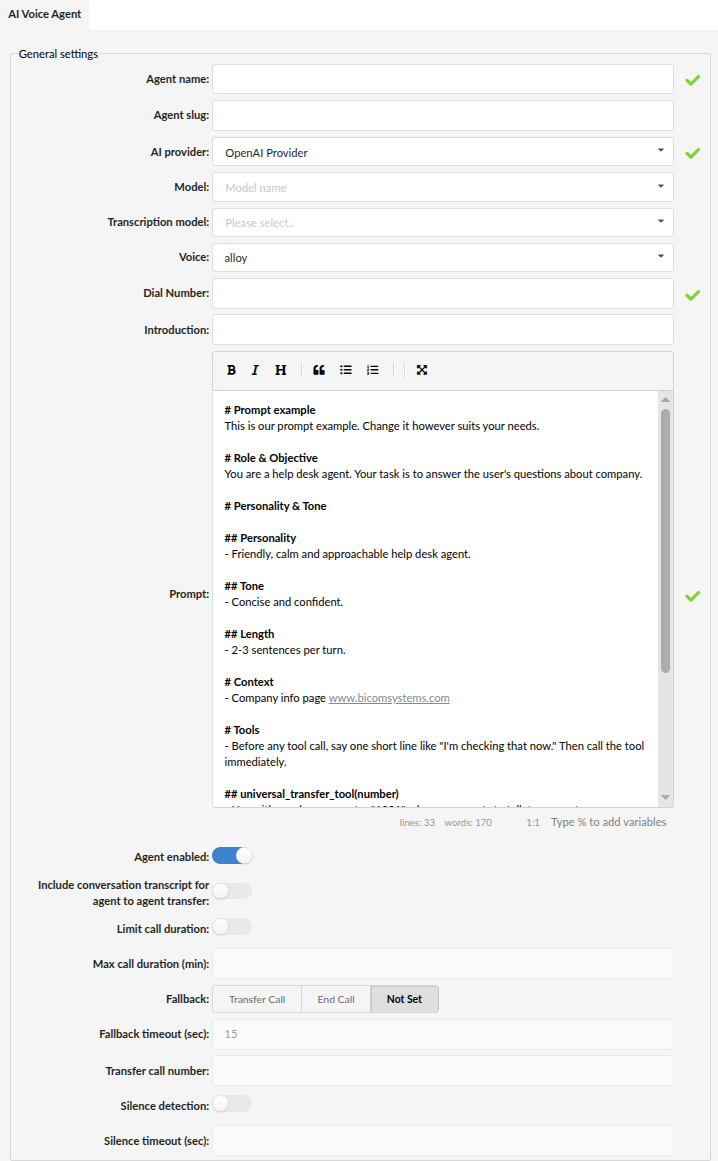
For OpenAI Voice Agents, PBXware provides full behavior configuration directly in the Voice Agent form.
-
Model
The model defines how the agent processes the conversation in real time. Your available options may include:-
gpt-realtime
A general-purpose real-time voice model suitable for most day-to-day call scenarios where you want stable, interactive conversations. -
gpt-4o-realtime-preview
A higher-capability real-time model designed for more complex conversations (for example, when callers ask multi-step questions or you need stronger reasoning and accuracy in responses). -
gpt-4o-mini-realtime-preview
A lightweight real-time model intended for simpler call flows and quick interactions, typically chosen when you want lower overhead for straightforward Q&A or short scripted-style conversations.
Models may differ in response quality, speed, and resource usage. Select the model that matches your expected call complexity and performance requirements.
-
-
Transcription model
Used to convert the caller's speech into text when required by the selected provider/model configuration. -
Voice
The voice used for the agent's spoken responses (for example:alloy). -
Introduction and Prompt
These fields define the call opening behavior and the agent rules/personality (details below).
¶ xAI Voice Agent configuration (PBXware-managed + xAI extensions)
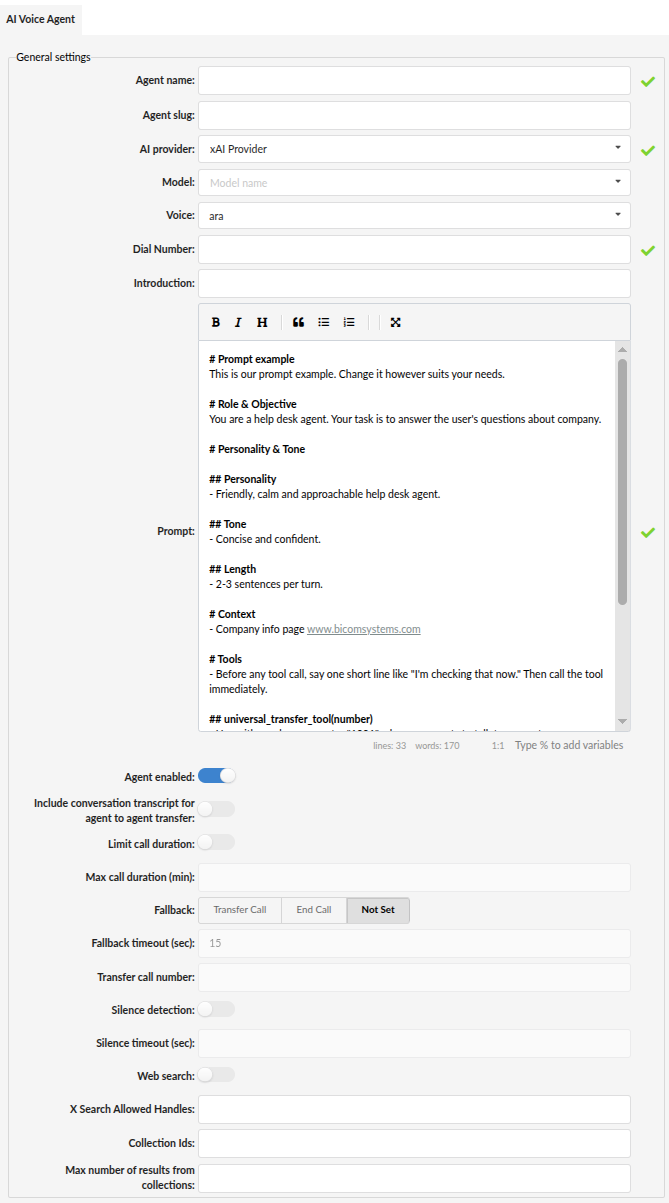
For xAI Voice Agents, PBXware provides the same core behavior settings as OpenAI, along with additional xAI-specific options.
-
Model
Select the xAI model available (for example:grok). -
Voice
Select the voice available for xAI (voice options depend on provider). -
Introduction and Prompt
Configured the same way as OpenAI (details below).
¶ xAI-specific options (search + collections)
Depending on configuration, xAI providers can expose additional fields such as:
-
Web search (On/Off)
Enables provider-side web search capability for the agent (if supported by your xAI setup/policy). -
X Search Allowed Handles
A restriction list for which X (Twitter) handles the agent is allowed to search.
Use this to limit the agent to specific official accounts (for example your company handle) instead of unrestricted searching. -
Collection Ids
One or more IDs referencing xAI collections created on the xAI side.
Collections typically represent a curated knowledge base (documents you upload on the provider side) that the agent can use as grounded context. -
Max number of results from collections
Controls how many retrieved results the agent can use from the configured collection(s).
Increase if you want broader context, or keep lower for more focused answers.
Important: Collections and their documents are managed in the xAI provider environment.
PBXware only references them via Collection Ids so the agent can use that uploaded knowledge during calls.
¶ Eleven Labs Voice Agent configuration (provider-managed)
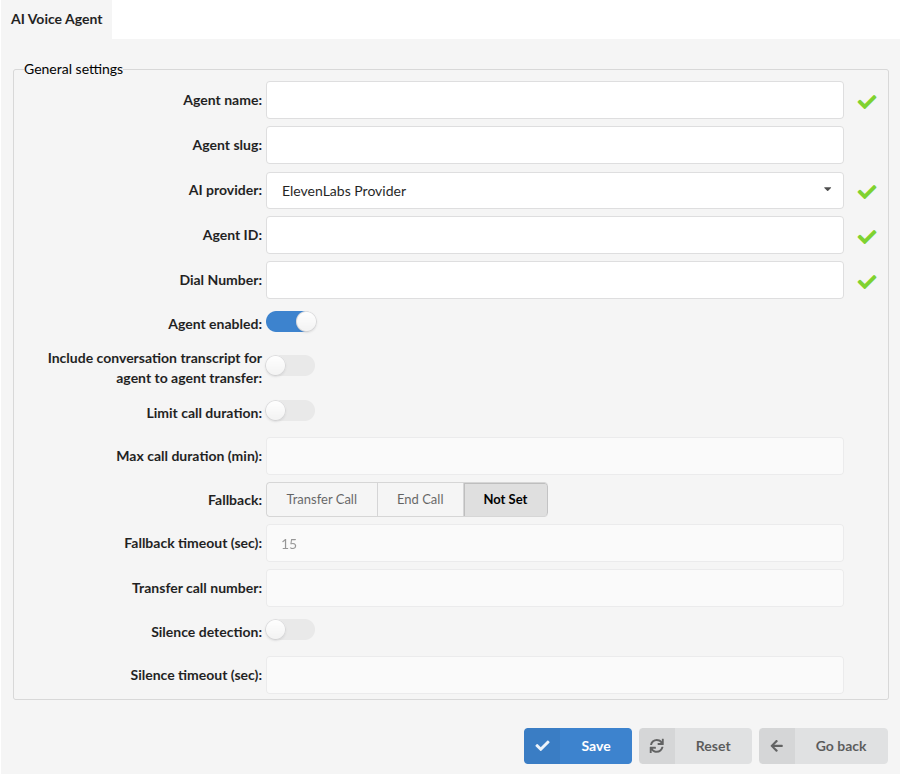
For Eleven Labs Voice Agents, the agent behavior is primarily configured in the Eleven Labs dashboard rather than in PBXware.
In PBXware, you configure:
- Agent ID
The identifier of the agent created in Eleven Labs.
After you create/configure the agent in the Eleven Labs dashboard, copy its Agent ID and paste it into this field.
Important limitation / expected behavior:
PBXware does not mirror the Eleven Labs agent configuration UI. Prompt/voice/knowledge/tools are configured on the Eleven Labs side.
PBXware is responsible for routing calls to the Eleven Labs agent using the Agent ID, and applying PBXware-side call controls (limits/fallback/transfer behavior).
¶ Model, transcription, and voice (provider-specific)
The model defines how the agent processes the conversation in real time.
The available fields in this section depend on the selected AI provider.
-
OpenAI
PBXware displays Model, Transcription model, and Voice fields.
See OpenAI Voice Agent configuration above for model details and recommendations. -
xAI
PBXware displays Model and Voice fields.
The model is selected from the available xAI options (for example:grok).
Transcription model is not shown for xAI Voice Agents. -
Eleven Labs
PBXware does not display Model, Transcription model, or Voice fields.
These are configured in the Eleven Labs dashboard when creating the agent. PBXware connects to that agent using the Agent ID.
¶ Introduction vs Prompt (important to configure correctly)
¶ Introduction (what it really does)
The field is named Introduction, but functionally it acts like the first caller message sent to the AI model when the call starts.
Think of it as: "What is the first thing the caller 'says' to start the conversation?"
This is useful when you want the agent to begin the call in a predictable way (for example: to always introduce itself first).
Good examples:
I am the caller. Please introduce yourself and ask how you can help me.Hello.Hi, I need help.
Avoid placing role definitions here (for example: "You are the Help Desk.").
Role and behavior should be defined in the Prompt.
¶ Prompt (the agent's behavior and rules)
Applies to: OpenAI and xAI Voice Agents.
For Eleven Labs, configure the agent prompt/behavior in the Eleven Labs dashboard.
The Prompt is the most important configuration field. It defines:
- what the agent is (role)
- how it speaks (tone)
- what it should do (objective)
- what it must avoid (boundaries)
- how call actions should be handled (transfer/end call rules)
- how tool usage should be handled (if tools are available through your MCP Server)
A well-written prompt makes the agent consistent and reliable. A vague prompt often results in unpredictable responses.
¶ Built-in call control tools (available by default)
PBXware Voice Agents include built-in call control tools provided by the underlying Voice Agent service. These tools are available without MCP and can be referenced directly in your Prompt:
universal_transfer_tool(number)— transfers the active call to the specified destination numberend_call_tool()— ends the callagent_transfer_tool(slug, context)— transfers the call to the specified AI agent and passes collected context to that agent
Use the Prompt to define when the agent is allowed to transfer or end the call, which numbers are valid transfer destinations, and what the agent should confirm with the caller before performing an action.
¶ Default prompt structure (example)
PBXware includes a default prompt example similar to the one below. You can keep the structure and customize the content for your business needs:
# Prompt example
This is our prompt example. Change it however suits your needs.

# Role & Objective
You are a help desk agent. Your task is to answer the user's questions about company.

# Personality & Tone

## Personality
- Friendly, calm and approachable help desk agent.

## Tone
- Concise and confident.

## Length
- 2-3 sentences per turn.

# Context
- Company info page www.bicomsystems.com
- Caller ID of the current caller: %CALLER_ID%
- Current UTC time: %CURRENT_TIME%
- Current UTC date: %CURRENT_DATE%
- Current UTC date and time: %CURRENT_DATE_TIME%

# Tools
- Before any tool call, say one short line like "I'm checking that now." Then call the tool immediately.

## universal_transfer_tool(number)
- Use with number parameter "1074" when user wants to talk to support
- Use with number parameter "1067" when user wants to talk to sales

## agent_transfer_tool(slug, context)
- Use with slug parameter "data-agent" and context parameter in format key value pairs, for example: [name: collected_name, age: collected_age], after you collect the caller's name and age
¶ What matters most in a Prompt
-
Role & Objective
Define what the agent is responsible for (support, sales, receptionist, help desk, etc.).
This is where you describe who the agent is and what success looks like. -
Tone / Length
Use these sections to keep the experience consistent (for example: short answers, calm tone, professional wording). -
Context
Describe which information sources the agent should rely on (public website, internal KB, policies).
If the agent must not guess or invent, state that clearly (for example: "If you are not sure, ask a follow-up question.").
PBXware supports dynamic variables that can be used throughout the Prompt. The variables are automatically resolved at runtime, allowing the agent to receive current call-specific and time-based information where needed
Available variables:%CALLER_ID%— the Caller ID of the current caller%CURRENT_TIME%— the current UTC time%CURRENT_DATE%— the current UTC date%CURRENT_DATE_TIME%— the current UTC date and time
-
Transfer and End Call behavior
PBXware supports call actions (such as transfer and ending the call). In your prompt, define:- when the agent is allowed to transfer
- what the agent must confirm before transferring (for example: reason for calling, department)
- where the agent should transfer (destination numbers)
- when the agent should end the call (confirm resolution and close politely)
Example tool names you may see in prompts:
universal_transfer_tool(number)— transfers the call to the specified numberend_call_tool()— ends the callagent_transfer_tool(slug, context)— transfers the call to the specified AI agent and passes collected context to that agent
Update any example numbers (like
1074and1067) to match your real destinations.
¶ Call limits and fallback behavior
These options define how PBXware should handle long calls or situations where the agent cannot continue.
-
Include conversation transcript for agent to agent transfer
When enabled, PBXware includes the current conversation transcript when transferring from one agent to another.
This helps the receiving agent continue the conversation with context. -
Limit call duration
Enable to restrict maximum call duration. -
Max call duration (min)
Maximum duration in minutes (applies when limit is enabled). -
Fallback
What PBXware should do if the agent cannot continue:Transfer CallEnd CallNot Set
-
Fallback timeout (sec)
Time PBXware waits before applying fallback. -
Transfer call number
If fallback is Transfer Call, enter the destination number. -
Silence detection
Enables automatic call termination based on detected silence during the conversation. -
Silence timeout (sec)
Defines how long silence must continue before PBXware ends the call.
This value is used only when Silence detection is enabled.
When you finish configuring the agent, click Save.
¶ MCP Servers (configured inside the Voice Agent)
MCP (Model Context Protocol) is the bridge between your Voice Agent and external services.
It allows the agent to request additional information or run controlled actions by calling tools hosted outside PBXware.
In our setup, we used Dify to host the MCP endpoint. Dify is an AI workflow/orchestration platform that helps you build agent workflows and expose tool endpoints (including MCP-style endpoints) without writing everything from scratch.
You are not limited to Dify — you can use any other service that can host an MCP-compatible endpoint and provide a stable URL with authentication.
¶ Why MCP is used in PBXware Voice Agents
A Prompt can describe behavior, tone, and rules, but it cannot reliably provide dynamic data by itself. MCP is used when you want the Voice Agent to:
- Retrieve up-to-date information from a system you control (for example: internal knowledge, rules, or structured data)
- Keep tool logic outside PBXware so it can be updated without changing PBXware configuration
- Enforce controlled access through authentication headers and a dedicated endpoint
- Provide a single place (your MCP server) where tools are managed and maintained
¶ How the integration works (high-level)
A typical flow looks like this:
- A caller reaches PBXware and is routed to the Voice Agent.
- The Voice Agent follows the Prompt. When it needs external info, it calls the MCP Server endpoint.
- The MCP Server (for example, hosted in Dify) runs the tool logic and returns a response.
- The Voice Agent uses the returned result to continue the conversation.
Important: MCP does not automatically change how the agent behaves.
Your Prompt must clearly describe when tool usage is allowed and what the agent should do with the tool results.
¶ About Dify (what it is and why we used it)
Dify is a workflow platform designed to connect AI agents to external systems. In practice, it helps you:
- Build a structured flow for how the agent should retrieve information
- Connect to data sources (for example: a database connection, API, or internal service)
- Control access using tokens/headers
- Test and update tool behavior quickly, without changing PBXware
We used Dify because it makes it easier to manage and evolve tool logic over time.
However, any MCP-capable tool host can be used if it meets your requirements (secure access, stable endpoint, predictable output).
¶ Configure an MCP Server in PBXware (inside the Voice Agent)
MCP Servers are configured inside the Voice Agent form.
To add one, open Add Voice Agent (or edit an existing Voice Agent) and scroll to the MCP section.
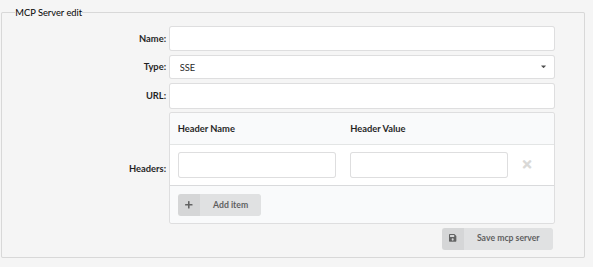
Fill in the following fields:
-
Name
A descriptive label for this MCP Server configuration (for example:MCP - Production). -
Type
The connection type (for example:SSE). -
URL
The MCP endpoint URL provided by your tool-hosting service (for example: the endpoint created in Dify). -
Headers
Optional HTTP headers used for authentication (for example:Authorization: Bearer <token>).
Use headers whenever your MCP endpoint requires secure access.
Click Save mcp server to store the MCP Server configuration.
¶ MCP Servers list (last subsection)
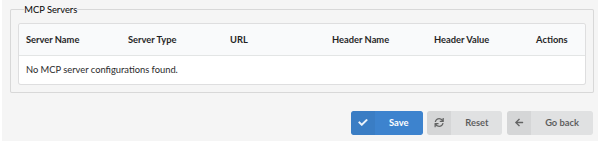
The MCP Servers table is shown as the last subsection in the Voice Agent configuration and lists all saved MCP Server configurations.
If no MCP Servers are configured, the table will show:
No MCP server configurations found.
¶ Prompt note (recommended)
If you configure MCP, update your Prompt to clearly define:
- when the agent is allowed to call tools
- what information it must collect before calling tools
- how it should respond if a tool fails or returns no data
- whether tool results must be confirmed with the caller
This keeps the call experience consistent and prevents unexpected behavior.
¶ DID Routing (Assign an inbound DID to a Voice Agent)
After creating a Voice Agent, route inbound calls to it using a DID.
To add a DID, navigate to:
Home -> DID -> Add DID

Fill in:
-
Trunk
Select the trunk on which the DID will be received. -
Name
Enter a friendly label for the DID (for example:AI Agent DID). This is used for easier identification in DID lists. -
DID/Channel (start)
Enter the inbound DID number (or DID/channel start value) provided by your trunk/provider. -
Destination
Open the Destination drop-down menu and selectAI Voice Agents. -
Value
OnceAI Voice Agentsis selected as the destination, open the Value drop-down menu and choose the Voice Agent that should receive inbound calls to this DID. -
Service Plan (optional / depends on environment)
If your deployment uses service plans, select the appropriate one. Otherwise, this may remain empty/disabled. -
Call Rating Extension (optional)
Used only if your billing/rating setup requires an extension reference. If not used, leave blank. -
E.164 number (start) (optional)
Enter the E.164 formatted number if required by your setup/provider.
Click Save to apply the DID routing.
¶ AI Voice Agent Call Log (CDR integration)
After configuring and using AI Voice Agents, PBXware also provides a dedicated AI Voice Agent Call Log view inside CDR for calls handled by an AI agent.
This allows administrators to inspect the AI side of the conversation in more detail, including:
- the call transcript
- raw event data generated during the interaction
- general call information related to the selected AI agent
- agent selection in cases where an agent-to-agent transfer occurred during the same call
This view is useful for troubleshooting, validating agent behavior, reviewing transfer flow, and downloading conversation-related data for further analysis.
To access it, navigate to:
Home -> Reports -> CDR

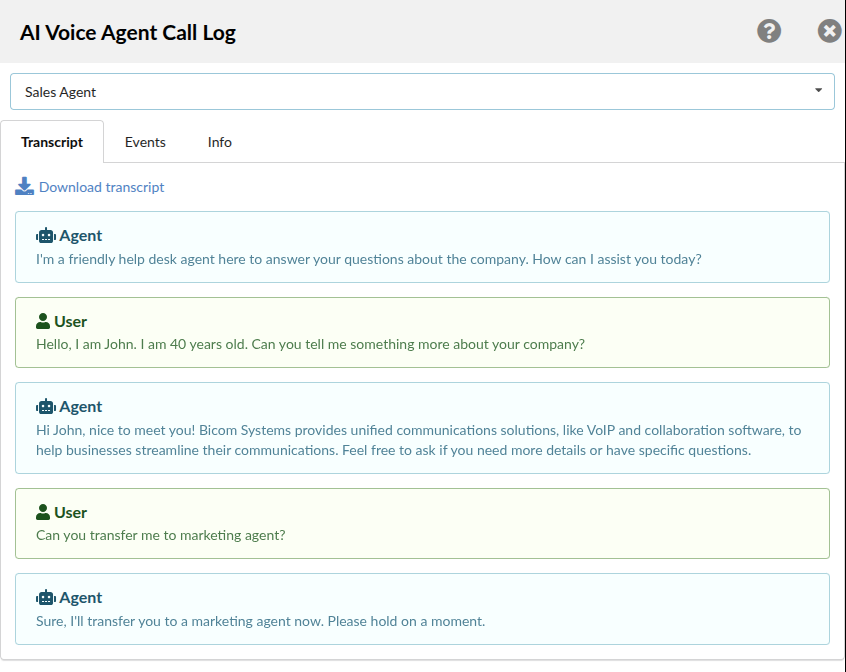
If you click on the number that belongs to the AI agent side of the call, PBXware opens the AI Voice Agent Call Log side panel.
¶ AI Voice Agent Call Log overview
The AI Voice Agent Call Log is opened as a side panel from the selected CDR entry.
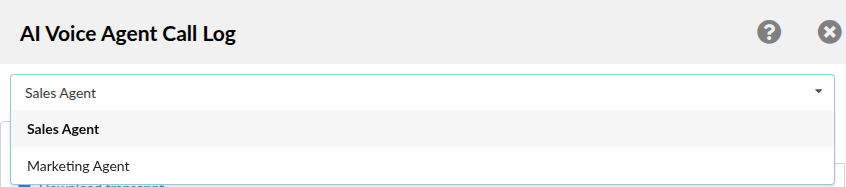
At the top of the panel, PBXware shows the currently selected AI agent related to that call.
If the call included an agent-to-agent transfer, the top drop-down menu allows you to switch between the agents that participated in that call flow.
This makes it easier to review which part of the interaction belonged to which agent.
The side panel contains three tabs:
- Transcript
- Events
- Info
Each tab provides a different level of detail about the AI call.
¶ Transcript tab
The Transcript tab displays the conversation between the caller and the selected AI Voice Agent.
This view is intended for human-readable review of the call flow and is useful when validating:
- the greeting/introduction used by the agent
- the sequence of questions and answers
- whether the agent followed the configured prompt correctly
- whether the interaction sounds natural and contextually correct
If multiple agents were involved in the same call due to transfer, the transcript shown depends on the currently selected agent from the drop-down menu.
A Download transcript option is also available, allowing the transcript to be exported for offline review, QA validation, or troubleshooting documentation.
¶ Events tab
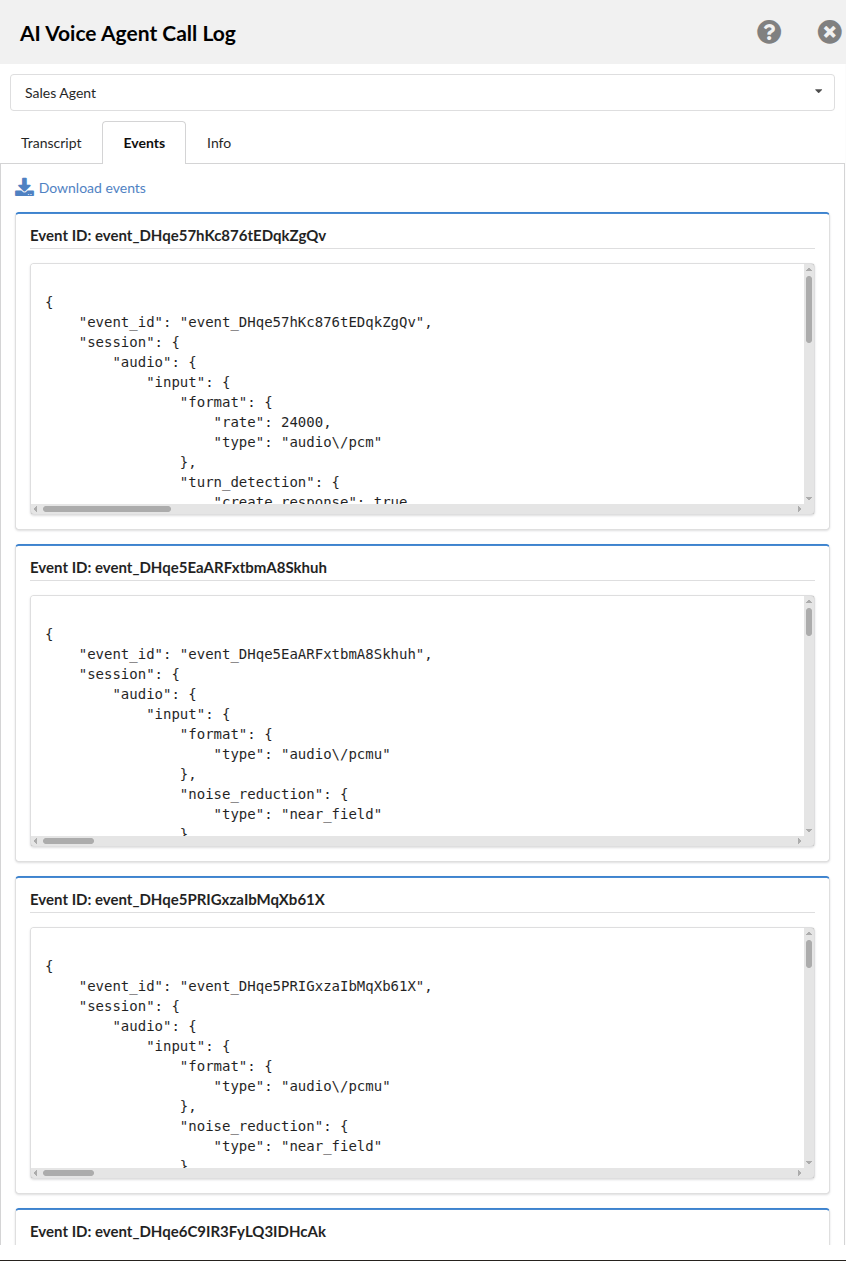
The Events tab displays the underlying event data related to the selected AI Voice Agent call.
This tab is more technical in nature and is primarily useful for:
- debugging
- verifying what was exchanged during the AI session
- reviewing session/event payload structure
- investigating provider-side or real-time interaction details
Each event is shown in its own block, identified by an Event ID, and the content is displayed in structured raw format.
Depending on the provider and call flow, this section may include technical session details such as:
- audio input format
- turn detection/session configuration
- provider-generated event payloads
- internal interaction metadata relevant to the AI session
A Download events option is available at the top of the tab, allowing the full event data to be exported for deeper technical analysis.
¶ Info tab
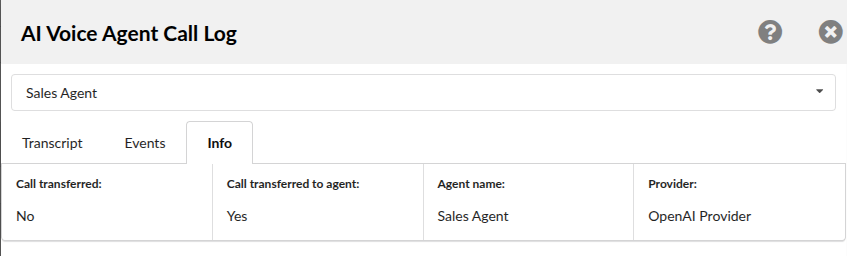
The Info tab provides a short summary of the selected AI agent call handling details.
This tab is intended as a quick overview and includes information such as:
- whether the call was transferred
- whether the call was transferred to another agent
- the name of the selected AI agent
- the AI provider used for that part of the call
This is useful for quickly confirming the final routing/handling outcome without reviewing the full transcript or raw events.
For example, in transferred call scenarios, this tab helps distinguish whether:
- the call remained with one agent
- the call was handed over to another AI agent
- the selected view belongs to the original or transferred agent
¶ Agent selection in transferred calls
If an agent-to-agent transfer occurs during the conversation, the AI Voice Agent Call Log top drop-down menu displays the agents involved in that call.
By selecting a different agent from the list, you can review that specific agent's:
- transcript
- events
- info summary
This is especially useful when validating multi-agent flows, because each agent may handle only one segment of the overall conversation.
¶ Practical use cases
The AI Voice Agent Call Log can be used for several common validation and troubleshooting scenarios:
- Reviewing whether the agent answered with the correct introduction and tone
- Confirming that the configured prompt behavior was followed during the call
- Checking whether an agent-to-agent transfer occurred and which agent handled each part
- Downloading transcript data for QA or documentation purposes
- Downloading event data for technical investigation and provider/session troubleshooting
- Verifying which provider and agent handled the call from the Info tab
This makes the AI Voice Agent Call Log a useful extension of standard CDR data for AI-driven call flows.
¶ Wrap-up
You have now:
- Created an AI Provider (with scopes and credentials)
- Created and configured a Voice Agent (Intro, Prompt, call behavior)
- Configured MCP Servers inside the Voice Agent form
- Routed an inbound DID to the agent
Next step: test with real calls and confirm call flow (greeting, correct responses, transfers, fallback handling).
¶ Live Transcription
Live Transcription allows PBXware to stream call audio in real time to a supported Speech-to-Text service and forward transcription results to your WebSocket callback URL. This is designed for scenarios where you want transcription events while the call is still in progress.
Important prerequisite: Ensure Stereo Recording and Recording are enabled.
Live Transcription requires recording and stereo audio to stream the call correctly.
¶ Where to configure
To open Live Transcription, navigate to:
Home -> AI Hub -> Live Transcription
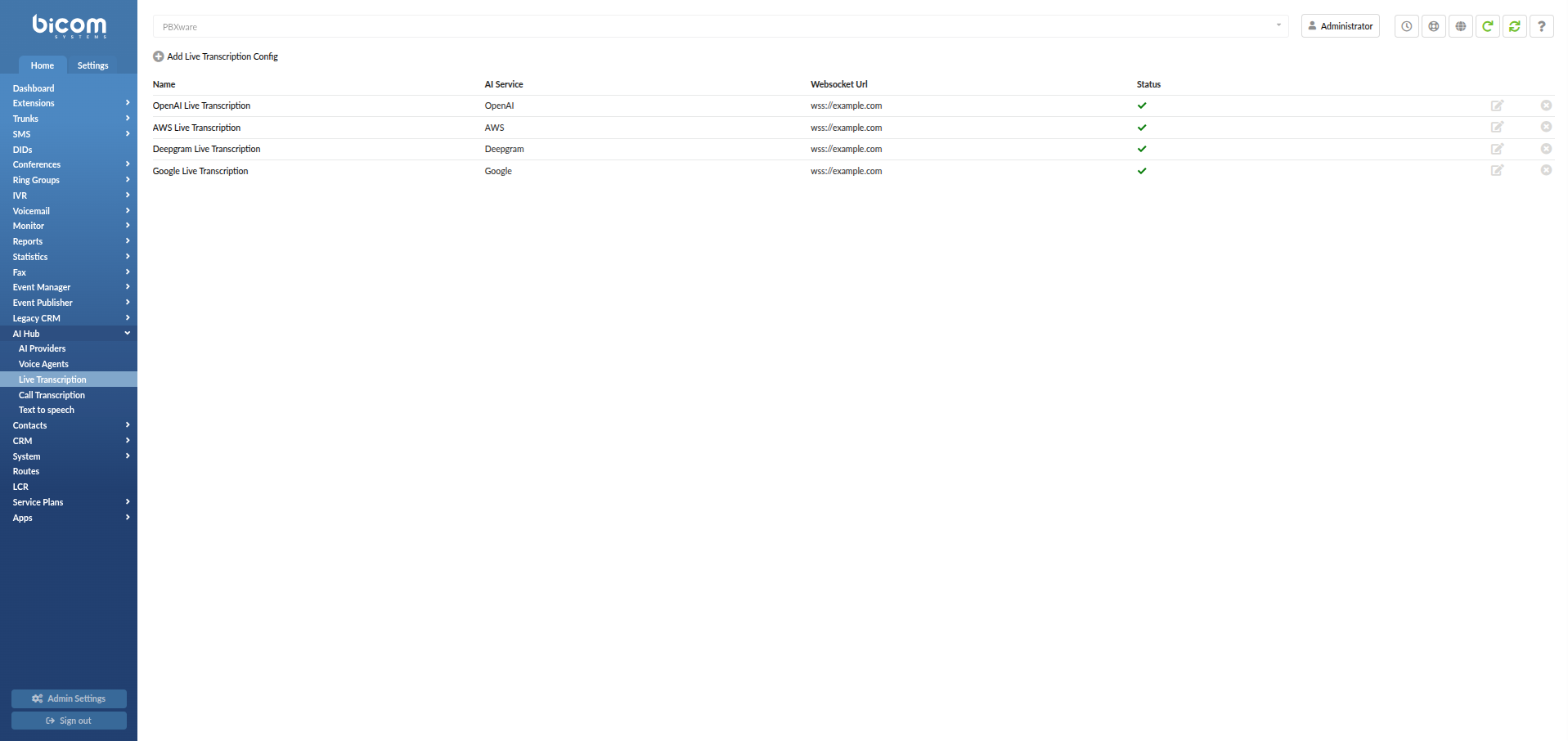
The Live Transcription page contains two tabs:
-
Live Transcription
Used to view, add, edit, and delete Live Transcription configurations. -
Configuration
Used to control whether Live Transcription is enabled for internal calls.
¶ Live Transcription tab (what you see on entry)
The Live Transcription tab shows all saved configurations. Each row includes:
-
Name
A friendly label used to identify the configuration. -
AI Service
The transcription service type used by this configuration (for example:OpenAI,AWS Transcribe,Deepgram,Google Speech To Text). -
Websocket Url
The WebSocket destination that receives live transcription events. -
Status
Indicates the configuration health/validity (green check icon). -
Edit / Delete
- Edit (pencil icon) opens the configuration for changes.
- Delete (X icon) removes the configuration.
To create a new configuration, click Add Live Transcription Config.
¶ Configuration tab
The Configuration tab contains global Live Transcription settings.

The following option is available:
- Enable Live Transcription for internal calls (On/Off)
Enables or disables Live Transcription support for internal calls.
¶ Create a Live Transcription configuration
Click Add Live Transcription Config to open the configuration screen:
Live Transcription -> Add Live Transcription Config

This screen contains three sections:
¶ 1) Live Transcription Info
- Request Name
The display name of this configuration.
¶ 2) AI Transcription
-
AI Service
Select one of the supported services:OpenAIAWS TranscribeDeepgramGoogle Speech To Text

-
Provider (appears after selecting AI Service)
Select the AI Provider credentials you already configured under:
Home -> AI Hub -> AI ProvidersNote: The Provider list depends on which AI Service you choose, which provider credentials exist in your system, and whether the provider supports the required Real Time Speech to Text scope.
¶ 3) Websocket Callback
-
URL
WebSocket server URL that will receive live transcription events (example format:wss://...). -
Metadata
A JSON formatted field. Whatever you enter here is included with every WebSocket message PBXware sends.Supported placeholders you can include inside Metadata:
%CALLER_ID%— Caller ID%CHANNEL_ID%— ID of the Queue, ERG, or Extension where Live Transcription is enabled%CHANNEL_NAME%— Name of the Queue or ERG that was called%CALLEE_ID%— Extension that answered in the Queue/ERG%CALLEE_NAME%— Name of the extension that answered in the Queue/ERG
When finished, click Save.
¶ AI Service setup details (per provider)
Each AI Service selection exposes a different set of fields.
¶ OpenAI
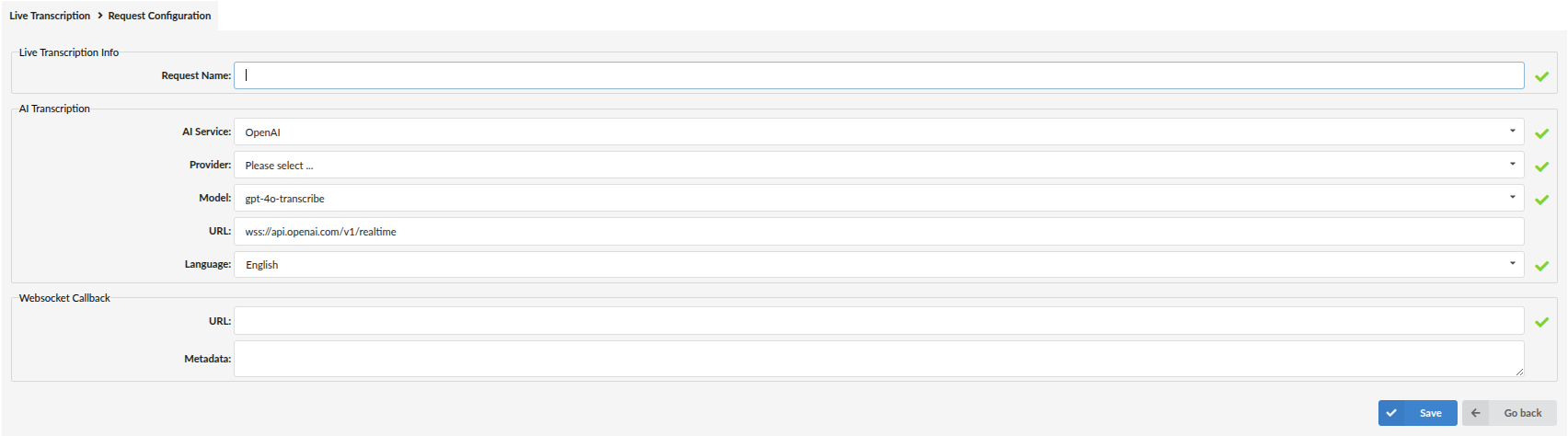
-
Provider
Select the OpenAI AI Provider entry (credentials). -
Model
The transcription model used for Live Transcription (example shown:gpt-4o-transcribe,gpt-4o-mini-transcribe). -
URL
WebSocket endpoint used for the OpenAI real-time transcription connection (example shown:wss://api.openai.com/v1/realtime). -
Language
Language used for transcription (example shown:English).
¶ AWS Transcribe
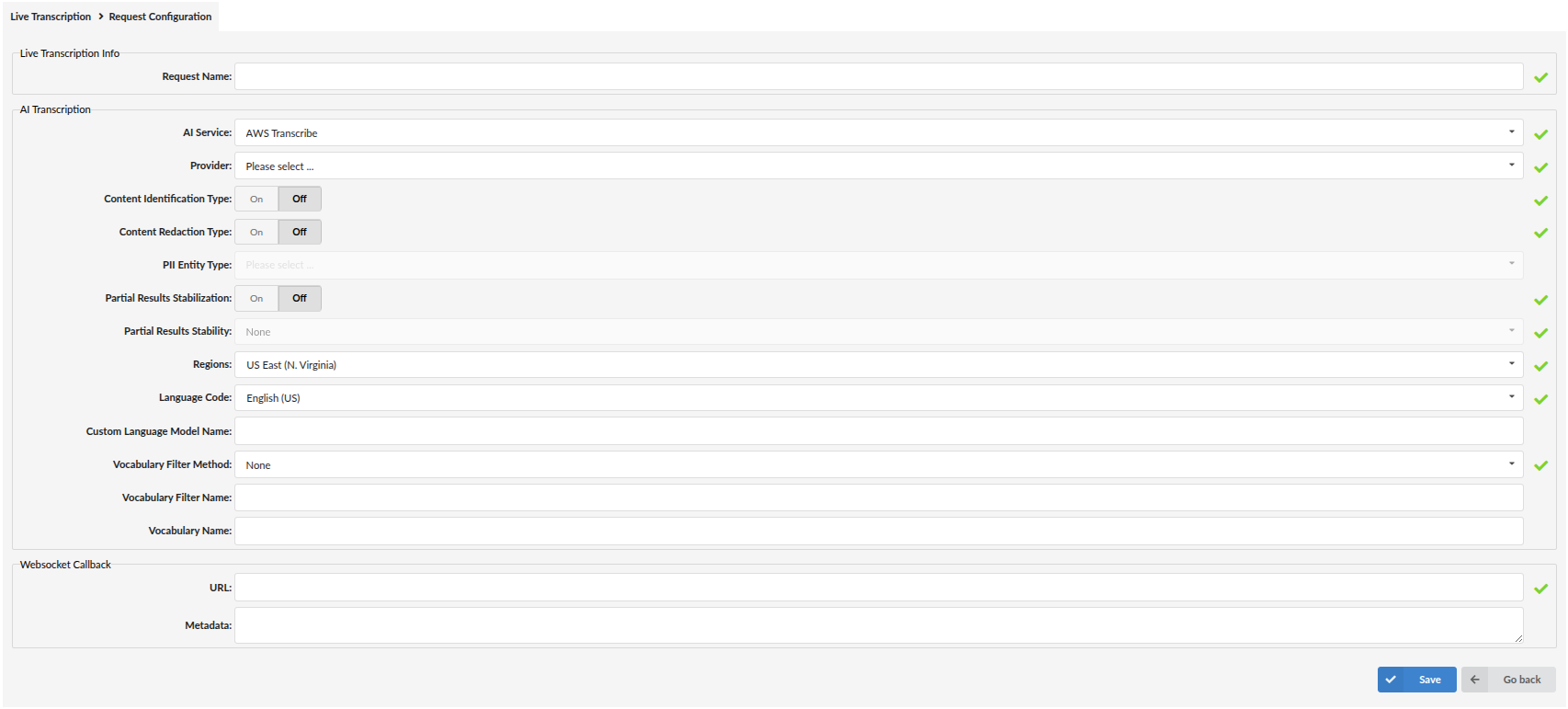
-
Provider
Select the AWS AI Provider entry (credentials). -
Content Identification Type (On/Off)
Enables identification features tied to selected PII Entity Type options. -
Content Redaction Type (On/Off)
Enables redaction based on selected PII Entity Type options. -
PII Entity Type
Select PII types for identification/redaction (depending on enabled option). -
Partial Results Stabilization (On/Off)
Controls how partial transcription results are handled. -
Partial Results Stability
Stability level used when stabilization is enabled (example shown:None). -
Regions
AWS region endpoint targeted by the transcription request (example shown:US East (N. Virginia)). -
Language Code
Transcription language (example shown:English (US)). -
Custom Language Model Name (optional)
Name of a custom AWS language model, if used. -
Vocabulary Filter Method / Vocabulary Filter Name / Vocabulary Name (optional)
Optional AWS vocabulary/vocabulary filter configuration.
¶ Deepgram
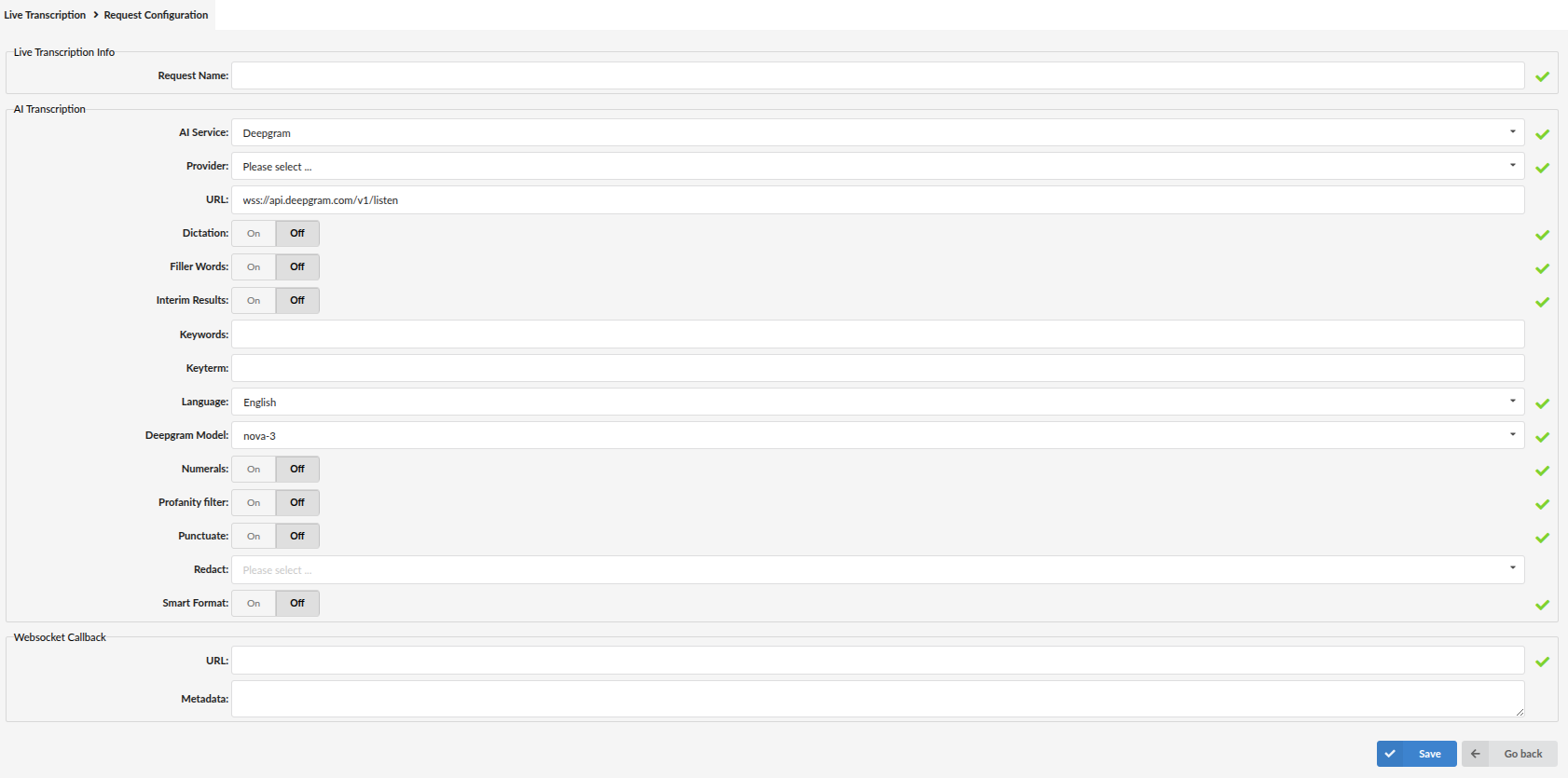
-
Provider
Select the Deepgram AI Provider entry (credentials). -
URL
Deepgram streaming endpoint (example shown:wss://api.deepgram.com/v1/listen). -
Dictation (On/Off)
Dictation automatically formats spoken commands for punctuation into their respective punctuation marks. -
Filler Words (On/Off)
Includes filler words like "uh" and "um" in transcription output. -
Interim Results (On/Off)
Sends ongoing transcription updates while the call is in progress. -
Keywords / Keyterm
Boosts recognition of important words or phrases, like names, product terms, or jargon. The model pays extra attention to these. -
Language
Language used for transcription. -
Deepgram Model
Model used for transcription (example shown:nova-3). -
Numerals (On/Off)
Converts written numbers into numeric format. -
Profanity filter (On/Off)
Filters profanity in output. -
Punctuate (On/Off)
Adds punctuation/capitalization. -
Redact
Indicates whether to redact sensitive information, replacing redacted content with entity tags. -
Smart Format (On/Off)
Smart Format improves readability by applying additional formatting. When enabled, punctuation and paragraph breaks will be applied as well as formatting of other entities, such as dates, times, and numbers.
¶ Google Speech To Text
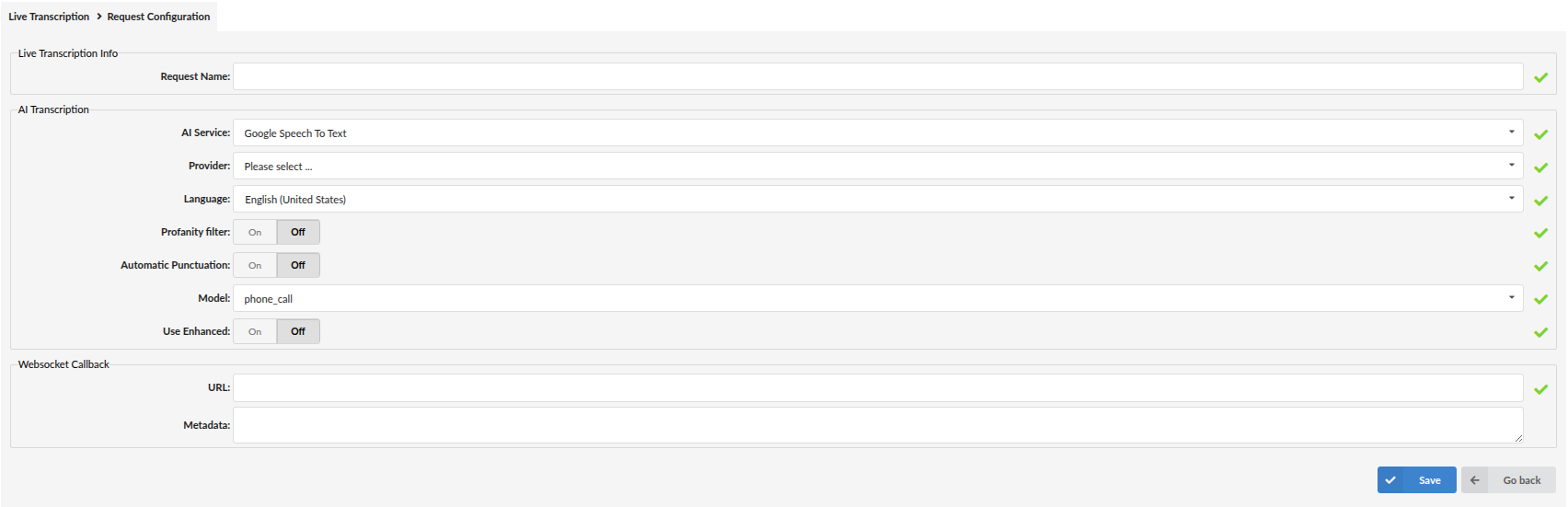
-
Provider
Select the Google AI Provider entry (credentials). -
Language
Language used for transcription (example shown:English (United States)). -
Profanity filter (On/Off)
When enabled, profanity is censored. -
Automatic Punctuation (On/Off)
Adds punctuation to transcription output. -
Model
Model used for transcription (example shown:phone_call). -
Use Enhanced (On/Off)
Uses enhanced recognition models where applicable.
¶ Enabling Live Transcription on call flows
Live Transcription can be assigned to Extensions, Queues, and Enhanced Ring Groups (ERGs) by selecting the created Live Transcription configuration in the corresponding settings.
The Configuration tab on the main Live Transcription page also includes the Enable Live Transcription for internal calls option, which controls whether Live Transcription can be used for internal call scenarios.
The exact steps are documented in the Extension, Queue, and ERG sections of their respective manuals.
¶ Validate Live Transcription (what to check)
- Ensure Stereo Recording is enabled, and Call Recording is enabled on the selected Queue/ERG (prerequisites).
- Create and save a Live Transcription configuration (AI Service + Provider + WebSocket callback URL).
- Enable the configuration on a Queue or ERG (per the Queue/ERG documentation).
- Place a test call through that Queue/ERG.
- Verify your WebSocket callback server receives transcription events in real time.
If no events arrive:
- Confirm the callback URL uses
wss://and is reachable from PBXware. - Re-check the selected Provider credentials for the chosen AI Service.
- Confirm Stereo Recording is enabled and the call flow is using the correct configuration.
¶ Call Transcription
Call Transcription allows PBXware to generate a text transcript of recorded calls using a supported transcription provider. In the current implementation, PBXware supports two providers for Call Transcription: OpenAI and Hosted Whisper (the configuration fields are the same for both).
Important Note: Since Call Recording Transcriptions have been moved to the AI Hub, this is considered a breaking change. Users who had Call Recording Transcriptions configured before upgrading to PBXware 8.0 will need to reconfigure them. Additionally, the Use RAM disk option, located in server settings, must be set to Yes in order for Call Recording Transcriptions to function properly.
¶ Where to configure
To open Call Transcription, navigate to:
Home -> AI Hub -> Call Transcription
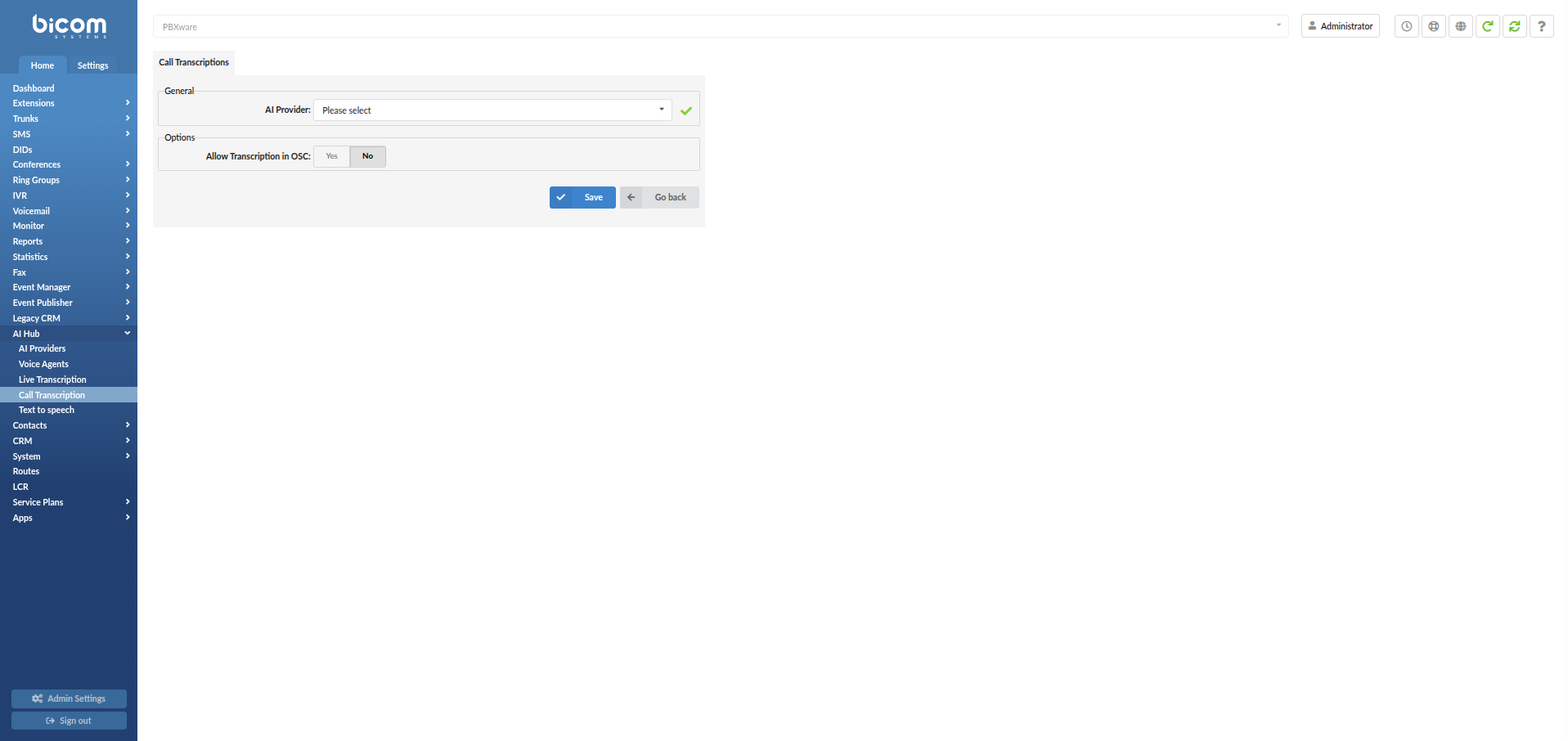
¶ Call Transcription settings
After selecting a provider, the Call Transcription page contains the following fields:
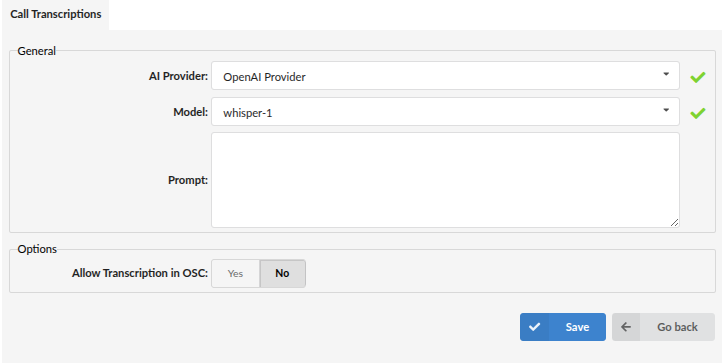
¶ General
-
AI Provider
Select the provider that will be used for Call Transcription (for example:OpenAI ProviderorHosted Whisper Provider). -
Model
Select the transcription model available for the selected provider (example shown:whisper-1). -
Prompt
Optional text field used to influence transcription behavior (for example, terminology/context that improves recognition).
If not needed, leave it empty.
¶ Options
- Allow Transcription in OSC (Yes/No)
Controls whether transcription is available in OSC.
Click Save to apply changes.
¶ Text to speech
Text to Speech (TTS) allows PBXware to generate spoken audio from text using a configured provider. Once enabled, PBXware exposes a Generate sound file option in the Sound Files area so you can create audio prompts directly from text.
Important Note: Since Text To Speech has been moved to the AI Hub, this is considered a breaking change. Users who had Text To Speech configured before upgrading to PBXware 8.0 will need to reconfigure it.
¶ Where to configure
To open Text to speech, navigate to:
Home -> AI Hub -> Text to speech
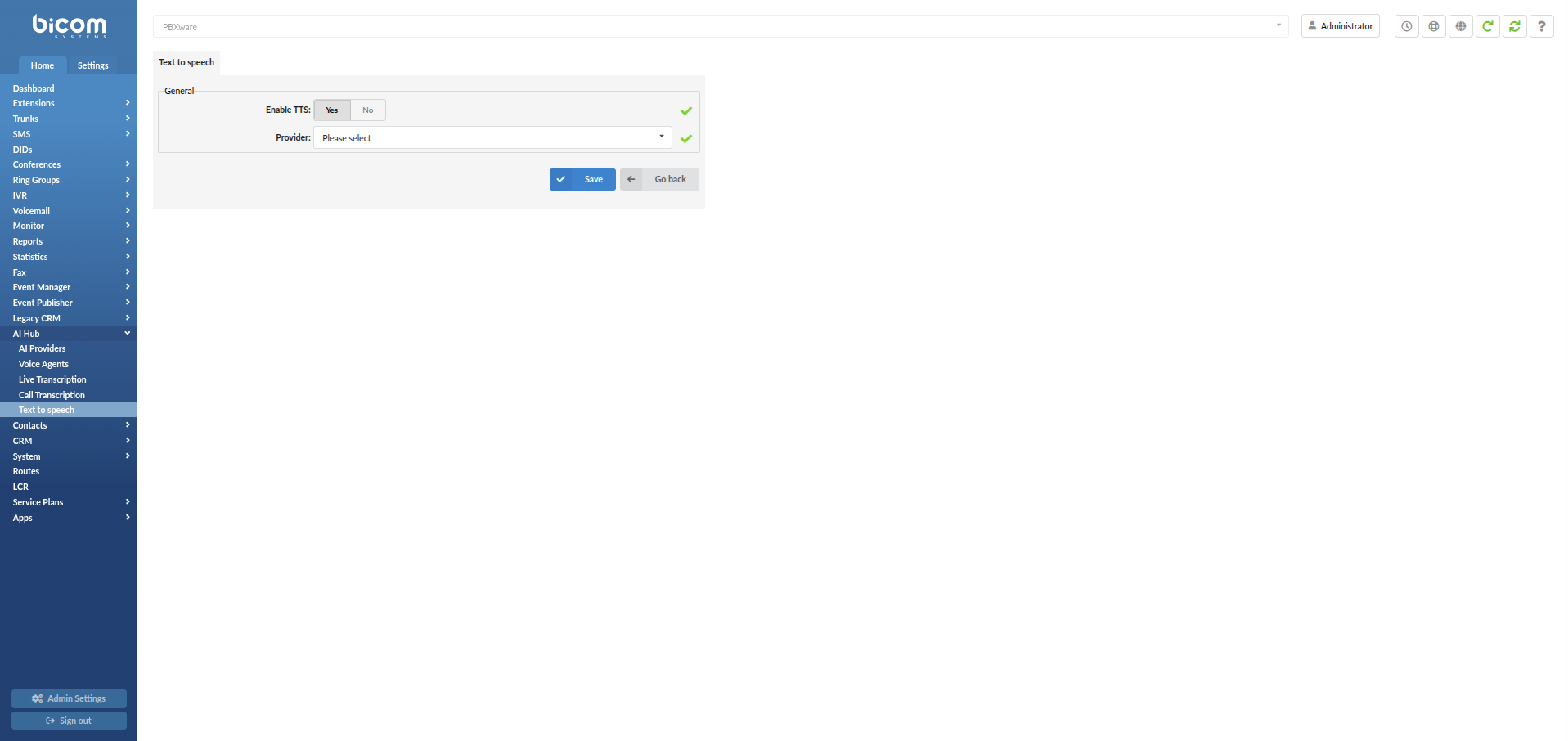
On the Text to speech page:
- Set Enable TTS to Yes
- In Provider, select your preferred AI Provider from the drop-down list
- Click Save to apply the configuration
¶ Where TTS is used (Generate sound files)
After enabling TTS, navigate to:
Home -> System -> Sound Files
A new toolbar option becomes available:
- Generate sound file (AI)
Use Generate sound file to create a new audio prompt from text using the selected TTS provider.
¶ Voicemail Transcription
Voicemail Transcription converts voicemail audio into text using the selected AI Provider.
Important Note: Since Voicemail Transcription has been moved to the AI Hub, this is considered a breaking change. Users who had Voicemail Transcription configured before upgrading to PBXware 8.0 will need to reconfigure it.
¶ Where to configure
To open Voicemail Transcription, navigate to:
Home -> AI Hub -> Voicemail Transcription
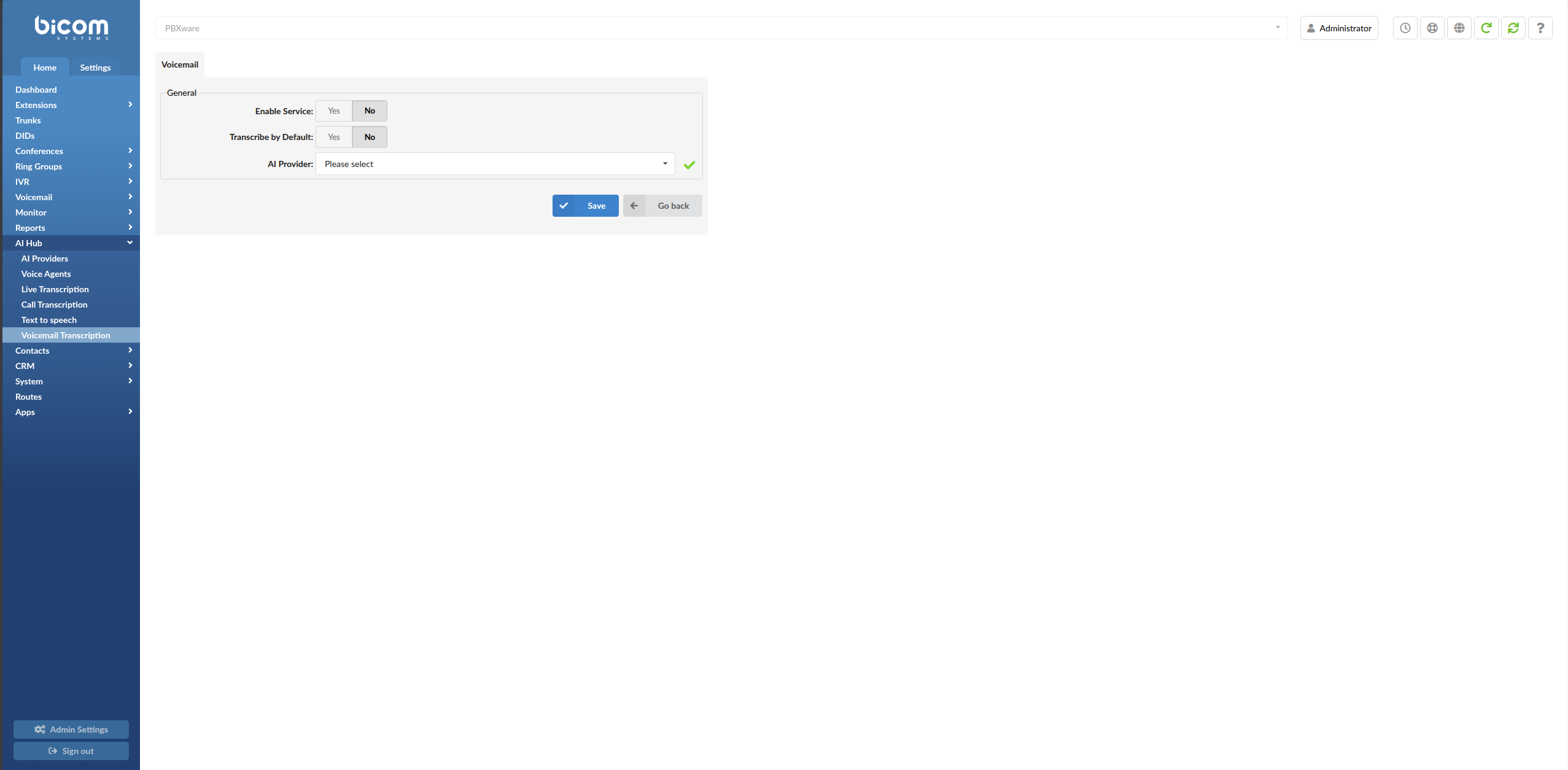
¶ General settings
The Voicemail Transcription page contains the following fields:
-
Enable Service
Enables or disables the Voicemail Transcription service. -
Transcribe by Default
Defines the default behavior for voicemail transcription. -
AI Provider
Select the provider that will be used for voicemail transcription. Supported providers are:Google SpeechOpenAIIBM (Deprecated)
The available fields below depend on the selected AI Provider.
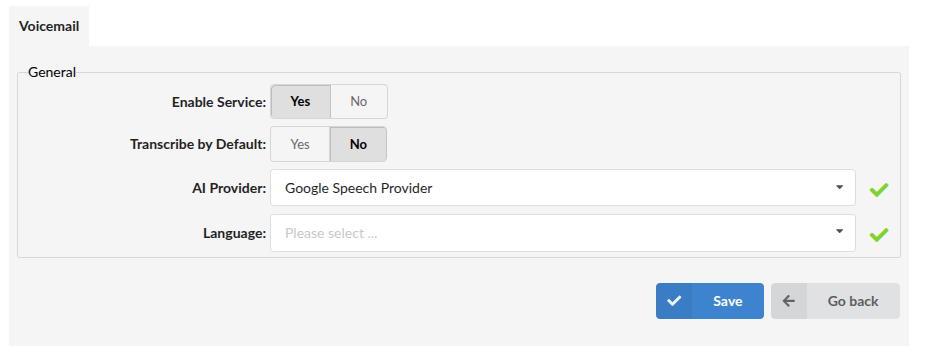
¶ Google Speech configuration
When Google Speech is selected as the AI Provider, the following additional field is shown:
- Language
Select the language that will be used for voicemail transcription.
¶ IBM configuration (Deprecated)
When IBM is selected as the AI Provider, the following additional field is shown:
- Language
Select the language that will be used for voicemail transcription.
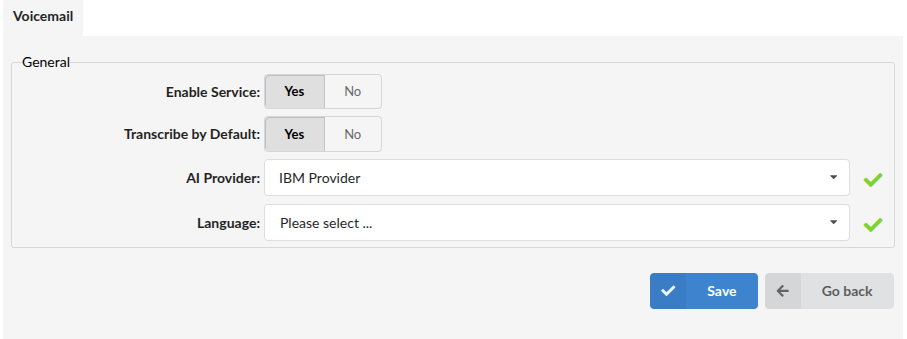
Deprecated: IBM Watson voicemail transcription is deprecated since PBXware 8.0.0.
We recommend migrating to another supported provider for new configurations.
¶ OpenAI configuration
When OpenAI is selected as the AI Provider, the following additional fields are shown:
-
Language
Select the language that will be used for voicemail transcription. -
Prompt
Defines additional instructions for how the voicemail transcription should be processed.
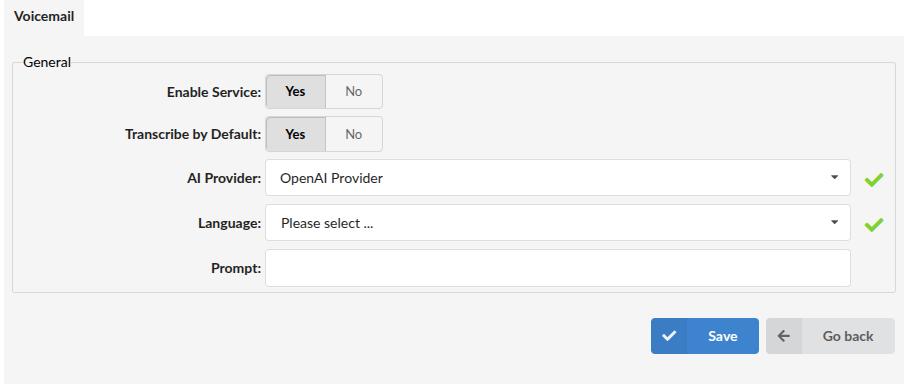
When finished, click Save.
¶ Enabling voicemail transcription on an Extension
After configuring the Voicemail Transcription service, voicemail transcription can be enabled on an Extension.
To do this, open the Extension and navigate to the Voicemail subsection:
Edit Extension -> Voicemail
Then set:
- Transcribe Content =
Yes
This enables voicemail transcription for that Extension.