¶ Introduction to Online Self Care
Online Self Care (OSC) is a web-based user portal that allows PBXware extension owners to access and manage information related to their extension.
Through OSC, users can review call activity, manage personal extension settings, access voicemail messages, and use additional extension services available within the system.
After logging in, the user is presented with a navigation menu that provides access to the following sections:
- Dashboard
- My Details
- CDR (Call Detail Records)
- Other
The Other section includes additional features such as:
- SMS Report
- Services
- Voicemail
Each of these sections is described in detail in the following chapters.
¶ Accessing Online Self Care
Online Self Care can be accessed through the Electron app or directly through a web browser.
The Electron client connects to the PBXware system using the system domain or web application address and provides access to Online Self Care features within the client interface. Alternatively, users can access the Online Self Care portal directly through a web browser using the PBXware domain or IP address.
To access Online Self Care through a browser:
- Open a web browser and enter the PBXware domain or IP address.
- Enter the extension E-mail address in the Email field.
- Enter the User Password in the Password field.
- Click Login.
Users authenticate using the E-mail address assigned to the extension and the User Password configured for that extension.
Note: When logging in for the first time, users are required to change the default User Password and set their own secure password.
This password is shared between Electron and Online Self Care, meaning that changing it during the first login will apply to both access methods.
¶ OSC Dashboard
The Dashboard is the first screen displayed after a user successfully logs in to Online Self Care (OSC).
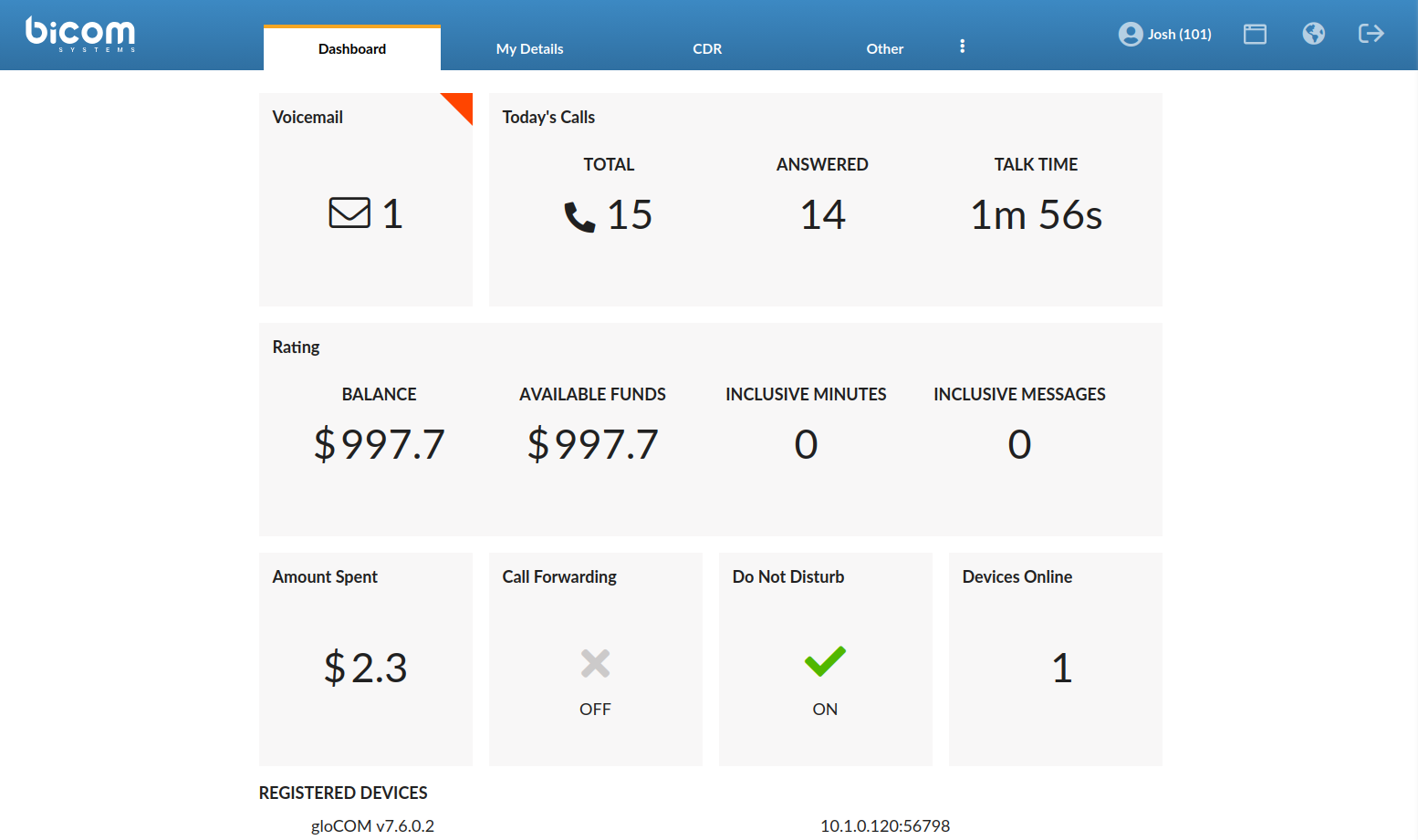
This page provides an overview of the extension's current status and activity. From the dashboard, users can view voicemail notifications, today's call statistics, Rating information, and the current status of several extension features.
The dashboard displays the following information:
- Voicemail - number of new or unread voicemail messages
- Today's Calls - summary of calls for the current day, including Total, Answered, and Talk Time
- Rating - service plan usage information including Balance, Available Funds, Inclusive Minutes, and Inclusive Messages
- Amount Spent - total amount spent by the extension
- Call Forwarding Status - indicates whether call forwarding is currently enabled or disabled
- Do Not Disturb (DND) - indicates whether Do Not Disturb is enabled or disabled
- Devices Online - number of currently connected devices
- Registered Devices - list of devices currently registered to the extension
¶ Top Navigation Bar
The Top Navigation Bar is visible on all Online Self Care pages and provides quick access to user information and common actions.
The following elements are displayed:
- Extension Name and Number - displays the name and extension number of the currently logged-in user
- Web App Icon - opens the web application interface in a new browser tab
- Language Selection - allows the user to change the interface language
- Logout - logs the user out of the Online Self Care portal
Note: Rating information on the Dashboard is displayed only if Show Rating Info is enabled in the assigned Service Plan.
If this option is disabled, rating-related details such as balance and usage will not be visible in Online Self Care.
¶ My Details
The My Details tab allows users to manage personal account information associated with their extension.
From this section, users can update their login credentials, configure the extension PIN, and enable additional security options such as two-factor authentication (2FA).
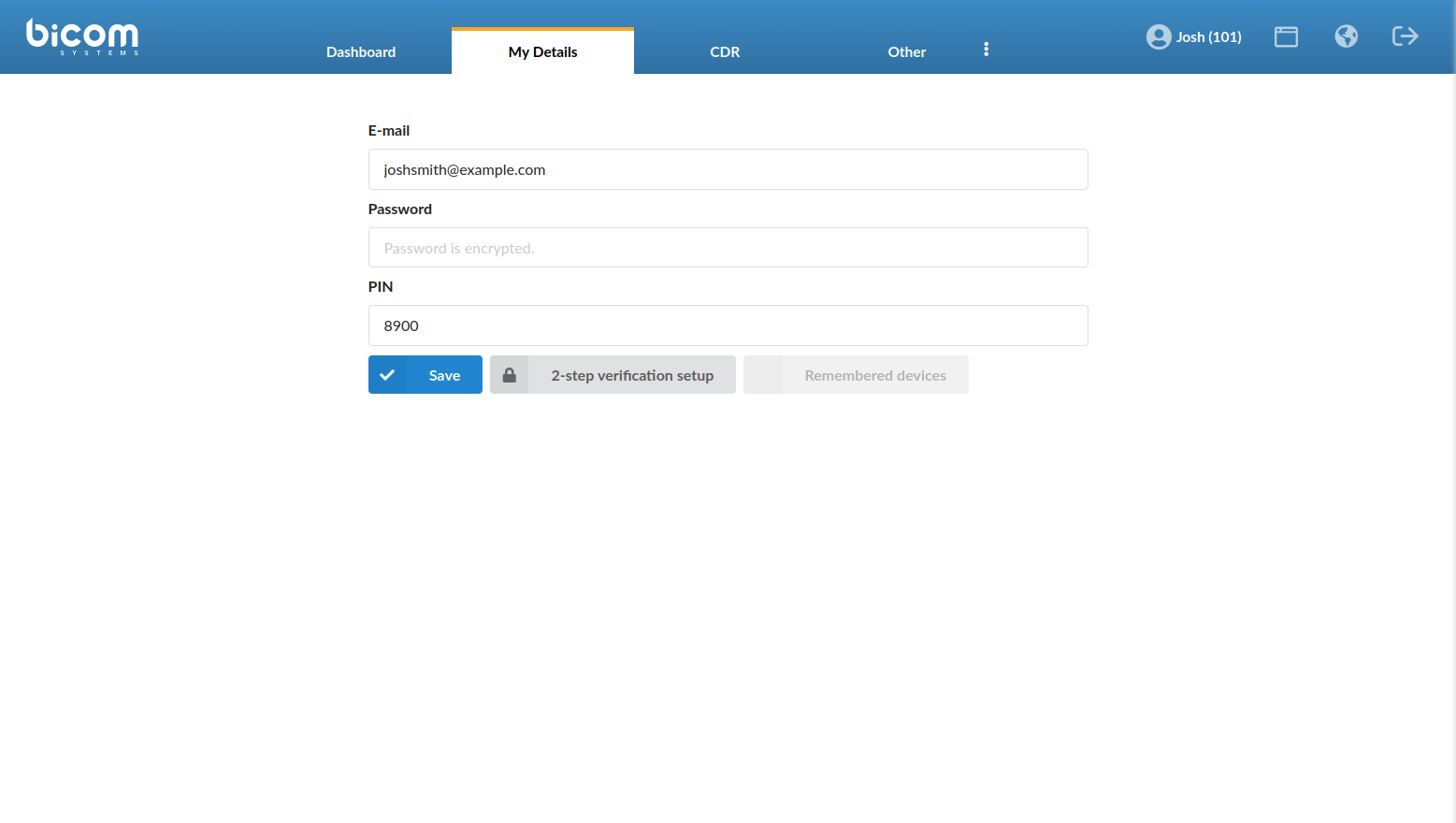
The following fields and options are available in this section.
-
E-mail - displays the email address associated with the extension. This email address is used as the username when logging in to Online Self Care. Users may update the email address if permitted by the system configuration.
-
Password - allows the user to change the User Password used to log in to Online Self Care and the Electron client. For security reasons, the existing password is not displayed.
-
PIN - defines the extension PIN code used for authentication when accessing certain telephony features such as voicemail or other PBXware services that require extension verification.
-
Save - applies any changes made to the email address, password, or PIN. Changes take effect after clicking Save.
¶ Remembered Devices
The Remembered devices option allows users to view devices that are currently authenticated with their Online Self Care account.
Clicking the Remembered devices button displays a list of all devices where the user is currently logged in.
From this list, users can:
- review active sessions
- log out individual devices
Selecting Logout next to a device will terminate the session and log the user out of that specific device.
¶ Two-Step Verification Setup
Online Self Care supports two-factor authentication (2FA) to provide an additional layer of security for user accounts.
To enable two-factor authentication, click 2-step verification setup in the My Details tab.
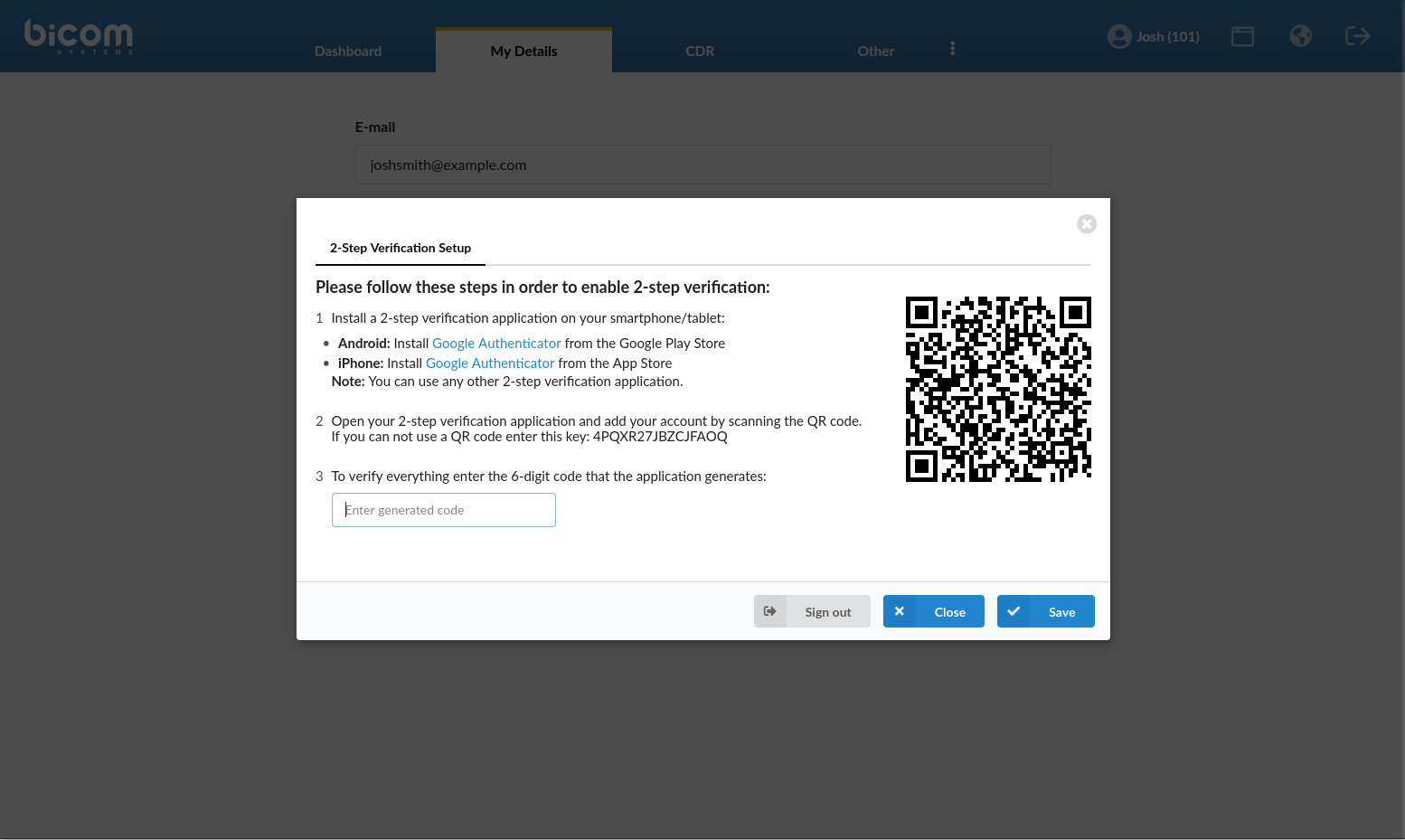
Follow these steps to configure 2FA:
- Install a two-factor authentication application on a smartphone or tablet (for example Google Authenticator or any compatible authenticator application).
- Open the authenticator application and scan the QR code displayed on the screen.If the QR code cannot be scanned, the provided setup key can be entered manually in the authenticator application.
- Enter the 6-digit verification code generated by the authenticator application.
- Click Save to enable two-factor authentication.
Once enabled, users will be required to enter the generated authentication code when logging in.
¶ CDR (Call Detail Records)
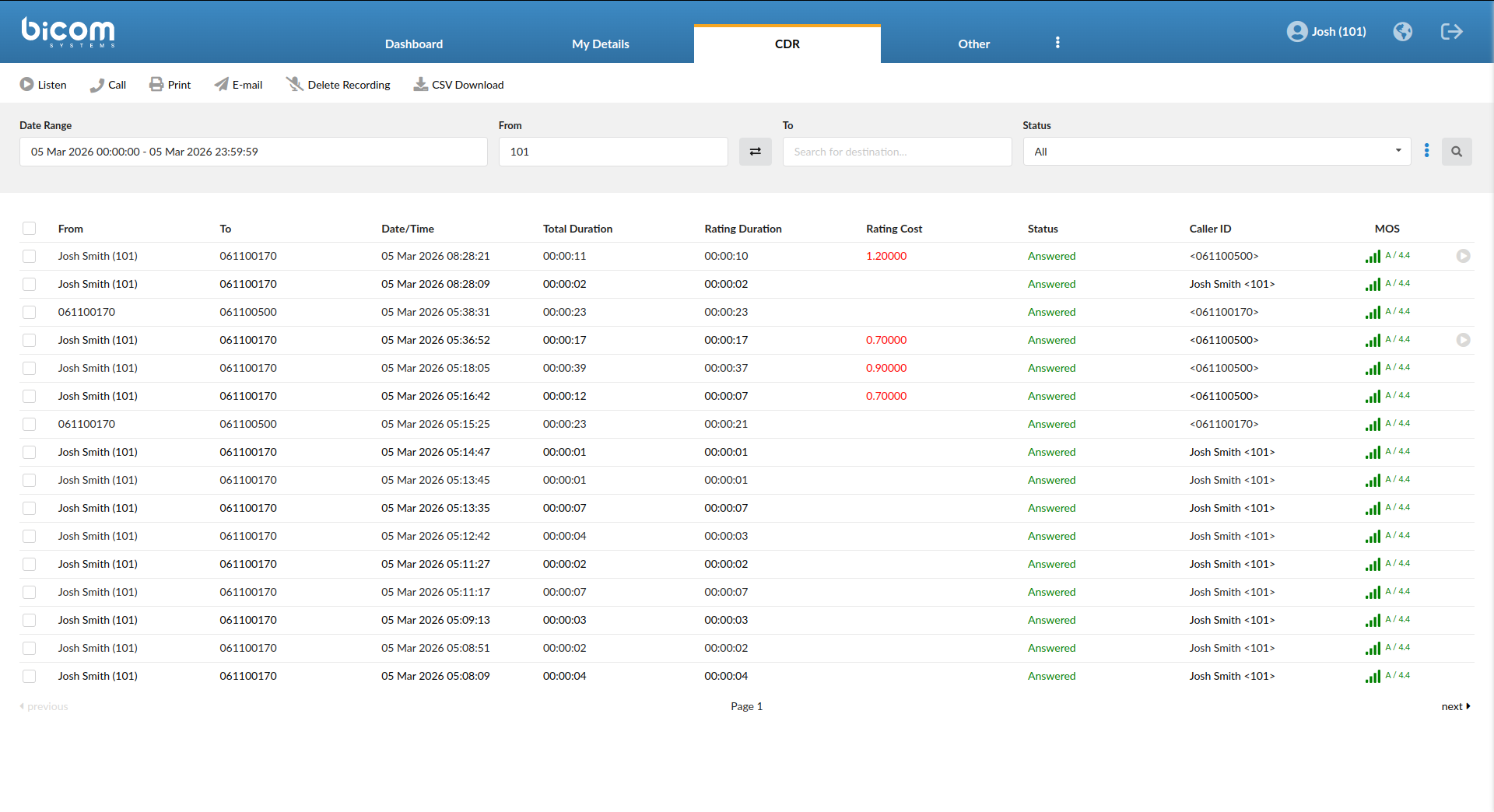
The CDR tab allows users to review detailed records of calls associated with their extension.
Users can search for calls within a selected time range, filter results, and perform actions such as listening to recordings or exporting call data.
¶ Search Filters
The CDR section provides several filters that allow users to narrow down the displayed call records.
- Date Range - defines the time period for which call records will be displayed.
- From - filters calls originating from the specified extension or number.
- To - filters calls directed to a specific destination number.
- Status - filters calls by call status.
Available status values include:
- All - displays all calls.
- Answered - displays calls that were successfully answered.
- Not Answered - displays calls that were not answered.
- Busy - displays calls that encountered a busy signal.
- Error - displays calls that ended with an error.
¶ Additional Search Options
Additional filtering options can be accessed by clicking the three-dot menu in the filter section.
- Show rated calls only - displays only calls that include billing information.
- Show recorded calls only - displays only calls that have an associated call recording.
¶ CDR Actions
The toolbar above the call records allows users to perform several actions on selected calls.
- Listen - plays the selected call recording directly in the browser.
- Call - initiates a call to the selected number using the connected client.
- Print - prints the selected call record information.
- E-mail - sends call information via email.
- Delete Recording - deletes the recording associated with the selected call.
- CSV Download - exports call records in CSV format for reporting or analysis.
¶ Call Records Table
The call records table displays the following information for each call:
- From - the calling extension or number
- To - the destination number
- Date/Time - when the call occurred
- Total Duration - the full length of the call
- Rating Duration - the billable portion of the call
- Rating Cost - cost of the call (if rating is enabled)
- Status - call result (answered, busy, etc.)
- Caller ID - caller identification information
- MOS - Mean Opinion Score indicating call quality
- Play Recording - when call recording is enabled and a recording exists, a play button is displayed allowing users to listen to the recorded call or download the recording.
Each row includes a selection checkbox that allows users to select individual call records. The checkbox located in the table header can be used to select or deselect all listed records at once, allowing users to apply available CDR actions to multiple calls.
¶ Other
The Other tab provides access to additional extension tools and services available in Online Self Care.
The available options may include:
- Destinations
- SMS Report
- Services
- Voicemail
Each option is described in the sections below.
¶ Destinations
The Destinations section allows users to view and configure which call destinations are permitted for their extension.
The layout of the Destinations tab may vary depending on the routing mode configured on the System. PBXware supports two routing modes: Simple Routing and E.164 Routing. The available destination groups and sections displayed in this tab depend on which routing mode is enabled.
¶ Simple Routing
When Simple Routing is enabled, destinations are grouped into predefined destination categories.
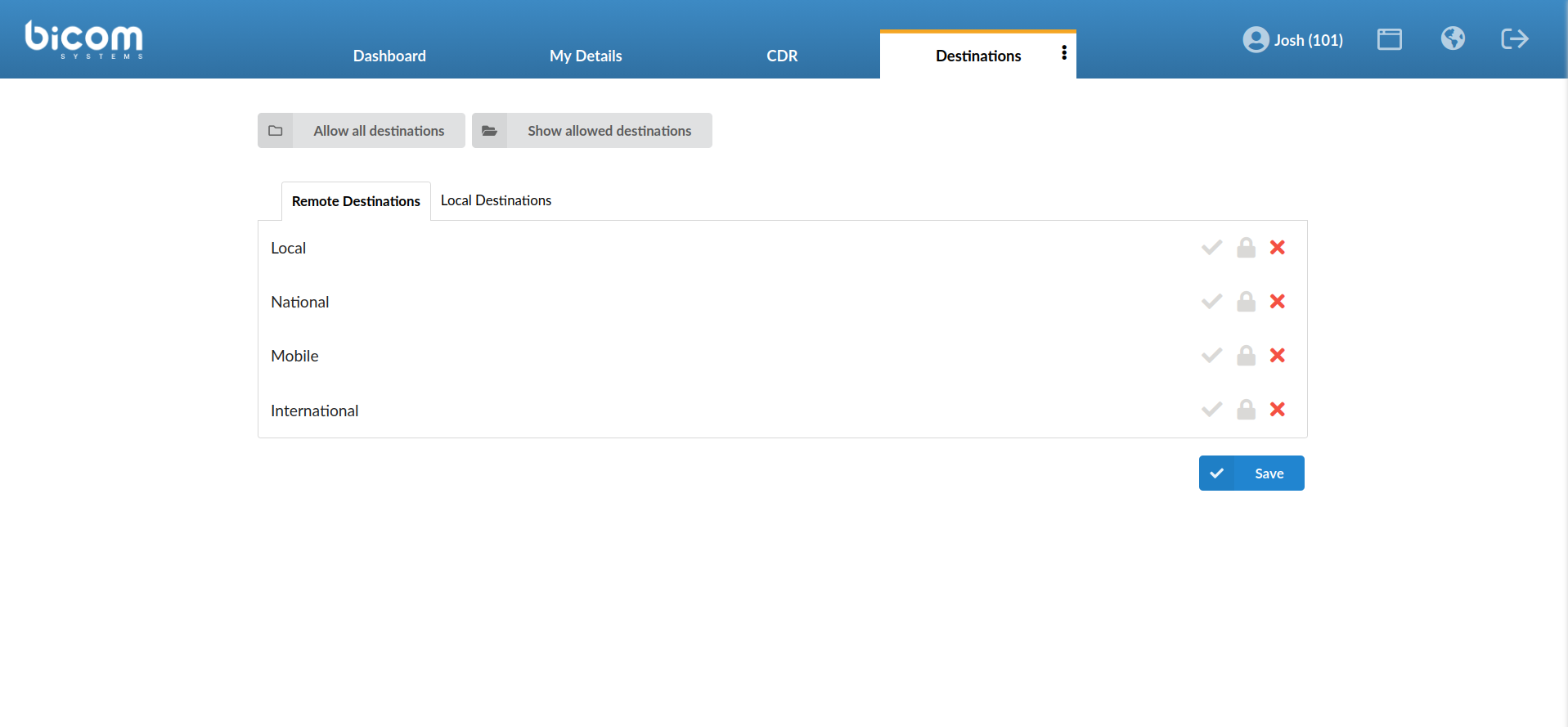
Users can enable or disable calling permissions for destination groups. Destination permissions are organized into two sections:
-
Remote Destinations - controls permissions for external call destinations. Available groups typically include:
- Local
- National
- Mobile
- International
-
Local Destinations - controls permissions for internal PBX destinations, such as:
- Local Extensions
- Network
- Auto Attendants
- Voicemail
- Conferences
- Queues
- Enhanced Ring Groups
After modifying the permissions, click Save to apply the changes.
Selecting Show allowed destinations displays a list of all destination groups currently enabled for the extension, allowing users to quickly verify which destinations are permitted for outgoing calls.
¶ E.164 Routing
When E.164 Routing is enabled, the Destinations tab displays a different layout that provides more granular control over allowed destinations.
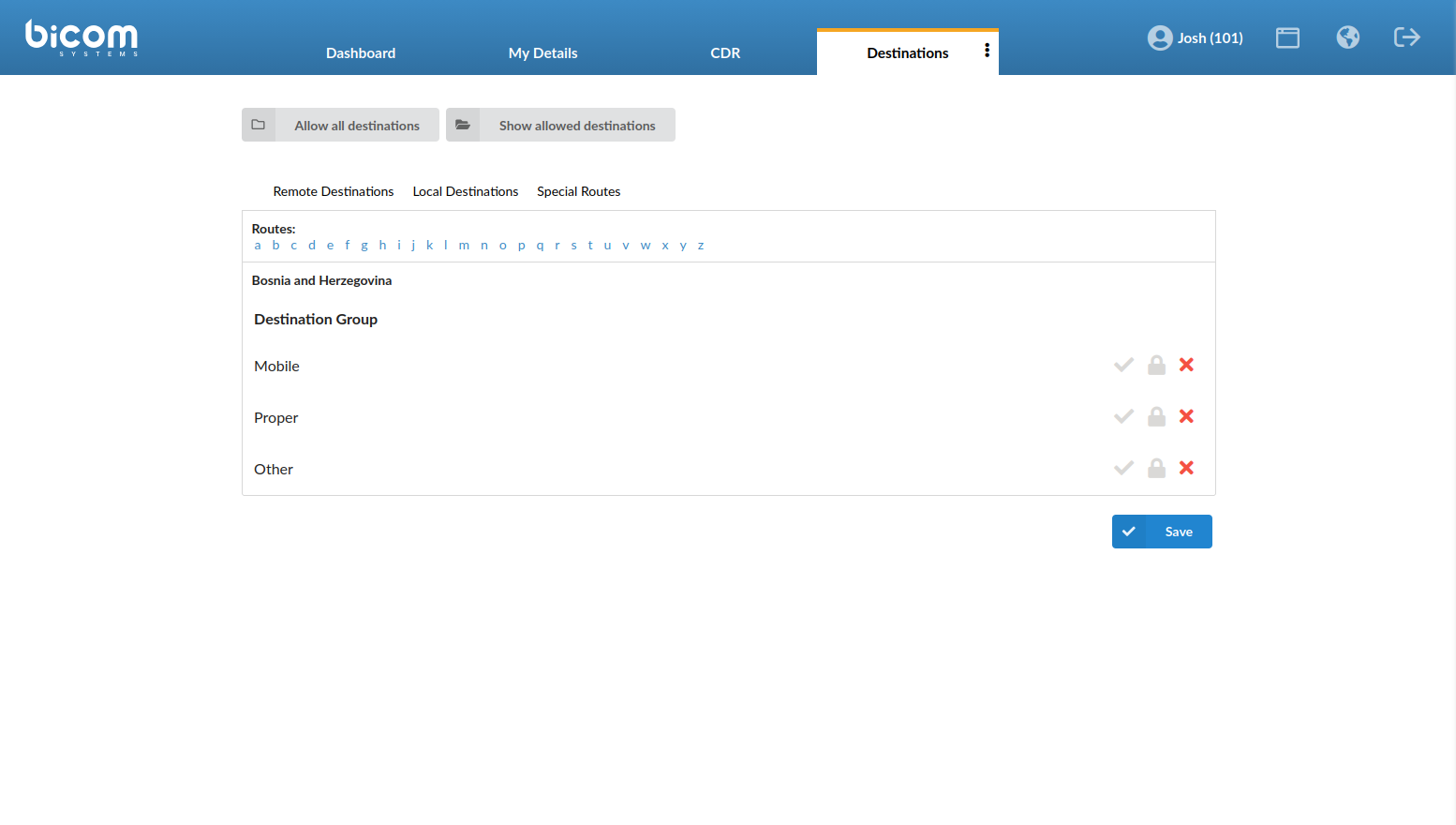
The interface includes the following sections:
- Remote Destinations
- Local Destinations
- Special Routes
Destinations are organized by country, and routes can be browsed alphabetically based on the first letter of the country name.
Within each country, destination groups such as Mobile, Proper, and Other can be enabled or disabled.
After making changes, click Save to apply the configuration.
Note: The Destinations section in Online Self Care is visible only if Show destination permissions is enabled in the assigned Service Plan.
If this option is disabled, users will not see destination permission settings in Online Self Care.
¶ SMS Report
The SMS Report section displays a list of SMS messages associated with the extension and provides tools for reviewing and exporting message records.
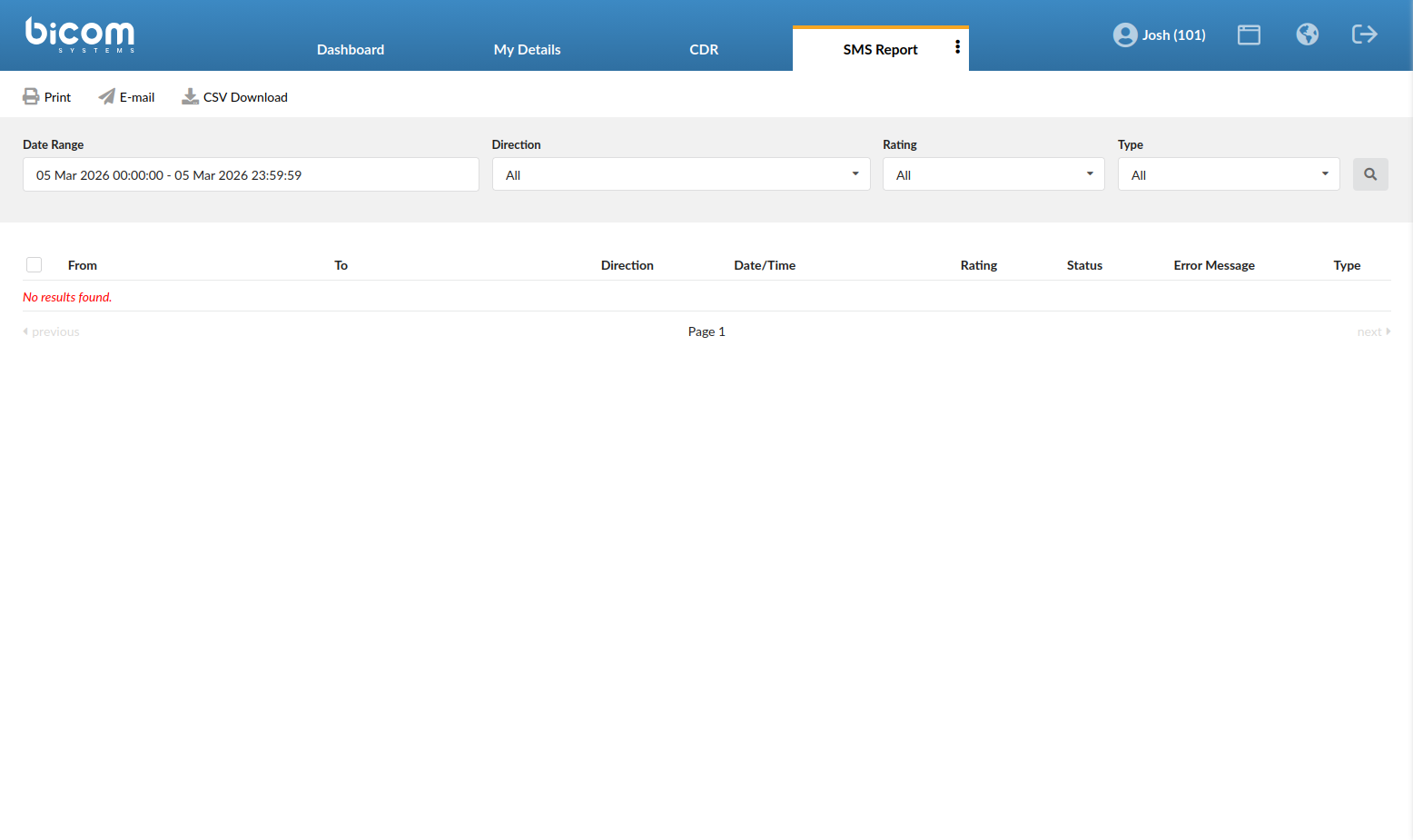
Users can filter and review SMS activity using the available search fields and actions.
¶ Filters
The following filters are available to narrow down SMS records:
- Date Range - specifies the time period for which SMS records will be displayed.
- Direction - filters messages by direction (incoming, outgoing, or all).
- Rating - filters messages based on billing status.
- Type - filters messages by SMS type.
After defining the desired filters, click the Search icon to display matching records.
¶ Available Actions
The following actions are available for SMS records:
- Print - prints the currently displayed SMS report.
- E-mail - sends the report to a specified email address.
- CSV Download - exports the SMS report as a CSV file.
¶ SMS Records Table
The SMS records table displays the following information for each message:
- From - the sender of the SMS message.
- To - the destination number.
- Direction - indicates whether the message was incoming or outgoing.
- Date/Time - the time when the message was sent or received.
- Rating - billing information related to the message.
- Status - delivery status of the SMS message.
- Error Message - displays any error information related to message delivery.
- Type - indicates the message type.
¶ Services
The Services section allows users to manage and configure enhanced services/extension features available to their account.
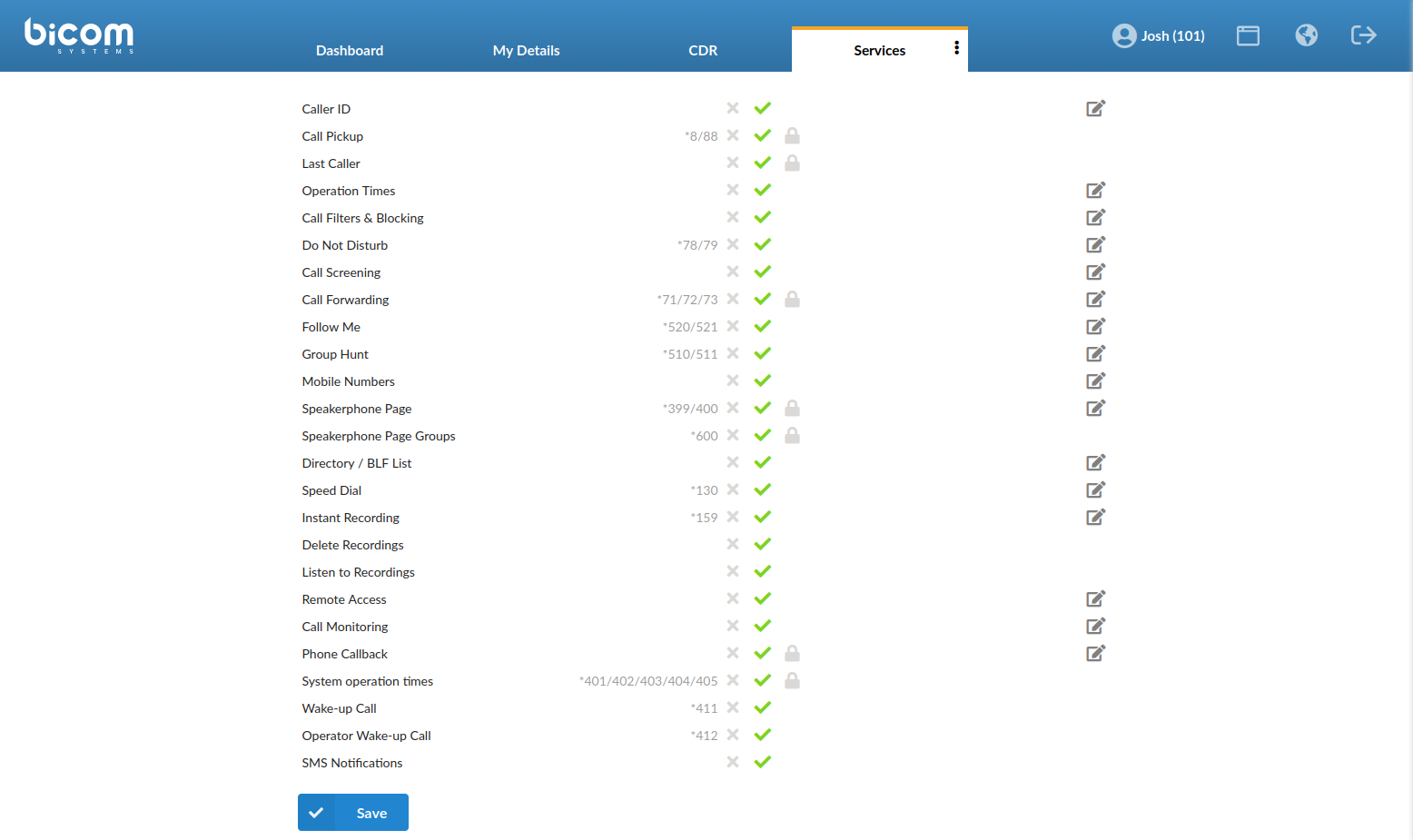
These services provide additional functionality that extends the standard calling experience, allowing users to configure features such as Caller ID, Call Forwarding, Follow Me, Speed Dial, and other extension-related options.
The availability of each service depends on the Service Plan assigned to the extension.
Note: In the Enhanced Services section of the Service Plan configuration, a star icon indicates that the service can be configured by the end user through Online Self Care (OSC).
If the star option is enabled, users will be able to manage that specific service within the Services tab.
The Services section in Online Self Care is visible only if Show Enhanced Services is enabled in the assigned Service Plan.
If this option is disabled, users will not be able to view or configure enhanced services through Online Self Care.
Depending on the permissions defined by the system administrator, each service can be enabled, disabled, PIN-locked, or configured by the extension owner (end user).
¶ Voicemail
The Voicemail section allows users to review and manage voicemail messages associated with their extension.
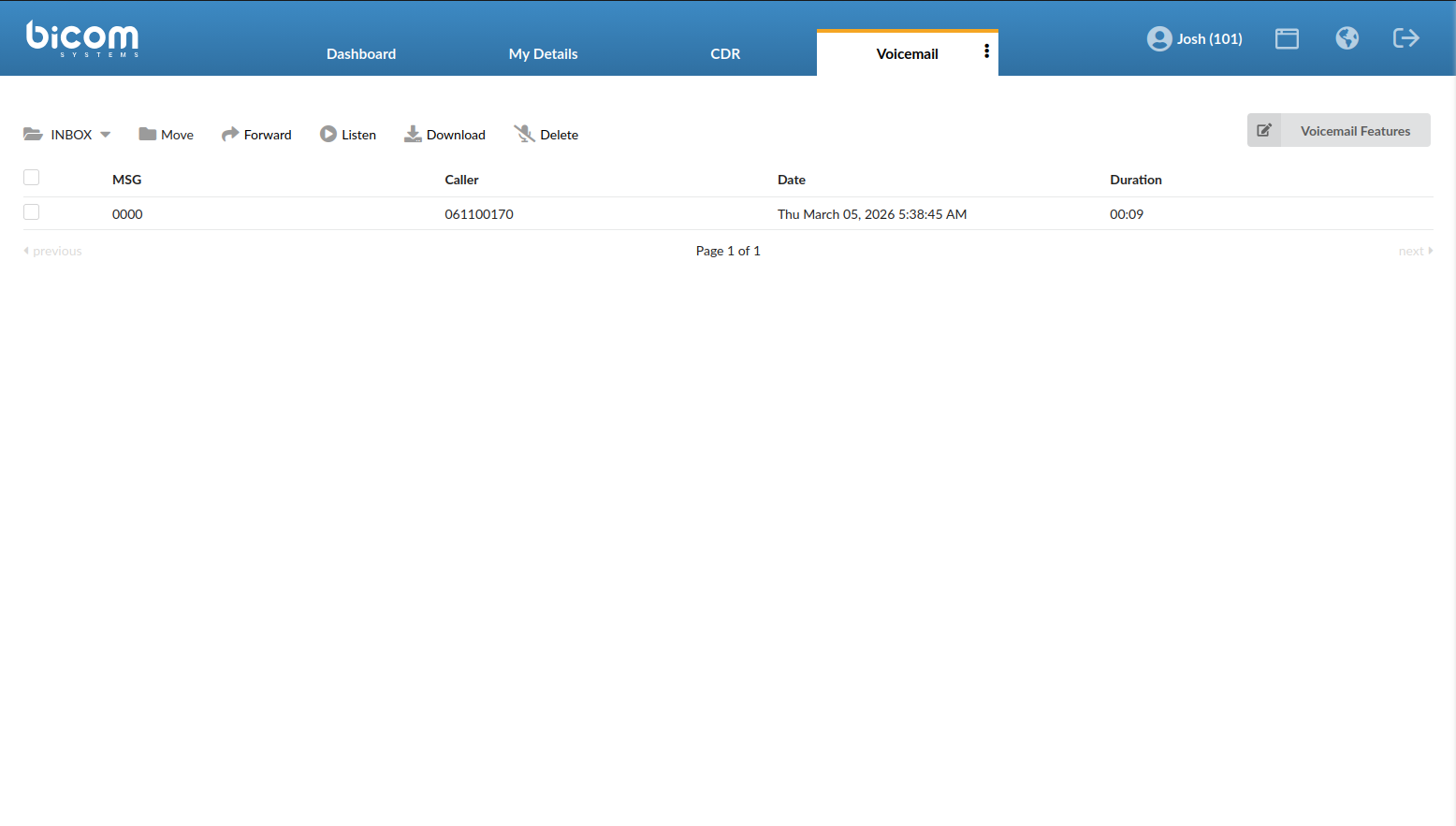
From this section, users can listen to voicemail recordings, download or delete messages, and manage voicemail-related settings.
¶ Voicemail Actions
The following actions are available for voicemail messages:
- Folder (INBOX drop-down) - allows users to switch between available voicemail folders (for example: INBOX and other folders, if configured).
- Move - moves the selected voicemail message(s) to another folder.
- Forward - forwards the selected voicemail message to another extension.
- Listen - plays the selected voicemail message.
- Download - downloads the selected voicemail recording to the local device.
- Delete - deletes the selected voicemail message.
¶ Voicemail Messages Table
The voicemail messages table displays the following information for each message:
- MSG - indicates the voicemail message entry.
- Caller - the number or name of the caller who left the message.
- Date - the date when the voicemail was received.
- Duration - the length of the voicemail message.
- Selection Checkbox - allows users to select individual messages. The checkbox in the table header can be used to select or deselect all listed messages.
¶ Voicemail Features
Online Self Care allows extension owners to configure voicemail settings through the Voicemail Features option.
To open voicemail configuration, click Voicemail Features in the Voicemail section.
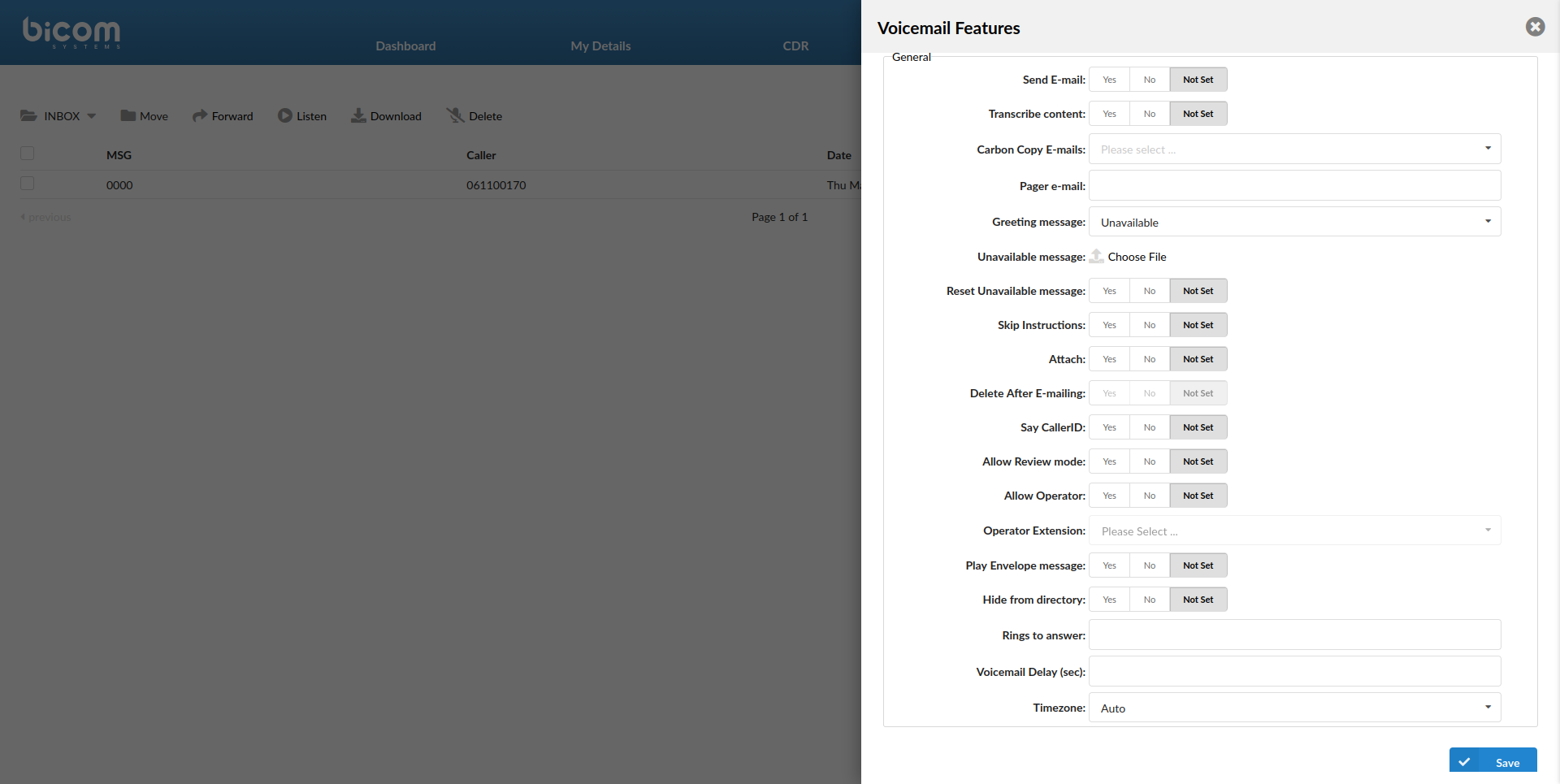
This opens the Voicemail Features configuration window, where users can adjust voicemail-related settings for their extension (for example: voicemail notifications, greetings, and other voicemail features).
Click Save to apply changes.
Note: The Voicemail section in Online Self Care is visible only if Show Voicemail is enabled in the assigned Service Plan.
If this option is disabled, the Voicemail section will not appear in the Online Self Care interface.