¶ Installation
- Visit the official Bicom Systems website at www.bicomsystems.com and download the gloCOM Next desktop app for your operating system.
- Run the downloaded installer and follow the on-screen prompts.
- Review and accept the End User License Agreement (EULA) when prompted to continue the installation.
- Launch gloCOM Next once the installation finishes and proceed to log in.
¶ MSIX installer for Windows
MSIX is a modern way to install desktop apps on Windows.
Windows MSIX installer provides clean installation and uninstallation, automatic updates, improved security through app containerization, and simplified enterprise deployment.
Note: Installation is only required for the gloCOM Next Desktop app. The Web app can be accessed by navigating to the appropriate IP address in your browser.
¶ Logging In
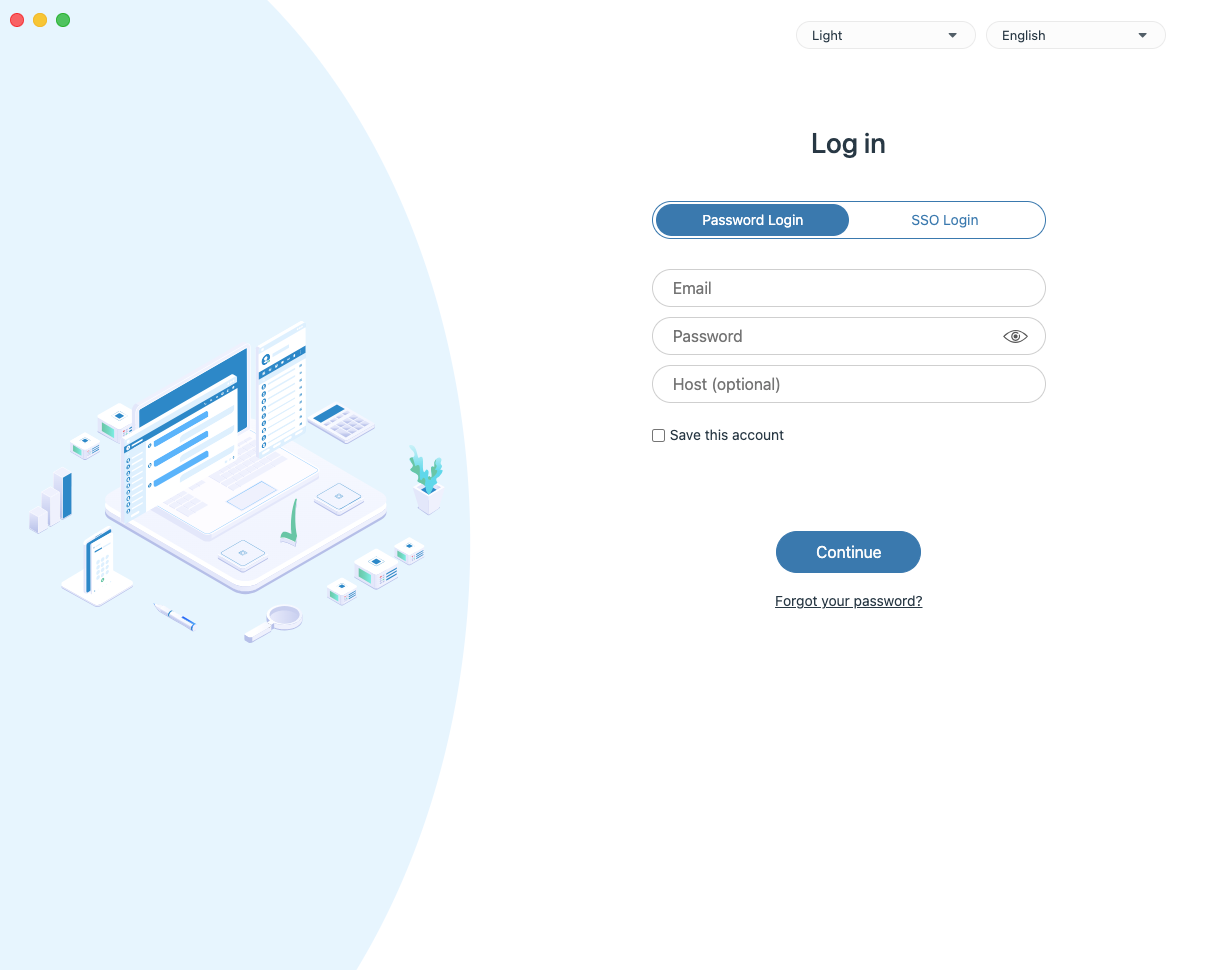
- Open the gloCOM Next application and navigate to the login page. You will see two login options at the top:
- Password Login – Enter your email and password credentials
- SSO Login – Use your organization's single sign-on authentication
Note: For SSO Login to function, it must first be properly configured on the server side
- Enter your credentials:
- Type your Email address in the first field
- Enter your Password in the second field (click the eye icon to show/hide the password)
- Enter Host (This field does not exist in the web application)
Tip: If you've forgotten your password, click "Forgot your password?" to reset it.
- Click the Continue button to access your gloCOM Next main screen.
¶ Changing Edition
The application allows you to select or switch between editions based on your requirements.
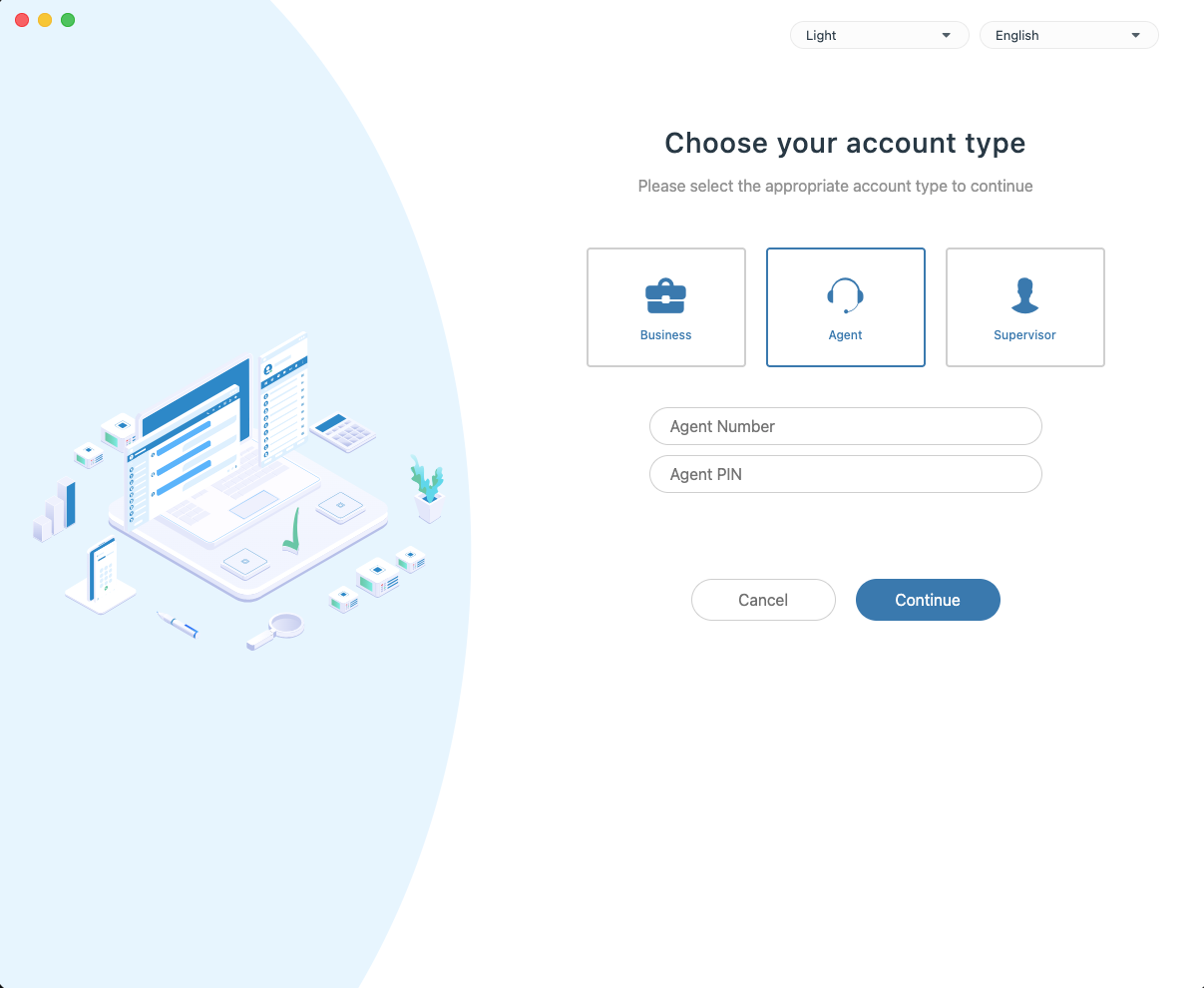
- First-Time Login: Upon your first login, after providing valid credentials and clicking Continue, you will be automatically taken to the Edition Selection screen to choose your preferred workspace.
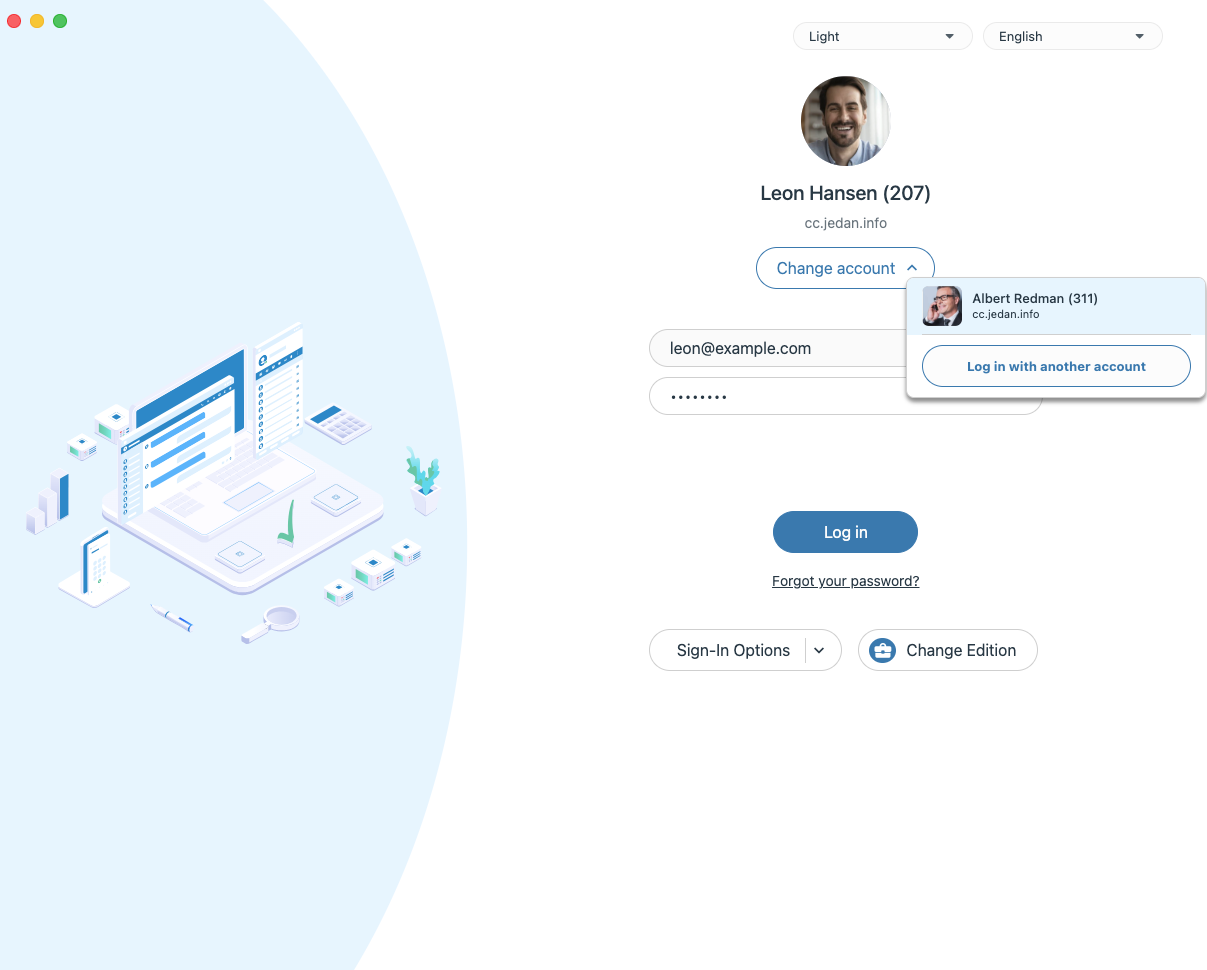
- Switching Editions: To change the edition for a saved account, look for the Change Edition button located at the bottom of the login screen. Clicking this allows you to reselect your edition before entering the application.
- Agent Credentials: To complete the login for both the Agent and Supervisor editions you will need to provide your Agent Number and Agent PIN (if required). This ensures that supervisors and agents can only view and manage the queues they are assigned to.
Note: Editions must first be properly configured on the server side to be available for selection.
¶ Saving Accounts
- Check the "Save this account" box on the login screen to remember your credentials for future sessions.
- Saved accounts will be accessible via the Change account dropdown menu.
¶ Two Factor Authentication (2FA)
To set up 2FA, log in to the app, navigate to Online Self Care, click the 2-Step Verification button, and follow the instructions.
Note: The 2FA feature cannot be combined with SSO
¶ Agent Status Management
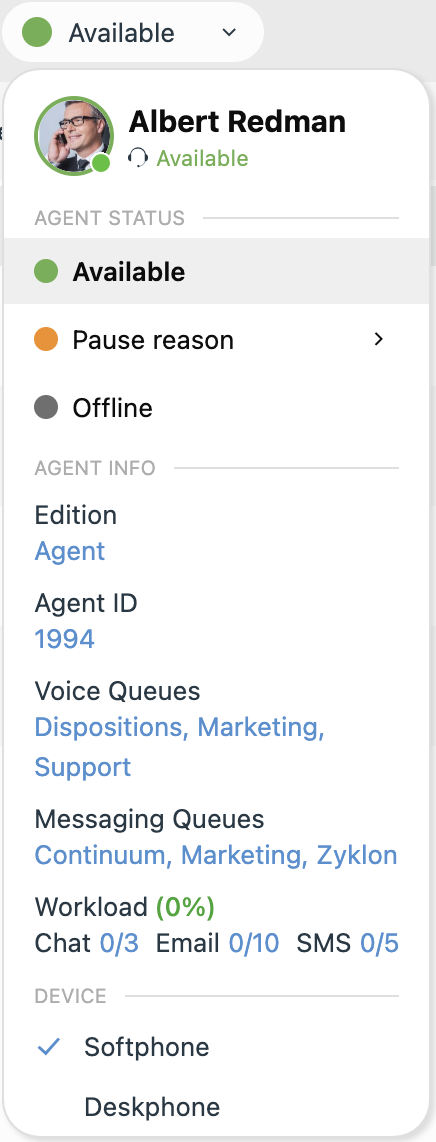
The Agent dropdown provides centralized control over your availability, active queues, and hardware endpoints.
¶ Managing Your Status
-
Agent Login/Logout: Use the main status dropdown to switch between Available and Offline.
-
Pausing with Reasons: Select Pause reason to temporarily stop receiving calls. If specific pause reasons are configured on the server, you can select the most appropriate one from the sub-menu. When paused, a yellow bar will appear to indicate your time in that state.
¶ Device Selection
You can change your active endpoint directly from the status menu under the Device section.
- Select Softphone to use the application for audio.
- Select Deskphone if you prefer to handle calls via your physical hardware.
Tip: Device selection is required for inbound calls when the Auto Answer option is enabled and you are using both a softphone and a deskphone. In this case, select a device so the system knows where to direct the auto-answered call.
¶ Profile Dropdown
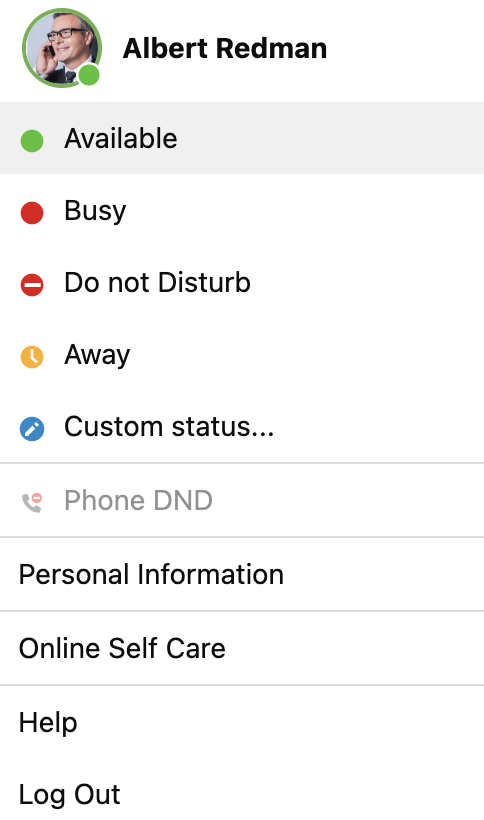
¶ Changing your Profile Picture
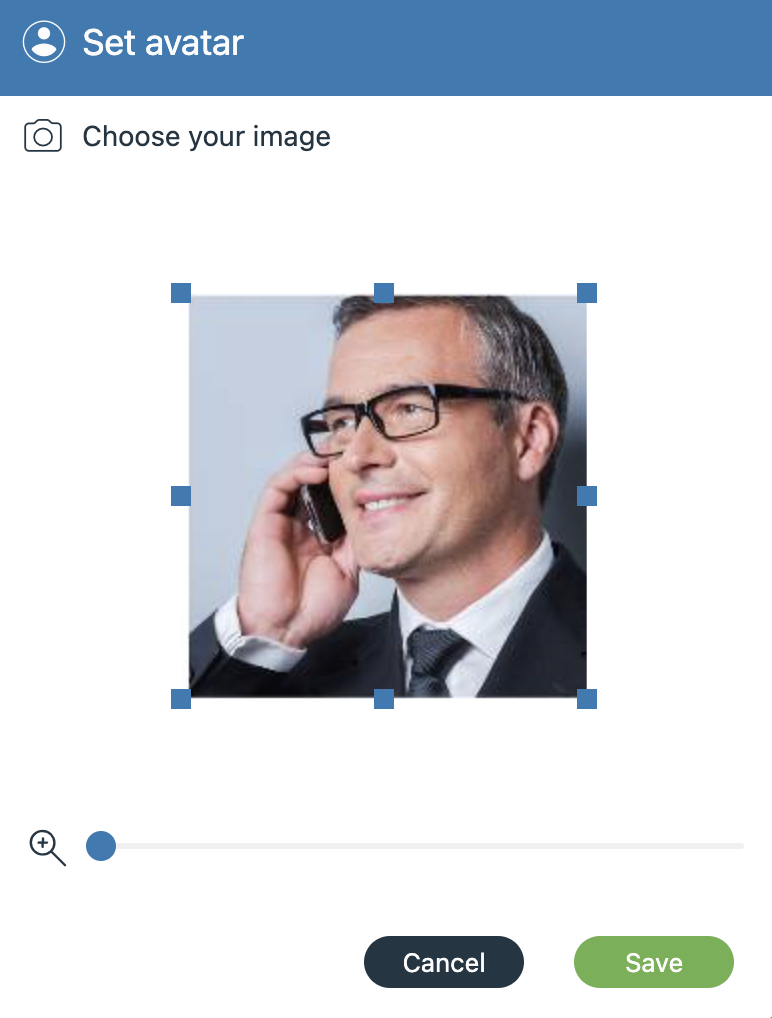
- Click on your profile picture and select “Personal information” from the dropdown.
- Click on your picture within the newly opened screen to open the “Change avatar” dialog prompt,
allowing you to choose whether you want to upload a whole new avatar or reset to the default one, or cancel the action altogether.
¶ Changing your Current Status
- Click on the "Status" indicator within the profile picture.
- Select a corresponding status from the options given in the newly opened status dropdown menu.
¶ Phone DND
- Select Phone DND from the profile dropdown to toggle "Do Not Disturb" for your telephony services. When enabled, a status indicator will appear in the top bar of the application.
- Click the Switch to available button within the indicator to change your status back to available.
¶ Accessing Online Self Care
- Selecting the Online Self Care option will automatically open a new tab in your web browser. To access the portal, you will be required to enter your credentials to log in securely.
¶ Calls
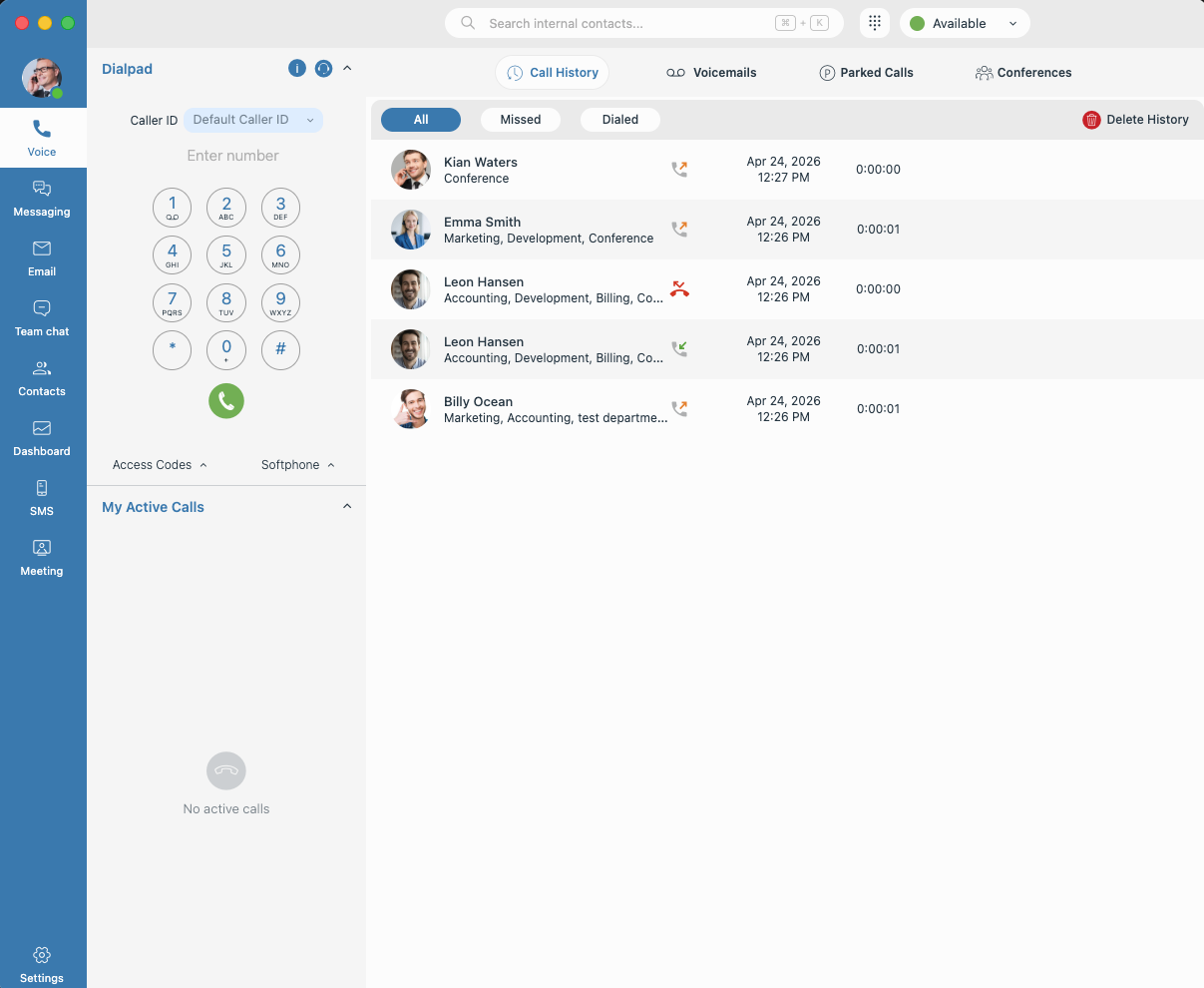
¶ Establishing a Call
- Go to the Voice tab for full access to the dialpad and your call history.
- Tap the dialpad icon at the top for a quick-entry popup to dial a single number instantly.
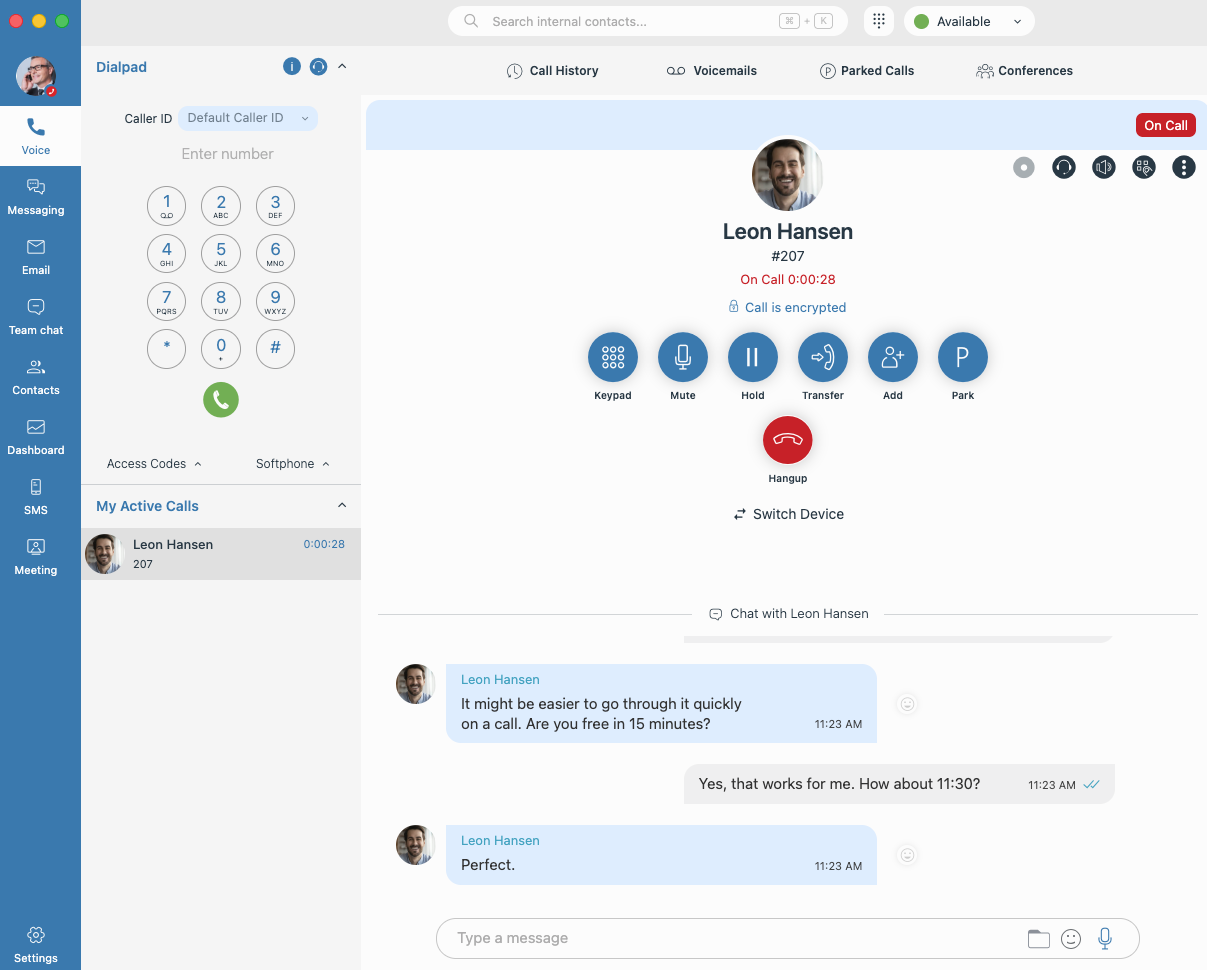
¶ Quick Call
A dialpad popup is available on the top bar, allowing for quicker access to the dialpad from every tab in the application.
- Click on the dialpad popup from any tab in the application.
- Enter the desired number, and initiate the call instantly.
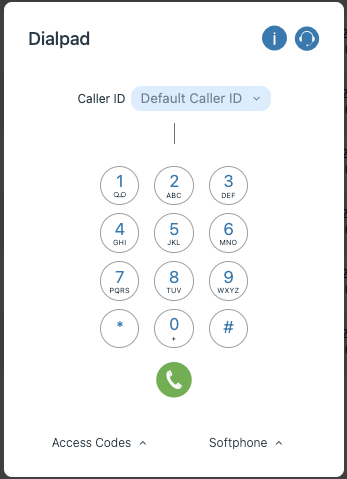
¶ Change Caller ID
- Access via Dialpad: Open the dialpad from the Voice tab or via the Dialpad popup.
- Click on the Caller ID dropdown menu located directly above the number input field.
- Select the desired phone number or name from the list of available identities assigned to your account or hide the Caller ID.
Note: If this functionality is not enabled for your extension on the server, the option will be disabled.
¶ Adding People To An Existing Call
To bring more people into your existing call:
- Click the "Add" button.
- Use the input field to select the contacts you want to include.
¶ Transferring A Call
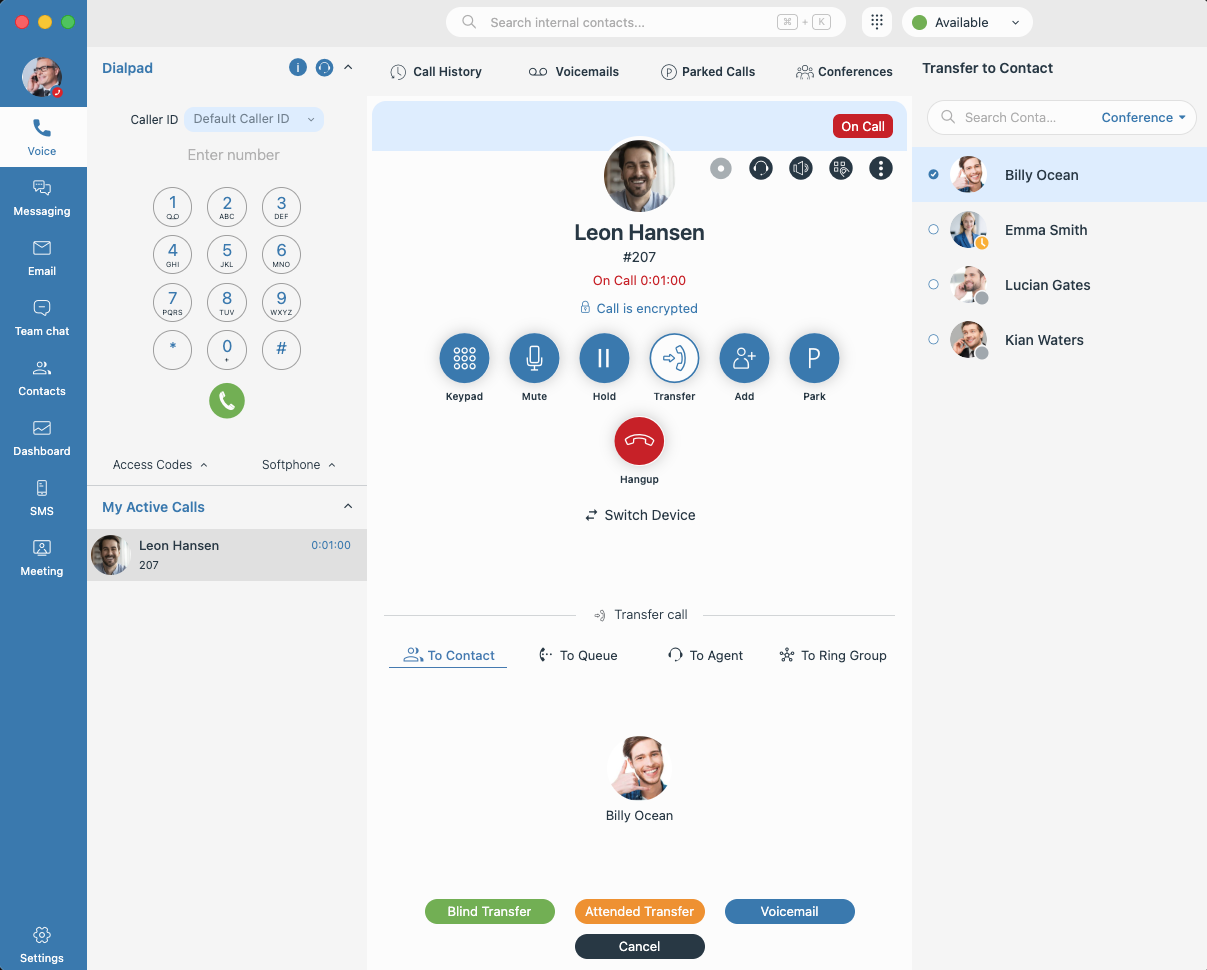
- To transfer a person in a call over to another, click on the “Transfer” button which will bring
the “Transfer” dialog box up. - Select the desired transfer option from the fields available from the dropdown menu, choosing between:
- An agent or contact (internal or external) that you can manually input or search for
- An existing queue chosen from a list
- Existing ring groups
- After inputting everything, choose between a blind or attended transfer, or simply transfer the
person directly to voicemail.
¶ Drag to Transfer
An alternative method of call transfer is to click on the icon of the user currently in the call
and drag them over to the person on the contact sidebar you want to transfer them to. There, an overlay will appear with the “Blind” and “Attended” options where you can drop them over your desired transfer method.
¶ Switching Device During a Call/Calling From a Different Device
-
During an Active Call: To switch the call to another device, click the Switch Device button, and select your desired endpoint. The call automatically transfers and rings your new device.
-
Before You Dial: Open the Dialpad popup, click the Switch Device button, and use the device dropdown to select which device you want the call to originate from.
¶ Remote DTMF (PCI Compliance)
Remote DTMF enables secure entry of sensitive information (e.g. payment card details) during a call. Instead of speaking the data, the caller enters digits using their phone keypad, which are then inserted directly into the active input field on the agent's device.
Note: DTMF tones are audible during the call but are not included in call recordings.
Note: Available only in the Desktop app (macOS and Windows). Not supported on Web or Linux.
¶ Enable and Use
- During an active call, click the Remote DTMF icon in the call controls.
- Place your cursor in the desired input field (e.g. payment form).
- Ask the caller to enter digits using their phone keypad.
Digits are inserted directly where the cursor is positioned. Only numeric digits (0-9) are supported.
¶ Session Indicator and Control
- When enabled, a red banner indicates that Remote DTMF is active
- You can stop it by:
- Clicking the Remote DTMF icon again
- Clicking the Stop button in the banner
- Ending the call
¶ Viewing Entered Digits
- Open the Dialpad during the call to view received digits
- Digits are shown for verification only and are not retransmitted
¶ Behavior and Limitations
- Only one active Remote DTMF session at a time
- Activating it on another call disables the previous session
- Automatically cleared when the call ends (including transfers)
- No digits are stored after the call
Note: This feature is intended for secure handling of sensitive data and helps prevent exposure through call recordings.
¶ macOS Accessibility Requirement
Remote DTMF requires Accessibility permission on macOS.
- On first use, you will be prompted to grant access
- If not granted, the feature remains disabled
- After granting permission, it can be enabled normally
If permission is revoked during an active call:
- Remote DTMF is automatically disabled
- A warning notification is shown
¶ Creating a Conference Call
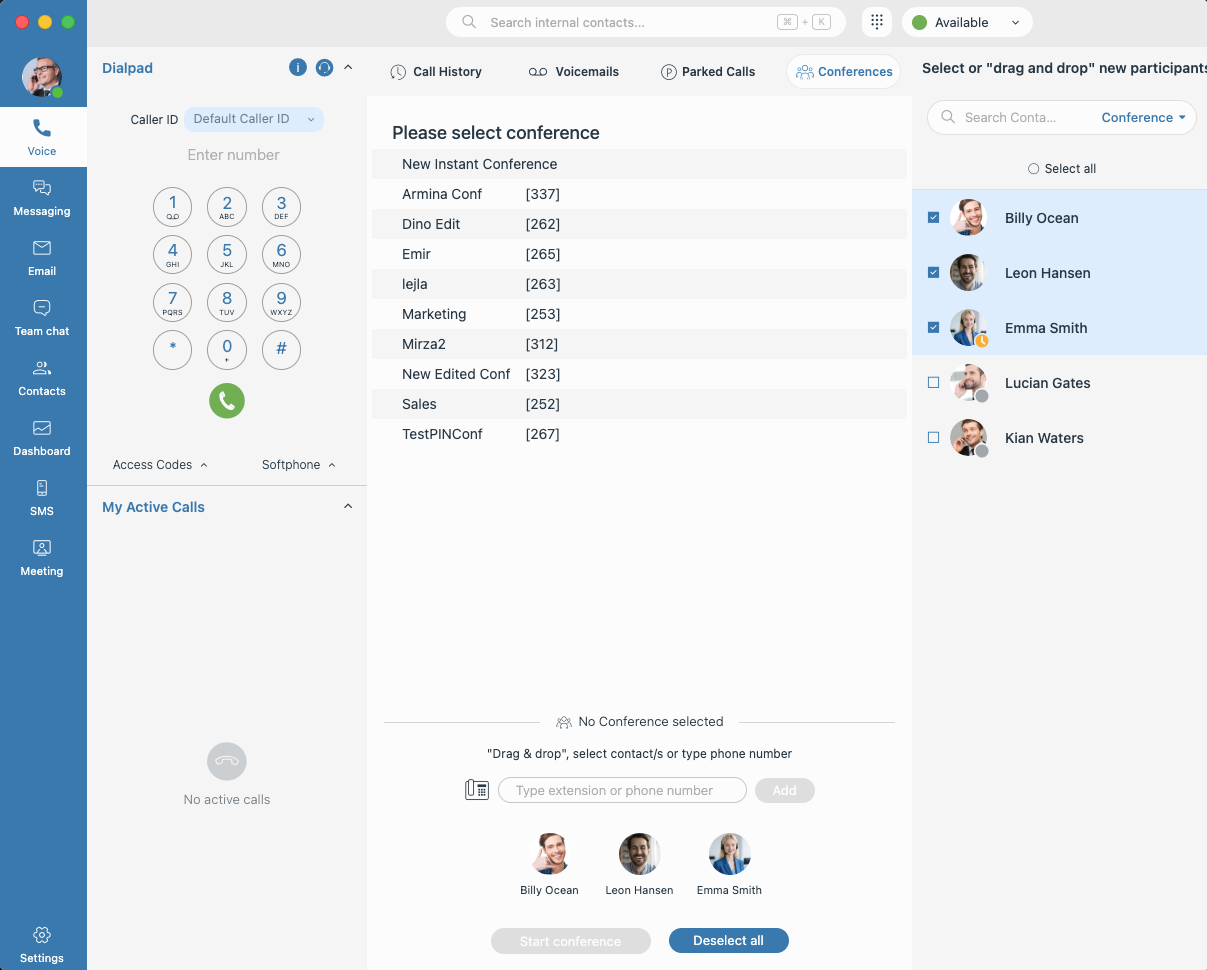
- Navigate to the Voice tab and click on the Conferences button to open the Conferences screen.
- Choose either "New Instant Conference" or a Static Conference room from the list provided.
- Add one or more participants either from your contact list (to Add External Contacts, select External Contacts from the dropdown menu to filter the list accordingly) or by typing the extension or phone number in the provided field.
- Click the Start Conference button.
¶ Parking a Call
- During an active call, click the Park button to open a dropdown menu and select a specific parking lot to place the call in.
- Once a call is parked, anyone can pick it up by pressing the Pick Call button next to the parked call or dialing the number of the parked extension.
¶ Checking Voicemail
- Navigate to the Voice tab and select Voicemails from the top menu to view your messages.
- Toggle between the New and Old sub-tabs to organize your received voicemails.
- Use the control bar at the bottom to interact with a selected voicemail.
Voicemails marked as urgent are shown with a red exclamation-mark icon and are always listed at the top of the New tab, so the most important messages stand out. If an urgent voicemail is moved to Old and then back to New, it is no longer marked urgent.
¶ Team Chat
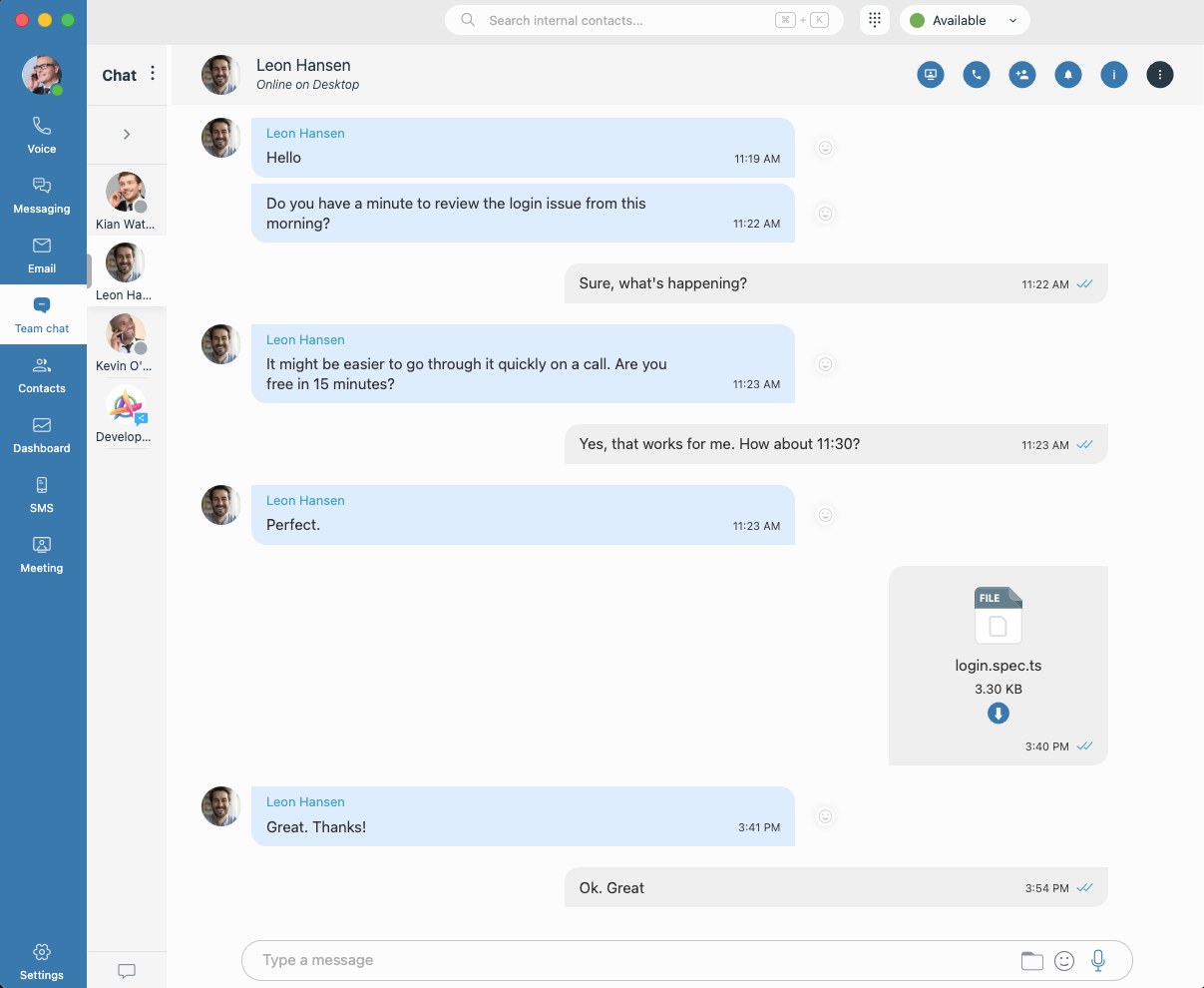
Click the Team Chat icon in the navigation bar to view your active conversations.
¶ Chat Search
Use the search bar to find conversations by contact name or to search within message content. Results are separated into Contacts & Chats and Messages tabs.
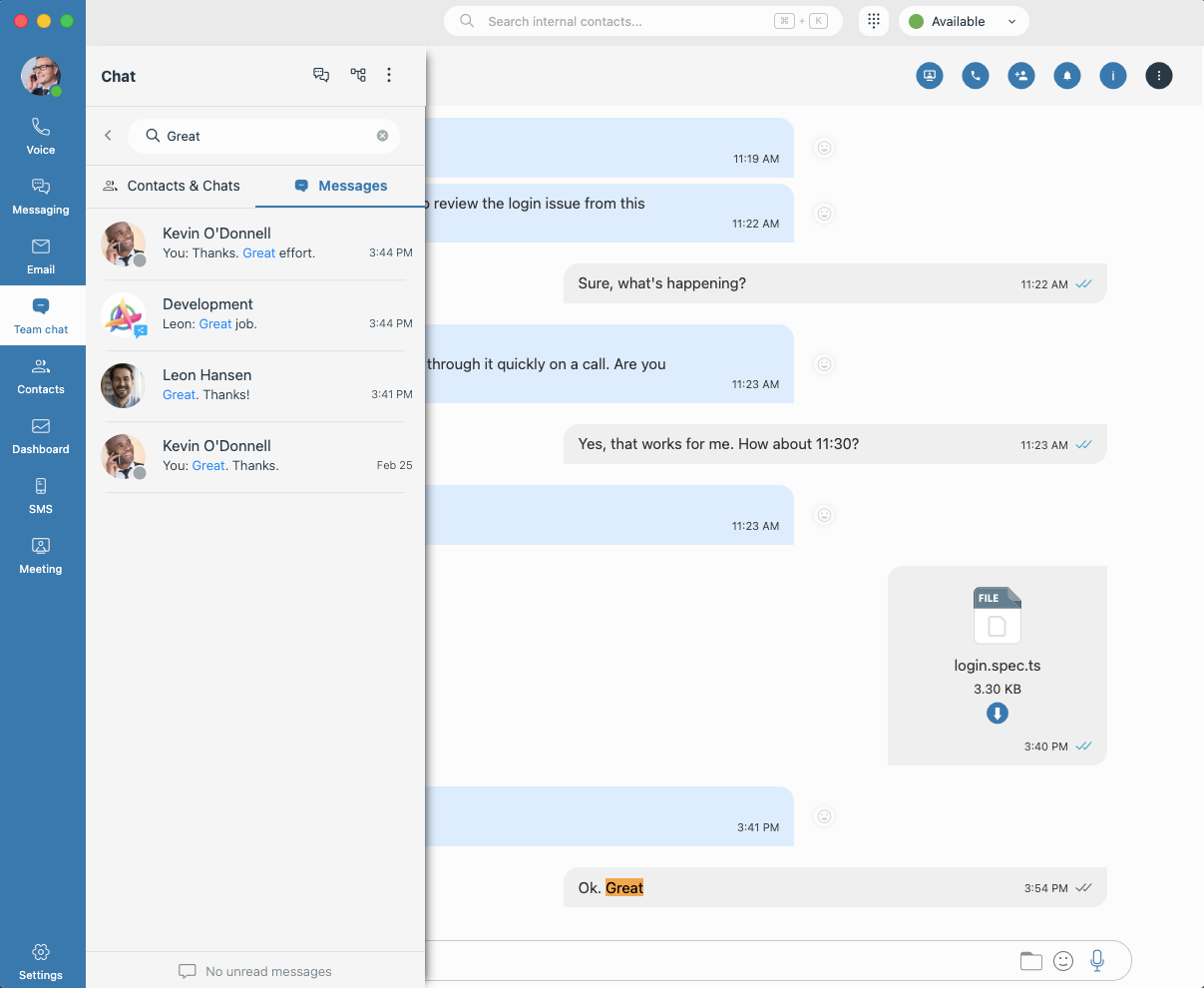
Tip: Wrap your search term in double quotes (e.g., "error 500") to search for an exact phrase rather than individual words scattered throughout messages.
¶ Chat History Synchronization
To ensure a seamless experience across all your devices, the application automatically synchronizes your message history every time you log in.
-
Automatic Sync: Upon login, the application verifies and updates your chat history so that all messages are consistently available on your current device.
-
Sync Indicators: While synchronization is active, an indicator appears to let you know a sync is in progress.
In case of any issues regarding chat sync on any device, click on the “⋮” icon, navigate to
the “re-sync the entire chat history” option and click it to manually force a resync in order to
attempt to fix existing issues.
¶ Start Conversations
- Search for a contact using the search bar, or start a conversation by hovering over a contact in the Contacts list and clicking the Chat icon.
¶ Managing Group Chats
- Click on the “Create group” icon which will bring up the “Create group” dialog.
- Adjust your group preferences from the options available:
- Group name
- Shared group toggle
- Group participant list
- Once everything is set up, click on the “Create” button to create your group.
¶ Interacting Through Chat
- Organize a meeting with the participants of the currently selected chat/group by clicking on the
“Organize a meeting” icon and choosing whether you want to start the meeting right away, or
schedule it for a later date, similar to the process found under “Scheduling a Meeting”. - Drag the participant(s) of the current chat into a (conference) call by clicking on the “call” icon.
- Add more users into a group or create a group with additional participants by clicking on the
“Add users into this chat” icon, prompting you to create a new group with the original chat
participant or expand your existing group. - For chats with a singular participant, you can notify that participant that you require their
presence by clicking on the “Ask for attention” icon which will send out a push notification on
their side. - Check who the chat admin of a group is as well as who the participants of a selected chat
conversation are by clicking on the “Chat info” icon. - Access additional chat actions by clicking the More options (three dots) icon in the chat header. The available options depend on the chat type (Group or One-on-one chat).
- Type a text message to the rest of the participants within the chat/group in the message field and press enter to send it.
- Share code snippets by wrapping them in triple backticks (```). Chat messages support
automatic syntax highlighting with theme-aware styling. - Share files and images with the participants of the chosen chat/group by clicking on the “Send
File” icon and navigating your storage for the chosen file in order to attach it to your message
before sending it. - Alternatively, you can drag the desired file over from the file explorer and place it directly into chat. The third option can be done by simply copying the image to your clipboard and pasting it
into the gloCOM chat. - Add emoticons to your messages by clicking on the “Emoticon” icon and choosing from a wide
selection of different emoticons to enrich the content of your message before sending it. - If your hands are occupied or you are otherwise busy, record a voice message instead of
sending a text by clicking on the “Voice message” icon, speaking your response, stopping the
recording and then sending it instead of your usual text message. - Right-click on a message to open the message context menu, which provides quick actions for managing and interacting with individual messages.
- Reply
- Create thread (group chats only)
- Copy
- Show plain text
- Forward
- Edit (my messages only)
- Pin
- Info (group chats only)
- Delete
- Use @name in group chats to notify specific participants.
¶ Messaging & Email
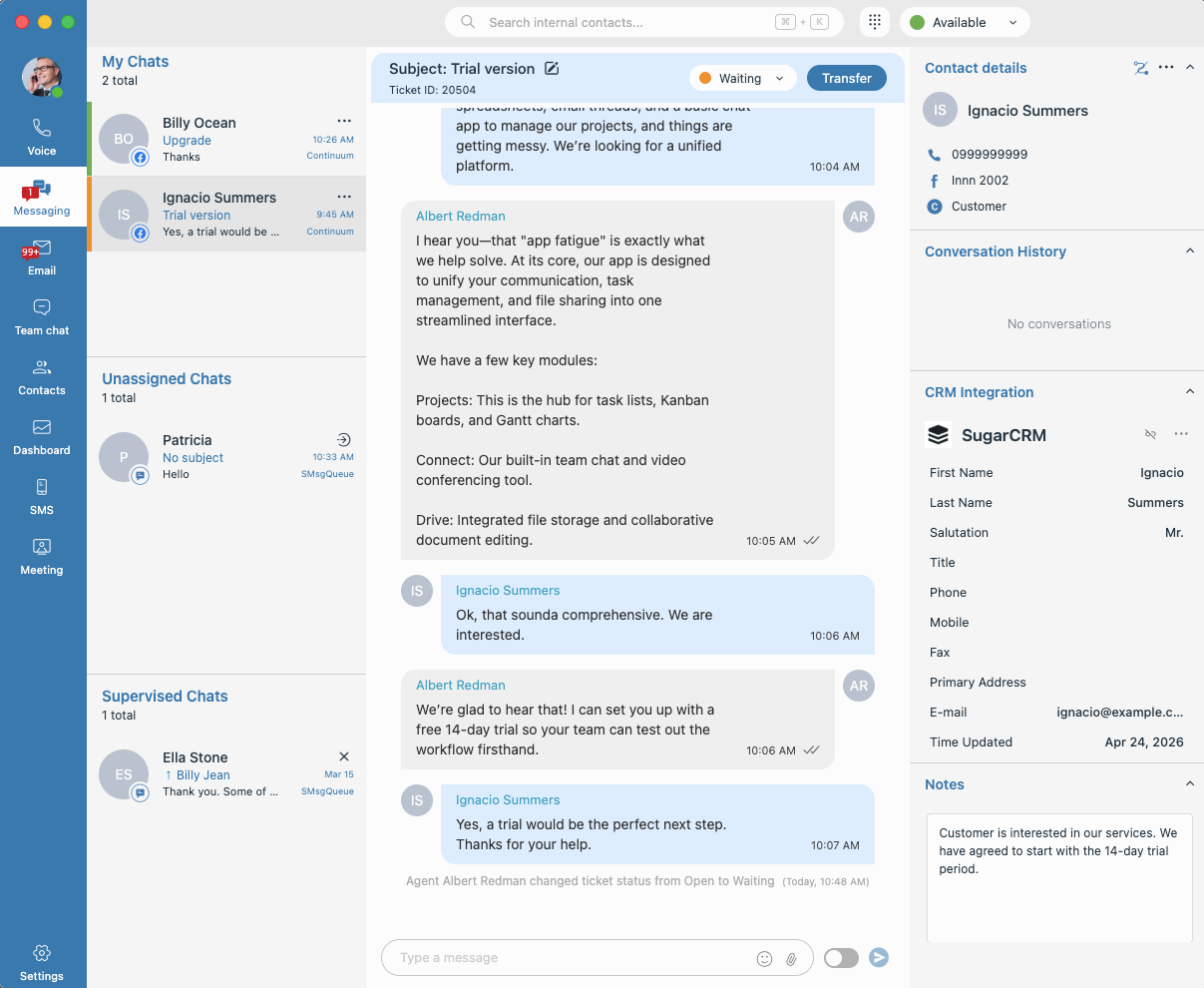
The Messaging and Email modules provide a structured environment for managing customer interactions. These conversations are organized into specific lists to help you prioritize your workload and monitor activities.
¶ Conversation List Types
The application categorizes conversations into three primary lists:
- My chats/Emails: Displays all conversations currently assigned to you.
- Unassigned Chats/Emails: Displays conversations waiting in queues for an agent to take ownership.
- Supervised Chats/Emails (Supervisors only): Visible only when you are actively supervising a conversation.
¶ List Organization and Sorting
To ensure efficient response times, conversations follow specific sorting logic:
- Assigned Conversations: Sorted from newest to oldest to focus on the latest interactions.
- Unassigned Conversations: Sorted from oldest to newest to ensure the longest-waiting customers are served first.
- Automatic Selection: On initial load, the system automatically selects your first assigned conversation. Your selection is preserved even if you navigate away or refresh the page.
¶ Details and Channel Support
-
Channels: The Messaging tab supports Live Chat, WhatsApp, Facebook and SMS. The Email tab is dedicated exclusively to email messages.
-
Information Displayed: Includes the customer avatar (initials), name, subject line, snippet of the last message, creation time, and the originating Queue name.
¶ Status Indicators
- Open: Active conversation.
- Waiting (Orange): Awaiting a customer response; these are removed from your active workload count.
- Solved (Green): The issue is resolved; messaging and status changes are disabled.
- Closed by Customer (Grayed Out): The customer has ended the session.
¶ Conversation Actions and Management
Depending on the conversation type and status, different actions are available:
-
For Assigned (My) conversations:
- Change Status: Update a conversation to Open, Waiting or Solved.
- Edit Subject: Click the edit icon next to a subject to modify it.
- Transfer: Use the three-dot menu to move a conversation to another Agent or Queue.
Note: The system will warn you if a queue is outside working hours or has no available agents.
-
For Unassigned and Supervised Conversations:
- Assign to me: Instantly move an unassigned conversation to your "My" list to begin assisting the customer.
- Stop Supervising: Use this action to remove a conversation from your Supervised list.
¶ Sending WhatsApp Templates
WhatsApp templates can be sent at any time. However, in an existing conversation, a template must be used if more than 24 hours have passed since the customer's last message.
- Open a conversation or create a new one with the desired contact.
- Click on the Template (or message template) icon in the message input area.
- Select the desired template from the list.
- If the template contains placeholders, enter the required values.
- Review the final message preview.
- Click Send to deliver the template.
Note: Only approved templates can be sent to customers.
Tip: Templates are typically used to initiate conversations or send notifications when no active session exists.
¶ Real-Time Synchronization and Events
- Assignment: Newly assigned conversations move to the top of "My" list immediately.
- Automatic Linking: If a customer reopens a previously closed/grayed-out conversation, the old entry is replaced by the active assignment.
- Removal: Conversations are automatically removed from your view if an admin removes you from a queue or if the conversation is transferred to a queue you do not belong to.
- Queue/Agent Updates: The system reflects real-time changes to queue names, agent availability, and capacity counters to ensure you have the most current data.
¶ Sneak Peek and Typing Indicators
These features provide agents and supervisors with real-time insight into conversations, allowing for faster response preparation and better coordination during internal collaborations.
- The Sneak Peek feature allows you to see what a visitor is typing before they hit send.
- Real-Time Visibility: As a visitor types in the visitor app, their unsent text is displayed in real-time within the message list view.
- Conversation List Integration: The sneak peek text temporarily replaces the "Last Message" snippet in the conversation list item.
- Privacy: Sneak peek content is visible only to agents and supervisors; it is never visible to the visitor or other external parties.
- Transition to Message: Once the visitor sends the message, the sneak peek text is replaced by the actual, finalized message in both the conversations list and the message list.
- Typing indicators inform participants when someone is actively composing a response.
Note: Sneak Peek is exclusive to the Live Chat channel, while Typing Indicators are available across all chat channels.
¶ Agent-Supervisor Interaction
This option is designed to facilitate seamless internal communication between agents and supervisors.
- Supervision Requirement: A supervisor can only initiate or participate in a private chat within conversations that they are currently supervising.
- Private Messaging Toggle: Agents have a dedicated toggle located within the chat input field to enable or disable Private Chat mode.
- Internal Confidentiality: When the private mode is active, all messages and typing indicators exchanged between agents and supervisors are invisible to the customer.
¶ Contacts
- Click the Contacts icon in the main navigation bar to view your internal and external contact lists.
- Switch between the Internal and External tabs to view different directories.
- Customize View: Use the column selector to choose which information is displayed.
¶ Internal Contact Management
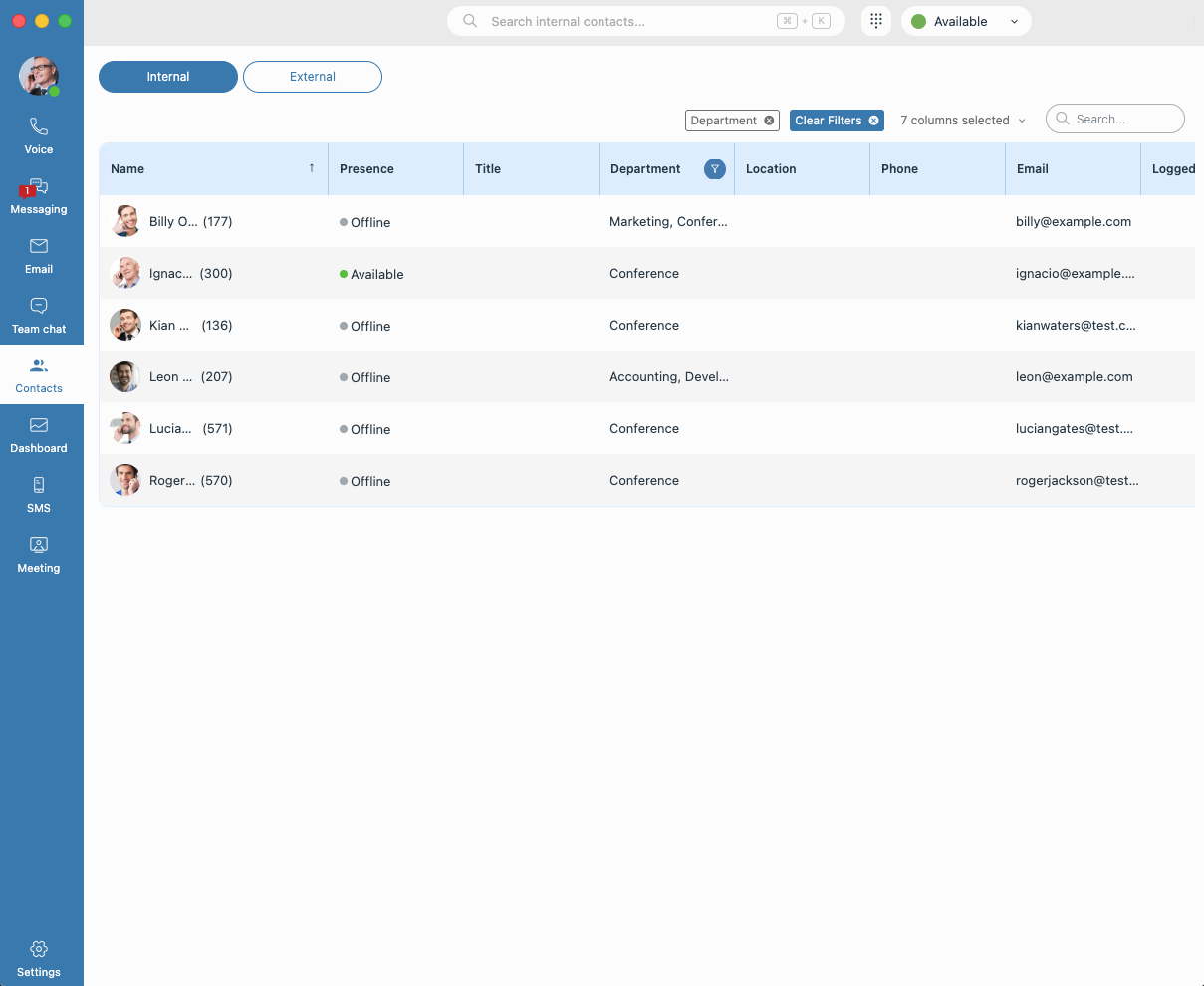
- Use the Search bar to find specific contacts by name, email, department, title or location.
- Check a contact's Presence status (e.g., Online, Offline, Busy) directly in the list to see their current availability.
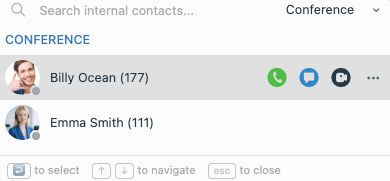
- Hover over any internal contact to reveal quick-action icons:
- Call: Initiate an immediate voice call.
- Chat: Open a one-to-one conversation.
- Meeting: Start an instant meeting with the contact.
- More (⋮): Access additional options like viewing contact details or sending an email.
- Hover over the columns in the internal contacts list to reveal specific filtering or sorting possibilities.
- Use the filter menus to narrow down your list by Presence, Department, or Logged Devices.
- Sorting Options: Organize your view by sorting contacts based on Name or Presence to prioritize active users.
Tip: Internal contacts can also be searched quickly using the search bar located in the application's top bar where quick actions are available upon hovering over any contact in the list.
Note: Pressing ENTER or clicking directly on a contact in the search dropdown triggers a customizable default action (e.g., Call, Chat, SMS, Meeting). On first use, a setup dialog will prompt you to choose and save your preferred default action.
¶ External Contact Management
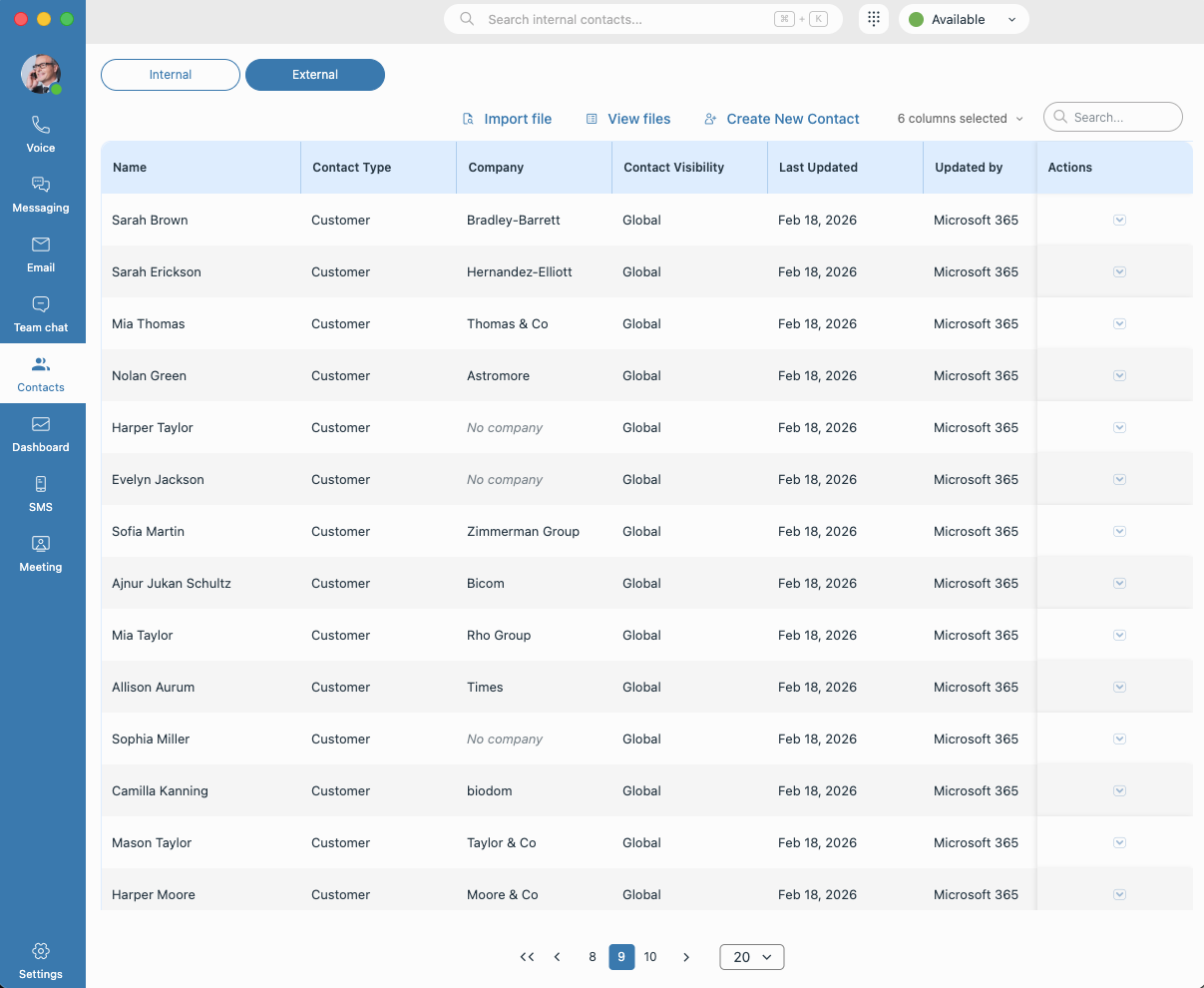
- Use the Search bar to find specific contacts by name, email, phone, or company.
- Hover over Contact Visibility to enable filtering external contacts by contact visibility.
- When viewing the External tab, you can manage your contacts based on your assigned permissions:
- Import File: Bulk upload contacts using a CSV file.
- Create New Contact: Manually add a new external entry to your list.
- Manage Existing Entries: Click the action dropdown next to a contact to View/Edit their details, Merge contacts, or Delete them from your directory.
Merging combines two duplicate contact entries into a single record, consolidating their details and conversation history.
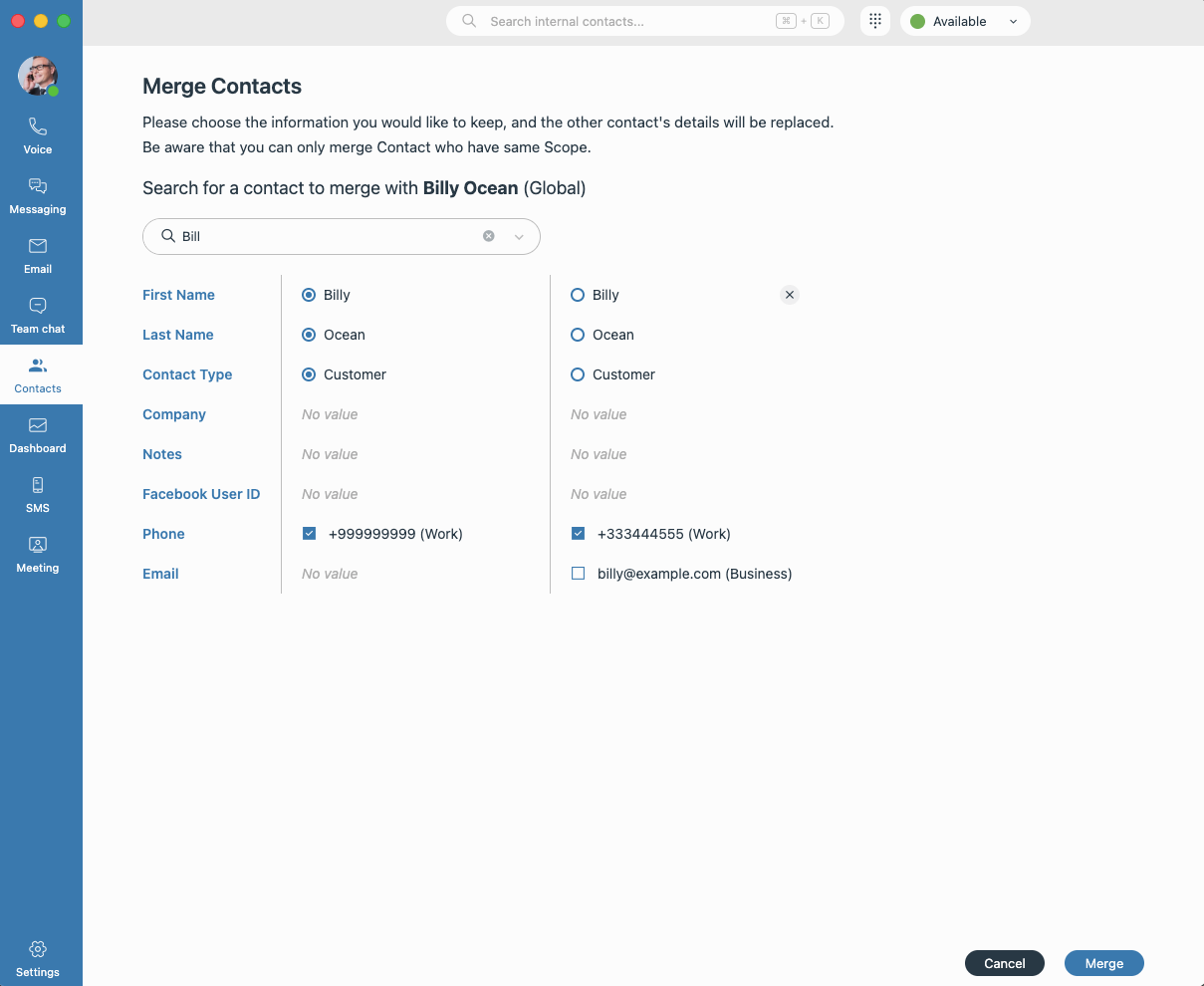
Note: Only contacts with the same contact visibility can be merged.
Across all contact categories, Department Admins have full management capabilities (view, add/edit, delete/merge, CSV upload/download, view uploaded files, and change visibility), while Department Users are generally limited to viewing, adding, and editing — with delete, merge, and administrative actions restricted unless they are the contact owner.
The scope of these permissions narrows from Global Contacts (broadest access for both roles) to Department Contacts (limited to the user's assigned departments) to Private Contacts (accessible only to the contact owner). Both roles can link conversations across all categories, and visibility changes are always constrained by ownership and department membership.
¶ Contact Card
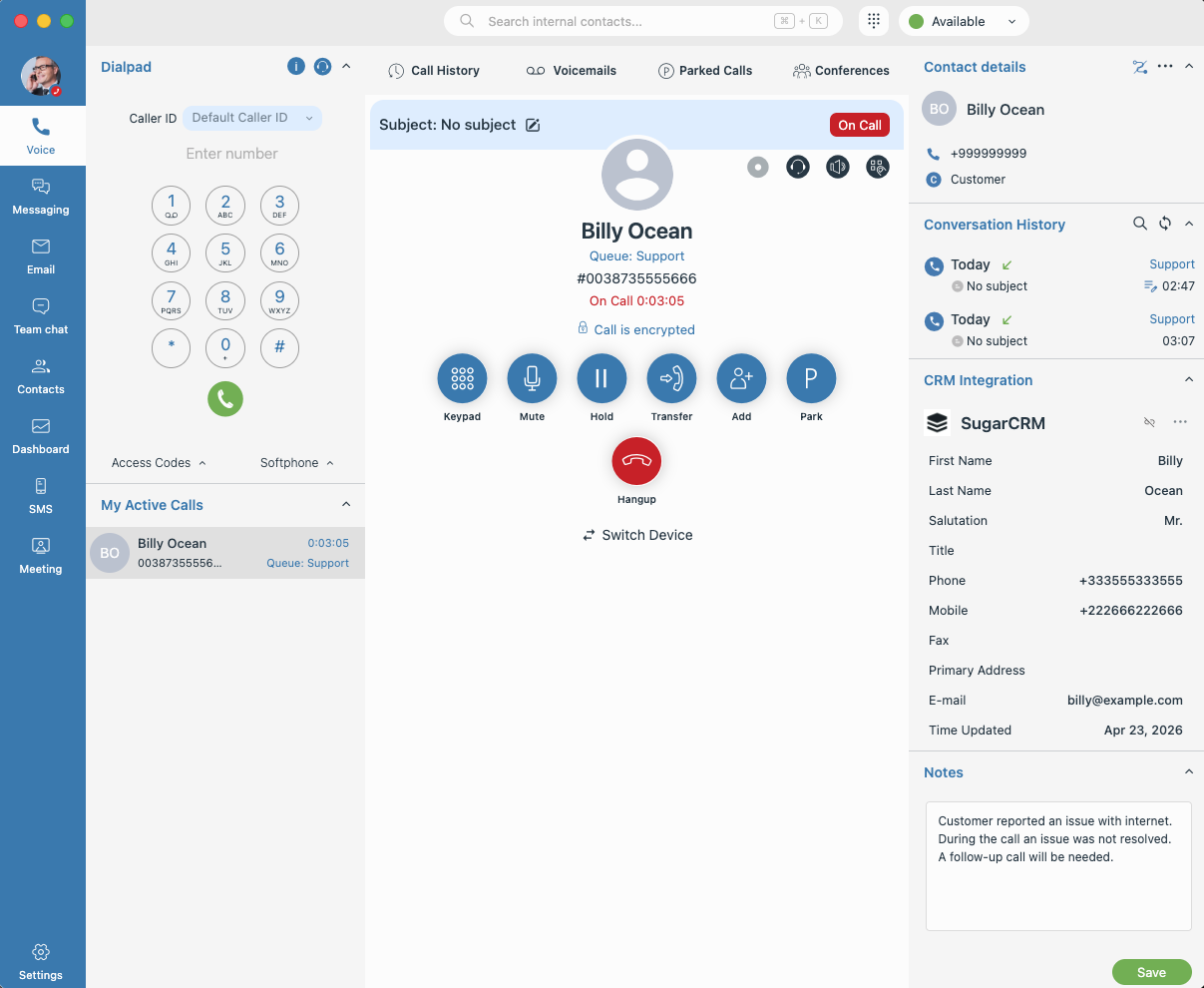
The Contact Card is a comprehensive side panel that appears during active interactions, providing a unified view of customer identity, history, and integrated CRM data.
¶ Contact details
- Identity: View the contact's name, initials, phone number, and account type (e.g., Customer) at the top of the card.
- Contact Actions:
- Add/Edit Contact: Use the icons in the header to manually create a completely new contact or update the details of an existing record. When adding a contact during an active voice or other conversation, the new contact is automatically linked to that conversation. Contact visibility (Global, Department, or Private) can be set at creation or edit time.
- Link/Unlink: Use the link icon to associate a voice or other conversation with an existing contact — either from suggested matches or by searching for a contact directly. During the link operation, you can also update the contact's information. Use the unlink icon to remove an incorrect connection.
- View the date and direction (inbound/outbound) of previous calls or messages.
- Monitor the subject and duration of past interactions.
- Use the Search icon to filter and find specific events within this contact's history.
- Use the Refresh icon to update the history log manually.
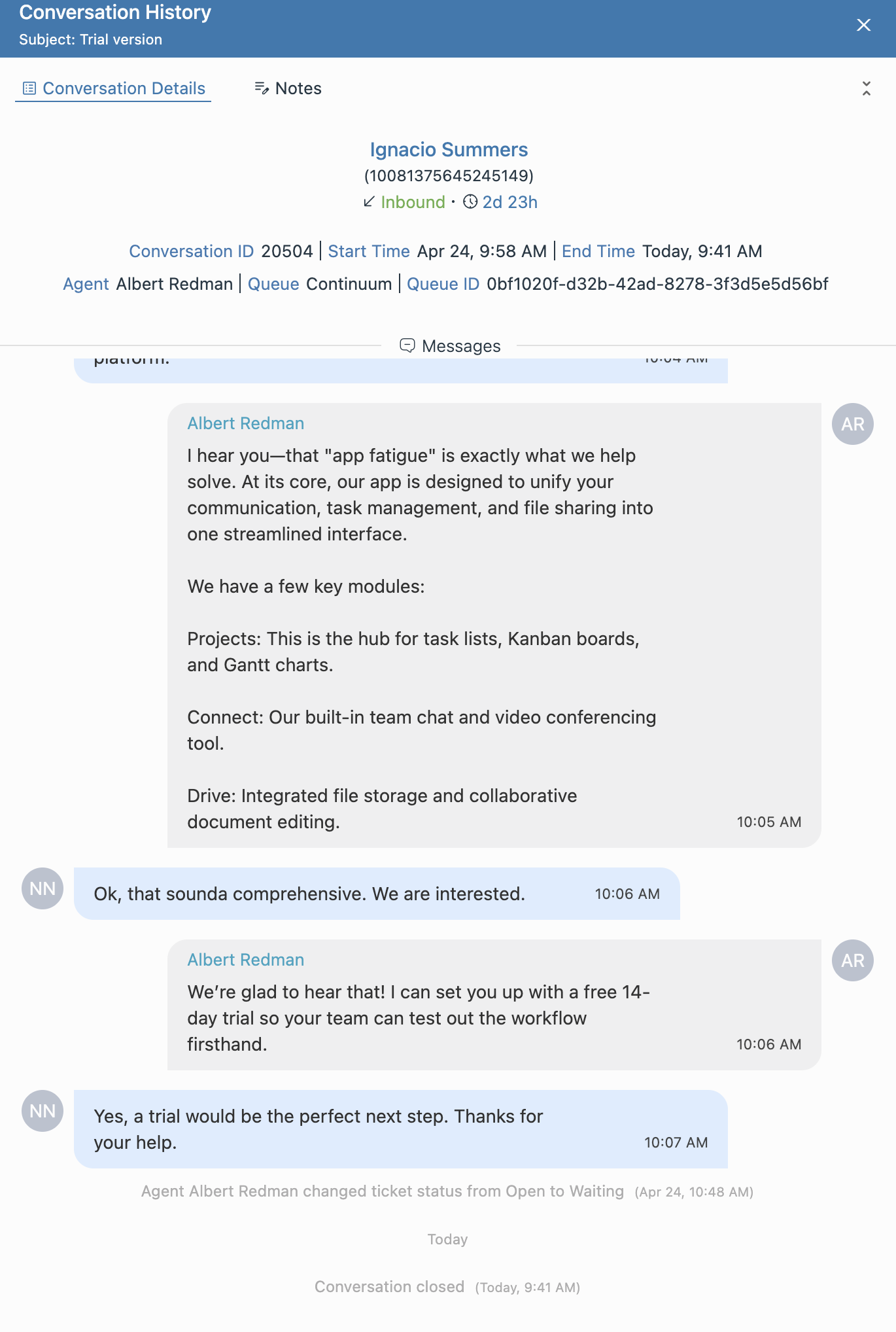
- Conversation Details: When selecting an entry within the conversation history, you can now view specific conversation details or notes for deeper context.
- Conversation History: During a voice or messaging conversation, agents can access a unified log of recent interactions with the selected contact across all channels (calls, chats, emails, etc.) — providing full context regardless of which channel the customer used previously.
¶ CRM Widget
The CRM Widget provides a centralized view of contact data retrieved from your active CRM integrations during external interactions. The widget pulls and displays relevant contact information from any currently connected CRM systems.
Quick Setup:
- If no CRM is integrated, the CRM widget will display a "Connect to a CRM" link.
- Clicking the "Connect to a CRM" link will instantly redirect you to Settings → CRM to manage your integrations.
CRM Widget actions
Within the CRM widget, you can manage how conversations are associated with your CRM data through the following actions:
-
Linking a Record: This "connects" an active call or messaging/email conversation to a specific CRM record (e.g., a Contact or Lead). Once linked, the widget will automatically display that contact's comprehensive information whenever you engage with them.
-
Suggested Matches: The widget automatically displays suggested records. If only one match is found, the system will perform an Automatic Link.
-
Manual Search: You can search for records by name, phone, or email using the input field. A global CRM search triggers once you enter at least 2 characters.
-
Unlinking a Record: If a record is linked incorrectly or you wish to remove the connection, click the Unlink button. You will be prompted with a confirmation dialog to prevent accidental unlinking.
-
Rematching a Record: This serves as a shortcut to switch the current link to a different record. Access this by clicking the three-dot menu and selecting Rematch. The current record remains linked until you successfully select and confirm a new one.
-
Creating a New Record: If no existing records match your needs, click Link/Create new record followed by the Create new object button.
-
Select the record type (e.g., Contact, Lead) from the dropdown.
-
Fill in the required fields; the system will alert you via a toast notification if mandatory information is missing.
-
Upon successful creation, the new record is automatically linked to the conversation.
-
Editing a Record: To update information on a linked record, select Edit from the three-dot menu. Modify the necessary fields and click Apply to save your changes.
Note: The specific fields displayed within the widget and the actions available to you (such as editing or creating records) depend on your PBXware configuration and assigned user permissions.
Note: For all actions (linking, unlinking, creating, or editing), the system provides real-time feedback via toast notifications to confirm success or alert you to errors, such as network issues or API problems.
¶ Notes and Engagement
-
Internal Notes: Use the dedicated text area to document important details about the interaction, such as unresolved issues or required follow-up actions.
-
Save: Click the Save button to ensure your notes are attached to the interaction record for future reference by yourself or other team members.
¶ Dashboards
Click the Dashboard icon in the main navigation bar to monitor activity, key metrics and member engagement.
¶ Queue Dashboards Overview
The Queues Dashboard presents multiple tabs, each focusing on a different aspect of queue activity and performance. All displayed data is scoped to the selected queues and reflects either real-time or aggregated metrics, depending on the selected tab.
Users can:
- Search and filter data
- Customize visible columns
- Monitor agent availability and workload
- Track conversation states and performance indicators
Note: Both agents and supervisors can only view and manage the queues they are assigned to.
Wallboard (Supervisor only)
Provides a real-time overview of queue performance and agent engagement.
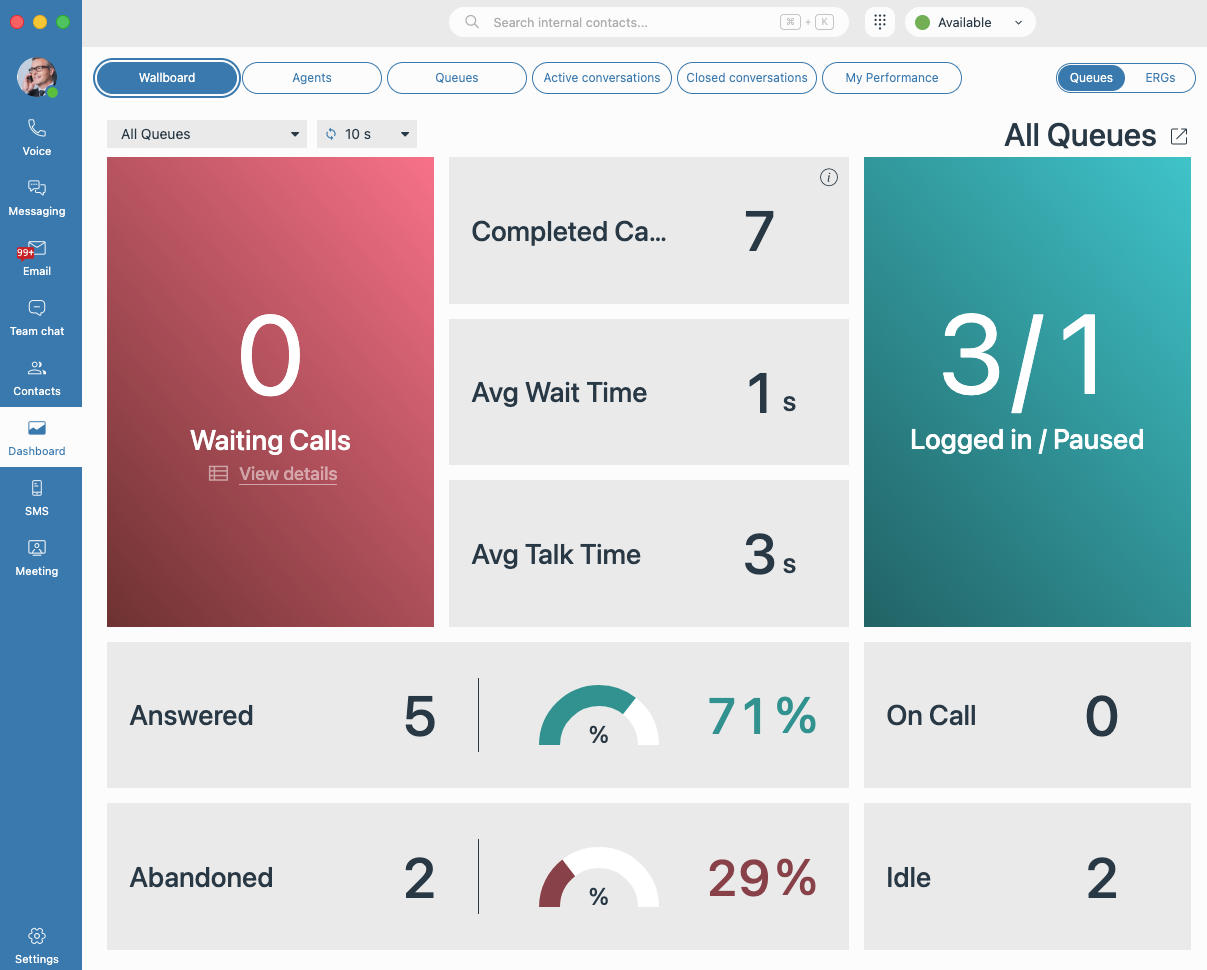
- The Wallboard tab can be opened in a standalone window by clicking on the Detach icon (pop-out).
The detached window will automatically refresh if new filters are applied in the main application and the detach button is clicked again.
Tip: The detached window can be displayed on a large screen or TV for easier monitoring.
Agents
Displays a list of agents assigned to the selected queues, including:
- Agent state (logged in/out, time in state)
- Enabled communication channels
- Active conversations by channel
- Current workload and daily statistics
Queues
Shows detailed information for each queue, such as:
- Queue details
- Name
- Channels: Indicates the communication methods enabled for that queue
- Daily stats
- Total: The overall number of conversations that entered the queue during the current day.
- Answered: The number of conversations successfully picked up by an agent.
- Unanswered: The number of conversations that were abandoned or missed.
- SOA (Avg): Service Level Agreement average, measuring the percentage of calls answered within a predefined timeframe.
- HT (Avg): Average Handle Time, representing the mean duration an agent spends on a conversation.
- WT (Avg): Average Wait Time, showing how long customers typically wait in the queue before being connected.
- Current conversations
- Waiting: The number of customers currently holding in the queue.
- Active: The number of ongoing conversations currently being handled by agents.
- Agents
- Logged in: Displays the total number of agents currently logged into the specific queue.
- Paused: Shows the number of agents who are currently in a "Paused" state and temporarily unavailable to handle new conversations.
Useful for identifying bottlenecks and balancing traffic.
Active Conversations
Displays all ongoing conversations across the selected queues, including their current status and channel.
- All columns except Actions support filtering.
- The Channel and Subject columns do not support sorting.
- The Action column offers various actions available to the supervisor.
Note: The Actions column is visible only when logged in as a Supervisor. Available actions depend on the conversation channel.
-
Voice Channel Actions
- Take Call
- Monitor Call
- Transfer Call
-
Messaging/Email Channel Actions
- Transfer
- Take over Conversation
- Start/Stop Supervising
- Close Conversation
- Go to Conversation (available only for conversations assigned to the current user or supervised by them)
Closed Conversations
Lists conversations that have been completed.
This tab is mainly used for:
- Reviewing historical interactions
- Auditing and analysis
- Performance tracking over time
- All columns except Actions support filtering
- The "View Details" action is available
Note: The "View Details" is available to supervisors for all conversations, while agents can access it only for their own conversations.
Note: The "View Details" opens a read-only modal which contains conversation details and notes. For voice conversations, only call recording playback is available (if applicable).
My Performance
Provides a personalized view for the logged-in user, showing:
- Individual performance metrics
- Active and completed conversations
- Channel-specific statistics
- Current workload
- Daily Statistics
This tab helps agents track their own workload and performance.
¶ Switching Between Queues and ERGs (Supervisor only)
Use the toggle in the top-right corner of the Dashboard to switch between:
- Queues view: Displays data related to queue-based conversations and agent activity.
- ERGs view: Shows the same dashboard structure, filtered to ERG-related data.
¶ ERG Dashboard Overview (Supervisor only)
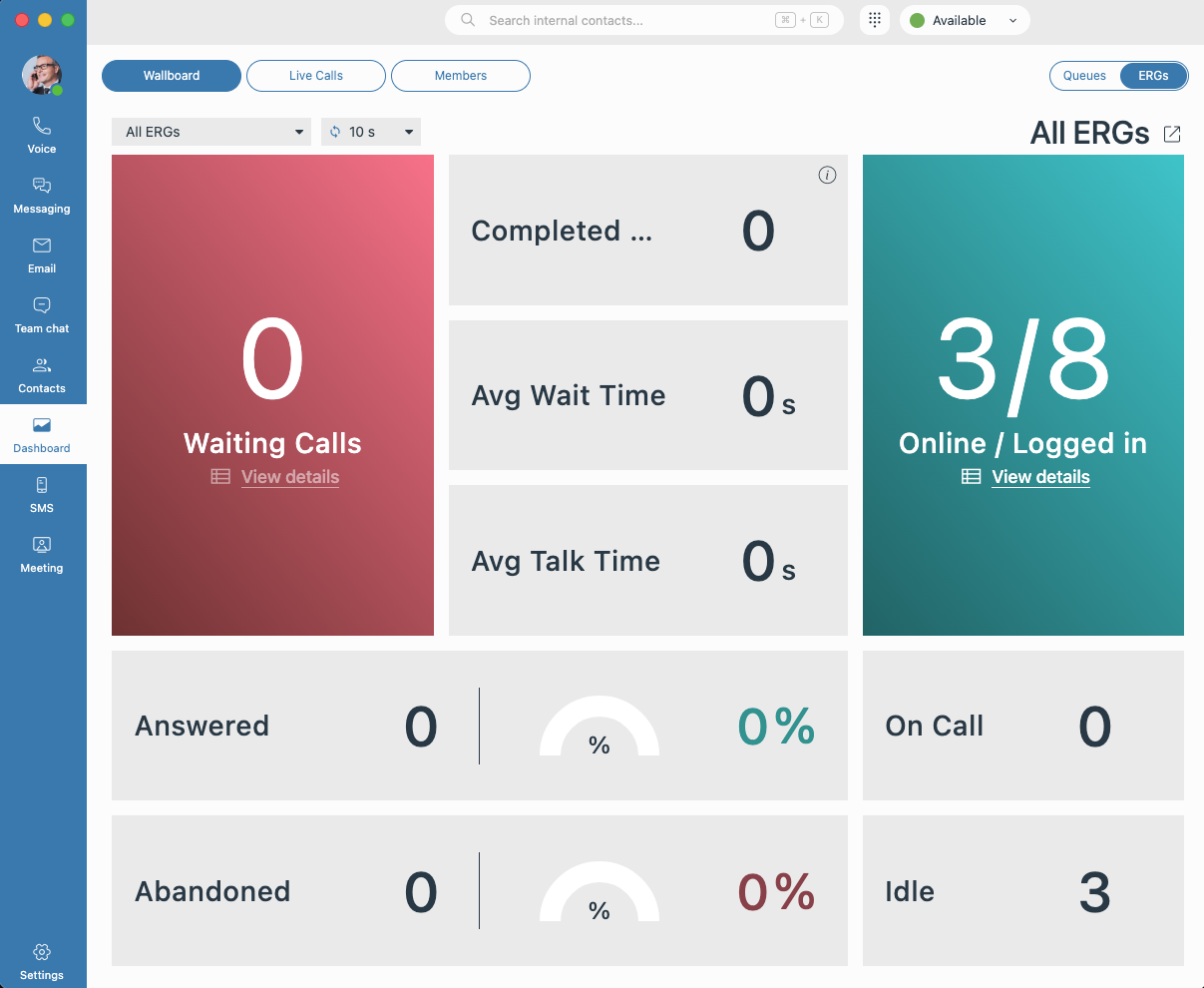
Note: The ERG Dashboard Overview is available only on Supervisor edition.
Use the following tabs to manage your view:
- Wallboard: View a high-level overview of call metrics including:
- Online and logged in members
- On call members, idle members
- Calls waiting to be answered
- Answered calls
- Abandoned calls
- Completed calls
- Average waiting time
- Average talk time
- Live Calls: Displays a list of active calls and calls waiting in the queue, including details such as the caller’s name and number, ERG, and talk or waiting time.
- Members: Displays information about each member’s phone status and state (for example: online, offline, logged in, logged out, on a call), as well as the number of answered and unanswered (missed) calls per member. If members belong to ERGs with the Static members option enabled, both phone status and state are shown. When this option is not enabled, only the phone status is displayed.
¶ SMS
¶ Engaging with the SMS messages
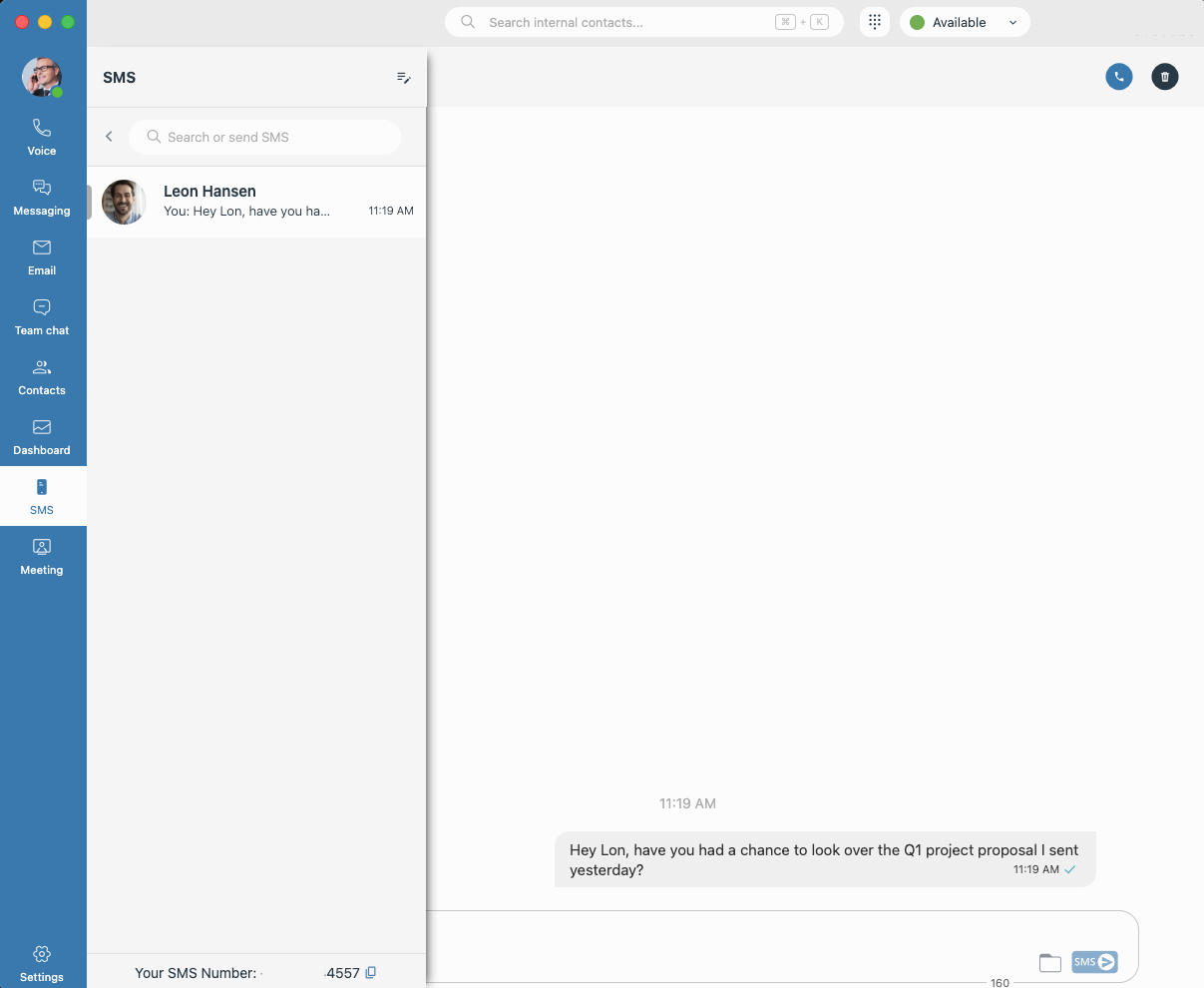
- If you have an SMS number assigned to your login credentials, click on the “SMS” icon which
will open an SMS dialog box showing you your SMS history across all participants, synced across
all devices. - The SMS interface includes a Contact Card, consistent with the Voice, Email,
and Messaging experiences. The widget automatically matches contacts, allows manual resolution
when multiple matches are found, and supports linking existing records or creating new ones
directly from the widget. Any updated contact information reflects immediately across the SMS
interface.
Note: Contact Actions (Add/Edit Contact and Link/Unlink) are only available for external contacts.
¶ Using multiple SMS numbers (DIDs)
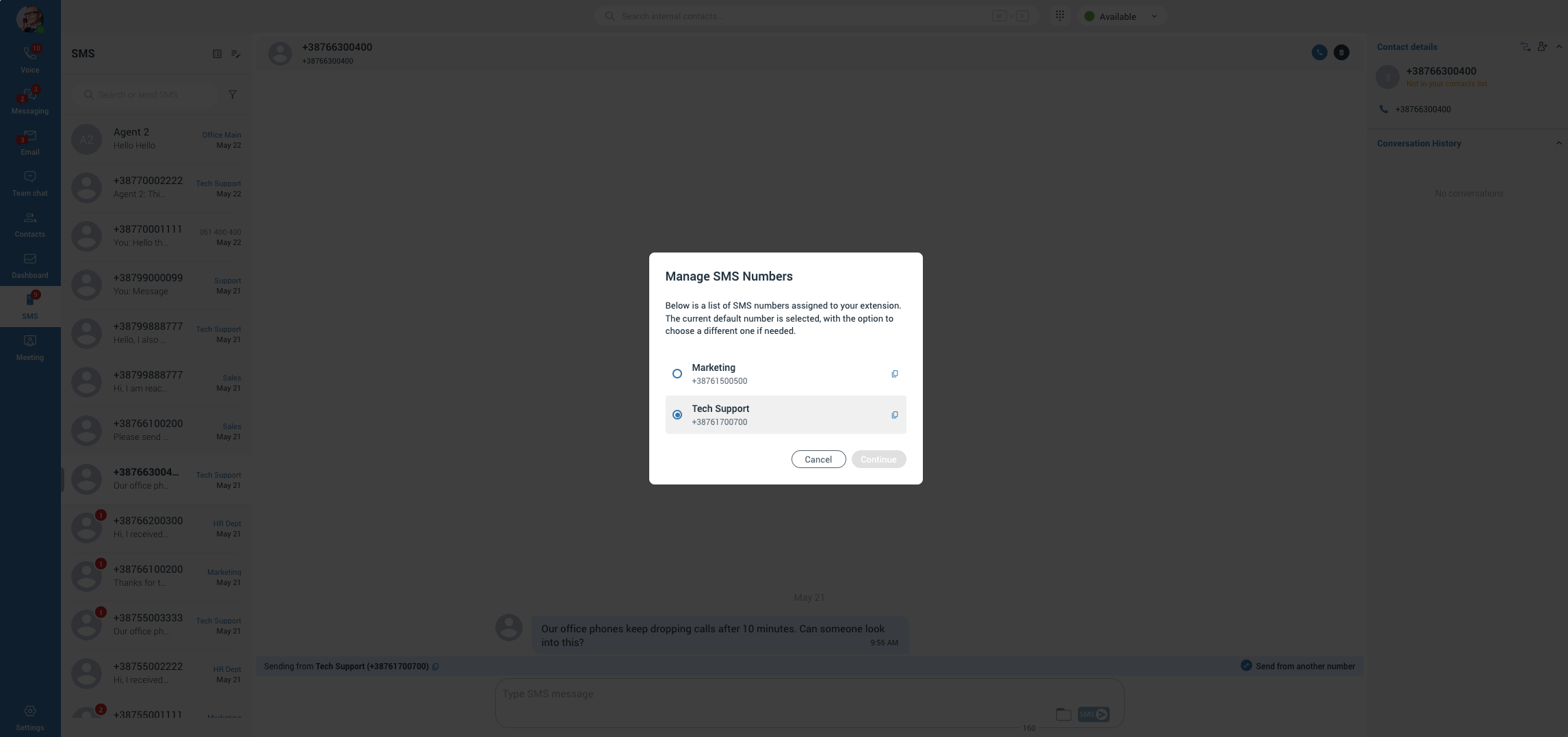
If more than one SMS number (DID) is assigned to your extension, gloCOM shows which number each conversation belongs to and lets you choose which number you send from.
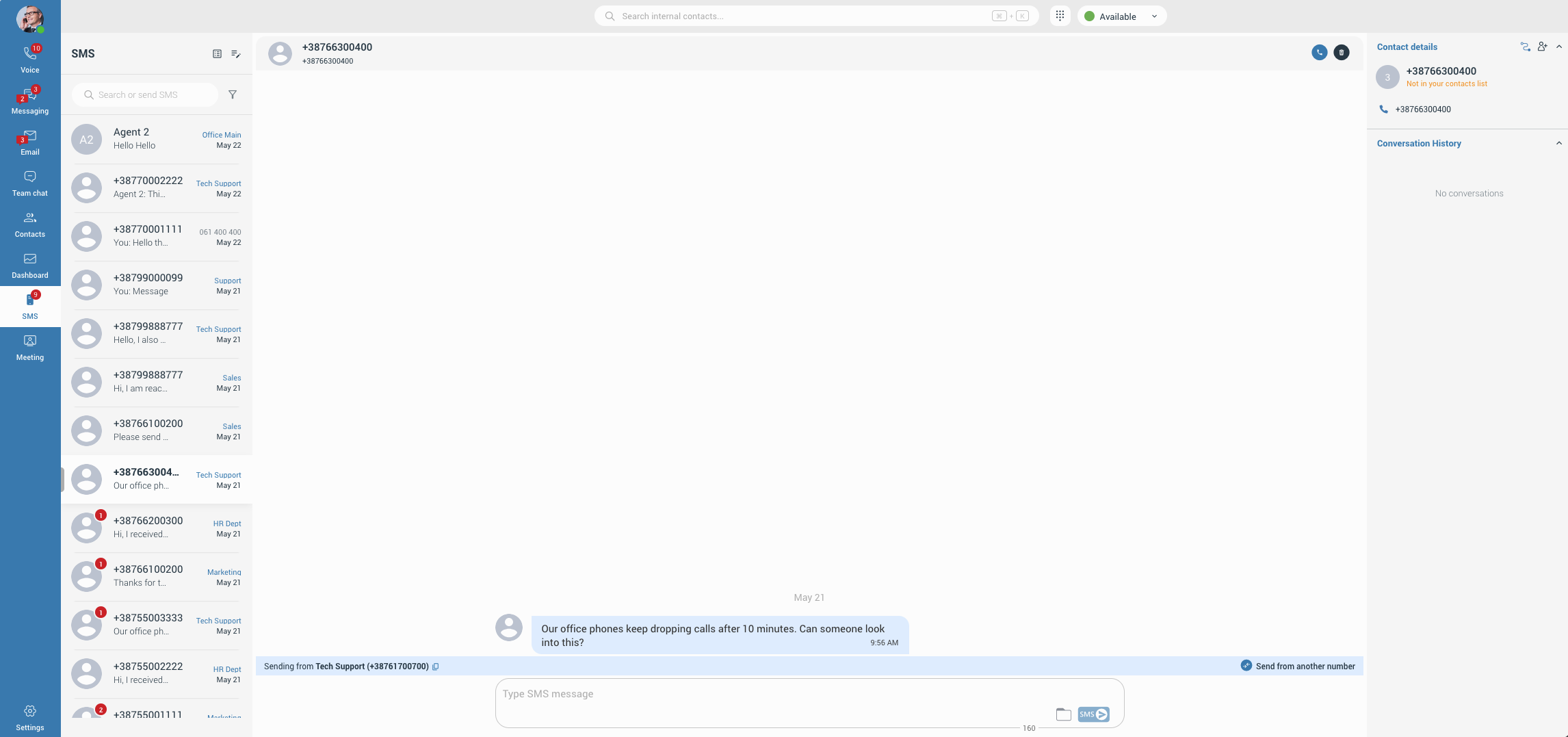
- Each conversation shows a label (or the number, if no label is set) indicating which of your numbers the message was received on. Use the filter icon next to the search bar to show only conversations on selected numbers.
- Open a conversation to see the “Sending from” bar beneath the header, showing the number that conversation uses. Click the copy icon to copy that number.
- To set the number used for new conversations, click the “Manage SMS Numbers” icon in the header, select a number, and click Continue. An administrator can also set this default; if none is set, your first assigned number is used.
- To send from a different number, click “Send from another number” when replying, or choose a number when starting a new message. Each conversation is tied to one sending number, so picking a different number starts a new conversation with that contact.
- If a number is no longer assigned to you, its conversations remain visible (greyed out) so you can still read the history, and a banner lets you start a new conversation from one of your current numbers.
Your assigned SMS numbers also appear on a contact’s information panel, and an optional SMS Number column can be enabled on the Internal Contacts tab.
¶ Meeting
¶ Creating an Instant Meeting
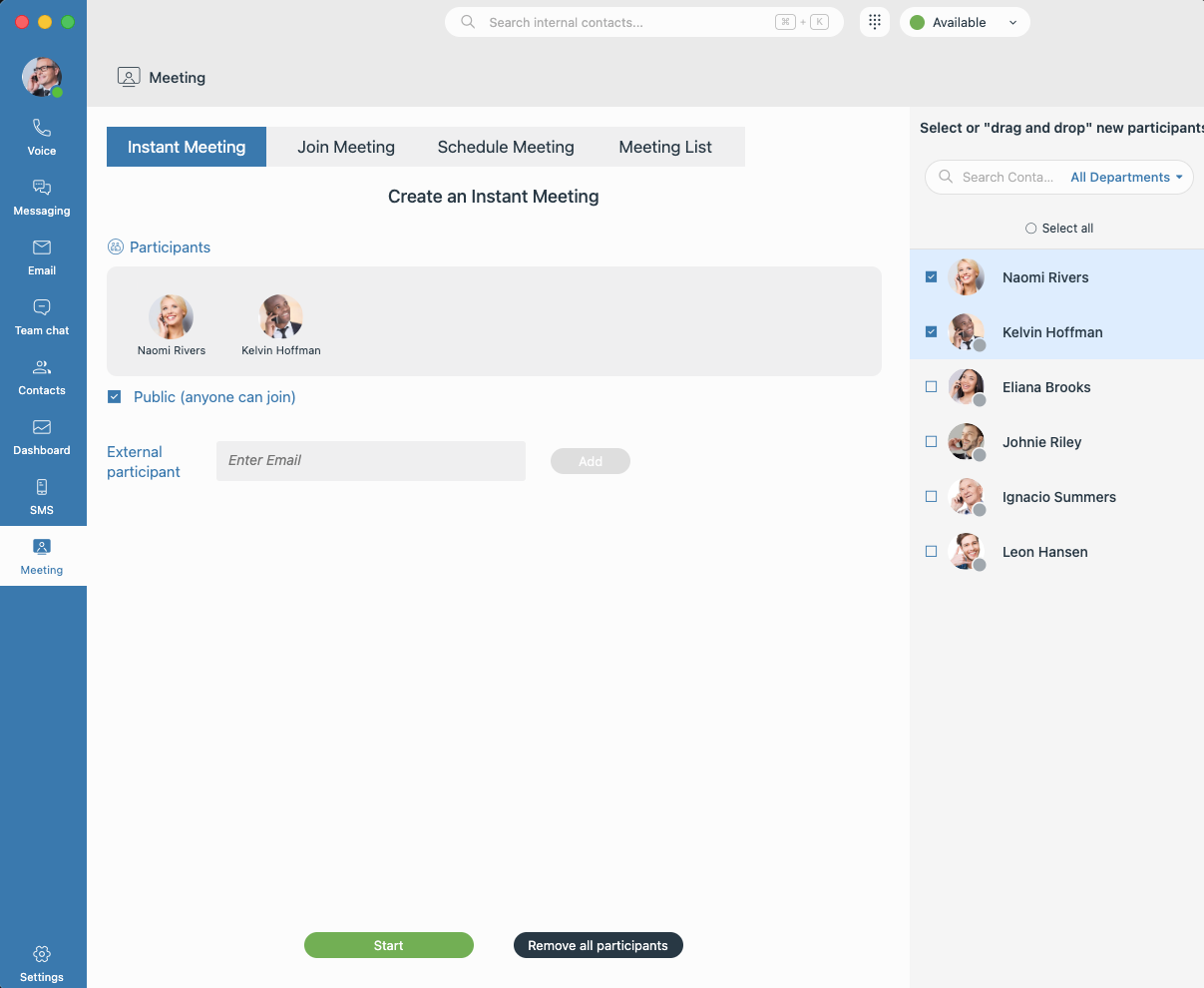
- Click the Meeting icon and select the Instant Meeting tab.
- Drag and drop or select contacts, or manually enter an external participant's email and click Add.
- Toggle Public (anyone can join) for open access, or leave it off for a private session, then click Start.
¶ Joining an Existing Meeting
Click the Meeting icon, then choose Join Meeting (using a meeting number) or Meeting List (to pick from scheduled meetings).
¶ Scheduling a Meeting
- Select the Schedule Meeting tab and configure the meeting details: subject, start time, duration, time zone, description, visibility (public/private), recurrence, participants, and co-organizers.
- Add participants by drag-and-drop or by entering an external email and clicking Add. Assign co-organizers the same way, or via the 3-dot menu next to a participant.
- Click Schedule to notify all participants by email and add the meeting to their Meeting List.
¶ Meeting List
Click the Meeting icon and select Meeting List to:
- View upcoming meetings under the Scheduled sub-tab.
- Access past meetings and their Chat Records under the Previous sub-tab.
- Select a meeting to Start, Edit, or Delete it from the side panel (based on your permissions).
¶ Using Meeting
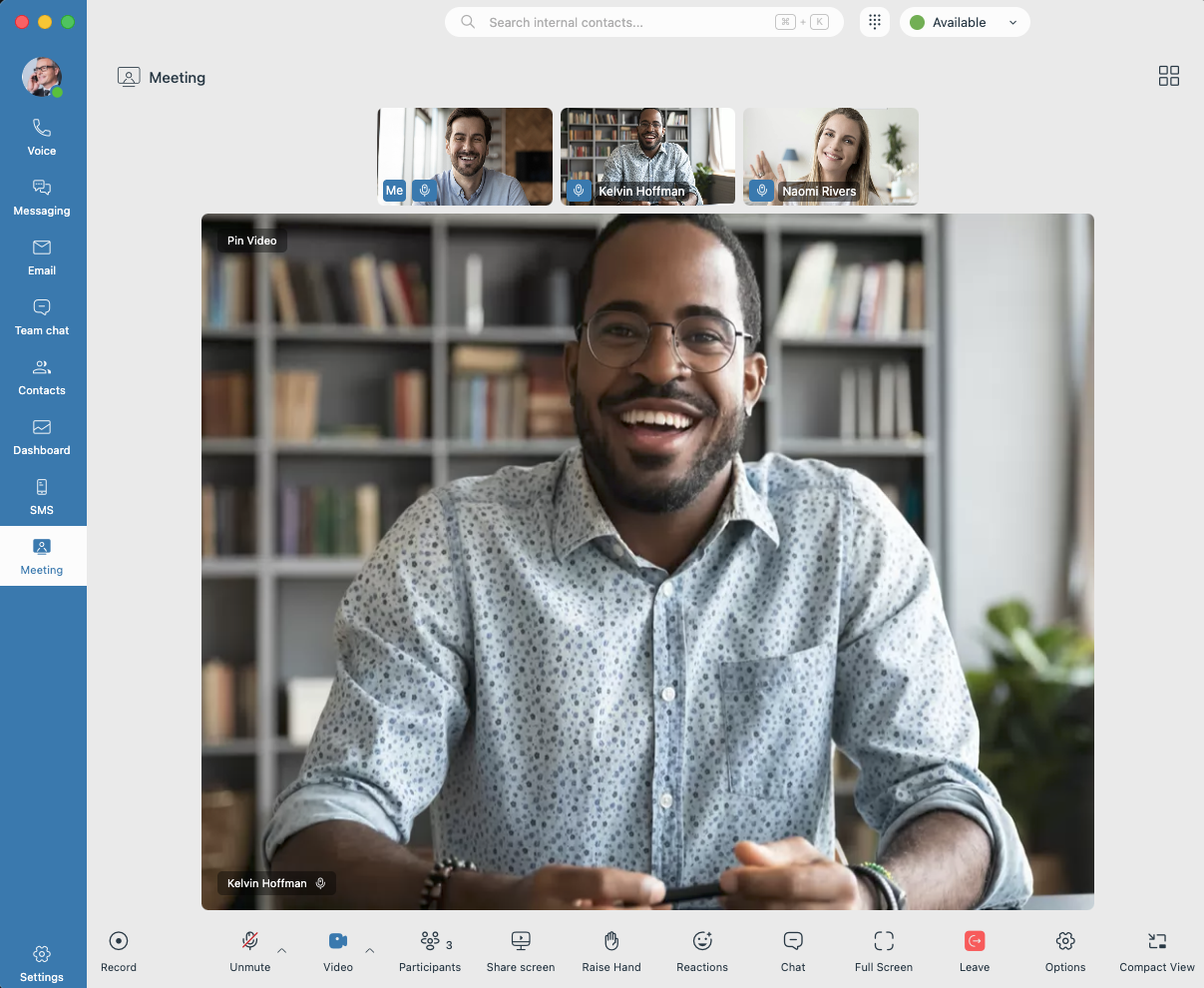
Use the control bar at the bottom to manage your session:
- Audio & Video: Mute/unmute or toggle the camera; use the arrows beside each to switch devices mid-call.
- Collaboration: Share Screen, open in-meeting Chat, Record the session, Raise Hand, or send Reactions.
- Participants: Click Participants to manage attendees; right-click to Assign Co-Organizer, Reinvite, or Remove.
- View & Layout: Switch between Grid and Speaker view, double-click a participant to pin them, expand to Full Screen, or use Picture-in-Picture for multitasking.
- Settings (gear icon): Toggle incoming video, switch to a Public meeting mid-call, copy meeting info/links, and manage shortcuts or reactions.
- Leave: Click the red Leave button to exit or end the meeting.
¶ Adjusting Settings
- Click the "Settings" icon in the navigation bar to open the general settings screen.
- Use the General Settings side panel to navigate through the available sub-menus and personalize your application experience.
¶ General Settings Navigation
The general settings screen is organized into specific sections to help you manage your hardware endpoints, notifications, and core integrations quickly:
- Phone: Configure your phone configurations, extension options, caller ID choices, and default handling parameters for active voice calls.
- Audio: Set your audio hardware preferences, allowing you to select and test your preferred microphone, speakers, or headset output and integration.
- Alerts: Manage your notification preferences.
- Modules: Configure call popups and macro-driven third-party integrations to automatically trigger web pages based on specific call events.
- Meeting: Adjust defaults for meetings, including participant audio/video join states, layout behaviors, meeting alerts, and local recording storage.
- Chat: Customize text messaging preferences, select the local folder for downloaded files, and adjust the display text size for chat bubbles.
- CRM: Manage integrations with external customer relationship systems and configure data synchronization behaviors.
- Appearance: Personalize the visual interface by selecting your preferred application language and toggling between light, navy blue and dark visual themes.
- Other: Access general application behaviors, such as system startup preferences and default contact search actions.
¶ My Phones
The My Phones section in Settings → Phone allows you to control which phone devices are available for making calls.
- Open Settings → Phone and scroll to the My Phones section. Two checkboxes are available: "Use deskphone" and "Use softphone", both enabled by default.
- Uncheck a device to remove it from the Dialpad phone dropdown. If you uncheck your currently active device, the application automatically switches to the next available one.
- If both devices are unchecked, a warning is displayed: "You have not selected any phone device."
- Use the Go to My Phones link at the bottom of the Dialpad phone dropdown to navigate directly to this settings section.
- Your device preferences are saved and persist after page reload or re-login.
Note: If a PBXware administrator has set a Default Client Phone for your extension, both checkboxes will be disabled and a message will indicate that phone selection is restricted by the administrator. The forced device is automatically selected.
¶ CRM Integrations
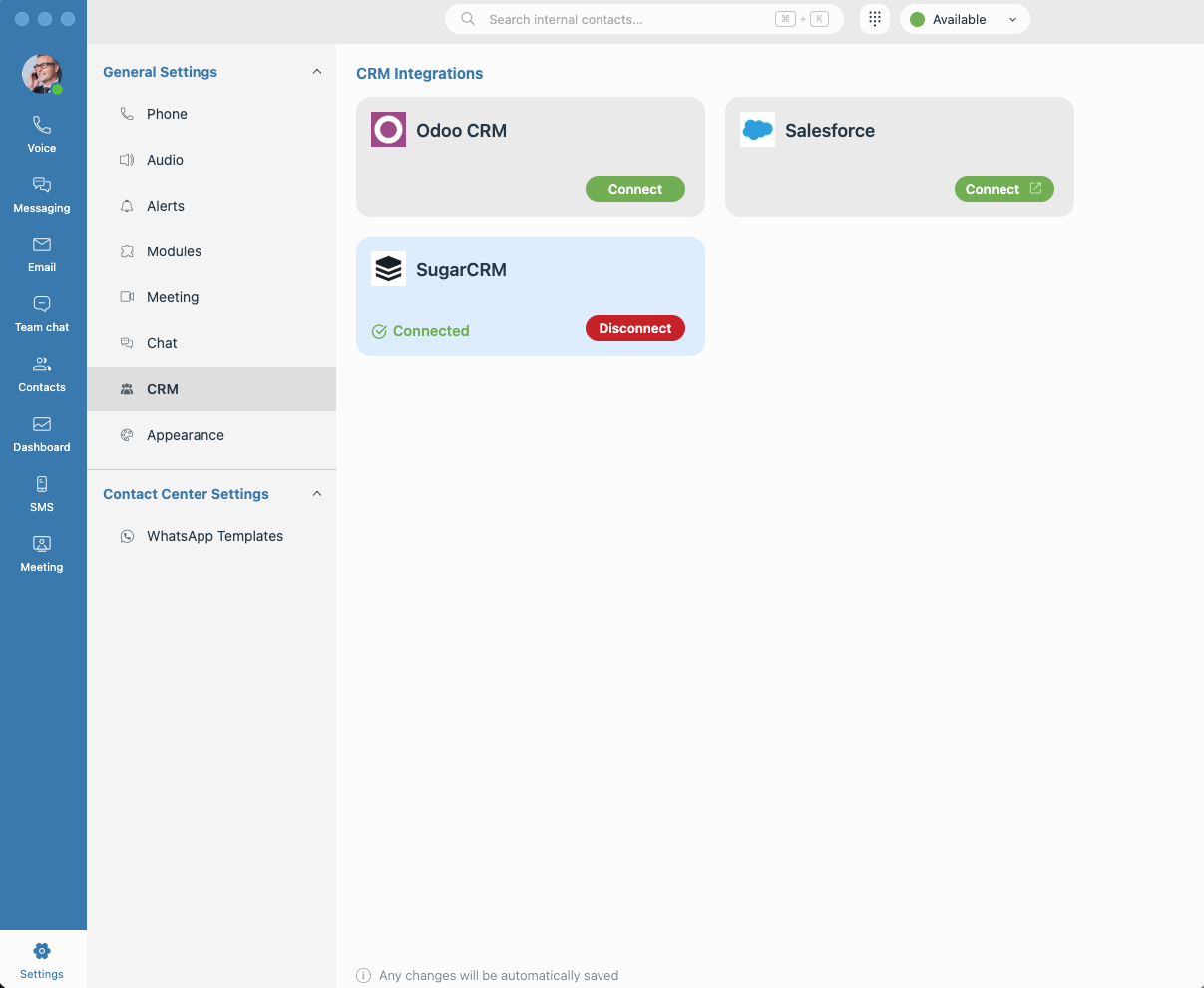
The CRM section within the application settings allows you to link your communication tools with external CRM systems to streamline your workflow.
- Access CRM Settings: Navigate to the Settings menu and select the CRM section to view a list of all available CRM integrations.
- View Connection Status: Each listed CRM system clearly displays its current status (e.g., Connected or Disconnected).
- Connecting a CRM:
-
Click the Connect button next to your desired CRM to initiate the integration.
-
An OAuth2 login window will appear in a new popup.
-
Enter your CRM credentials and authorize the application.
-
Once successful, the popup will close, and the status in the main settings view will update to Connected.
-
Note: Not all CRM systems support OAuth authentication; in some cases, the basic authentication method will be used instead.
-
Disconnecting a CRM:
-
To remove an integration, click the Disconnect button or link next to the active CRM.
-
The connection will be broken instantly, and the Connected label will be removed.
-
Note: The connection process is optimized for both Web and Electron environments, ensuring that the status updates correctly regardless of which platform you are using.
¶ MCP Server for AI Integration
Note: This feature is in Beta and is available only in the Desktop app.
The MCP (Model Context Protocol) Server allows AI assistants such as Claude and Cursor to securely access your chat history, call logs, and scheduled meetings in a read-only capacity. The server runs locally on the loopback address, starts automatically on login, and stops on logout.
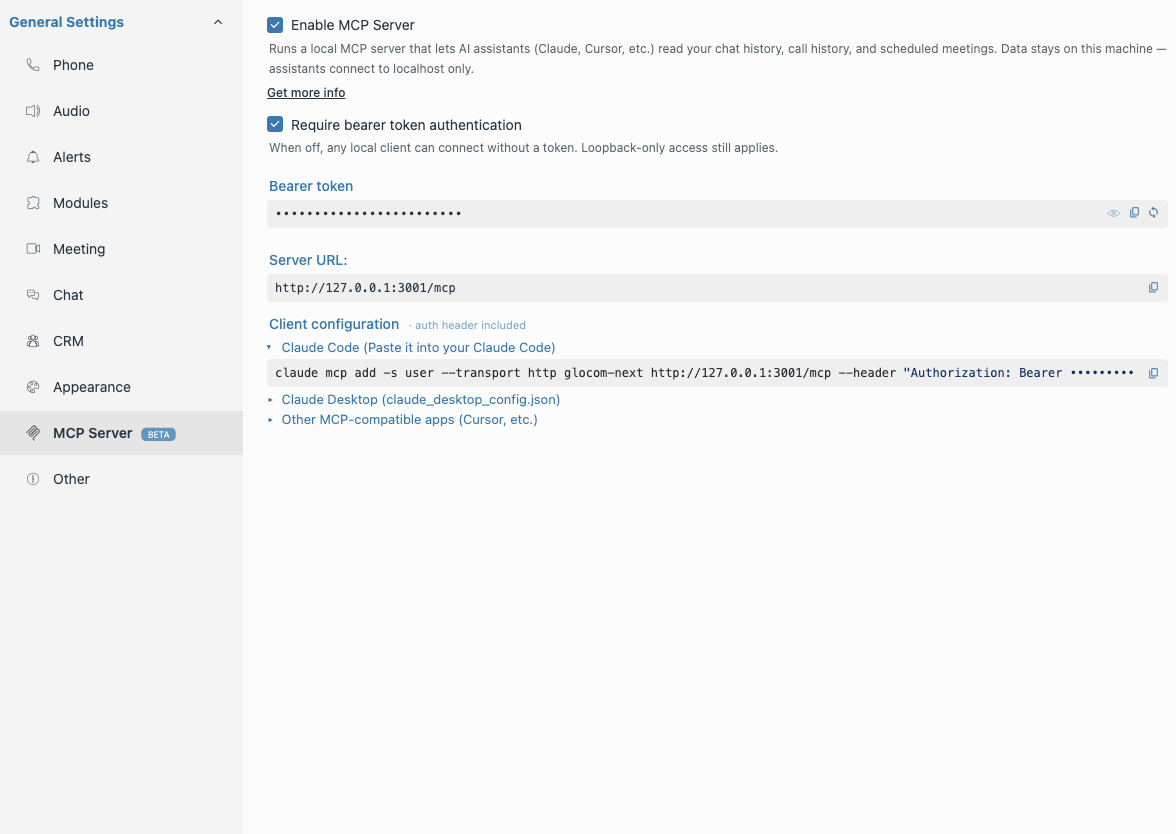
- Navigate to Settings → MCP Server to configure the integration.
- Copy the ready-to-use configuration block for your preferred AI client:
- Claude Code
- Claude Desktop
- Generic MCP client
- Optionally enable Bearer Token Authentication to add an extra layer of security to the local server connection.
- Click Get more info to open the help dialog for additional setup guidance.
¶ WhatsApp Templates
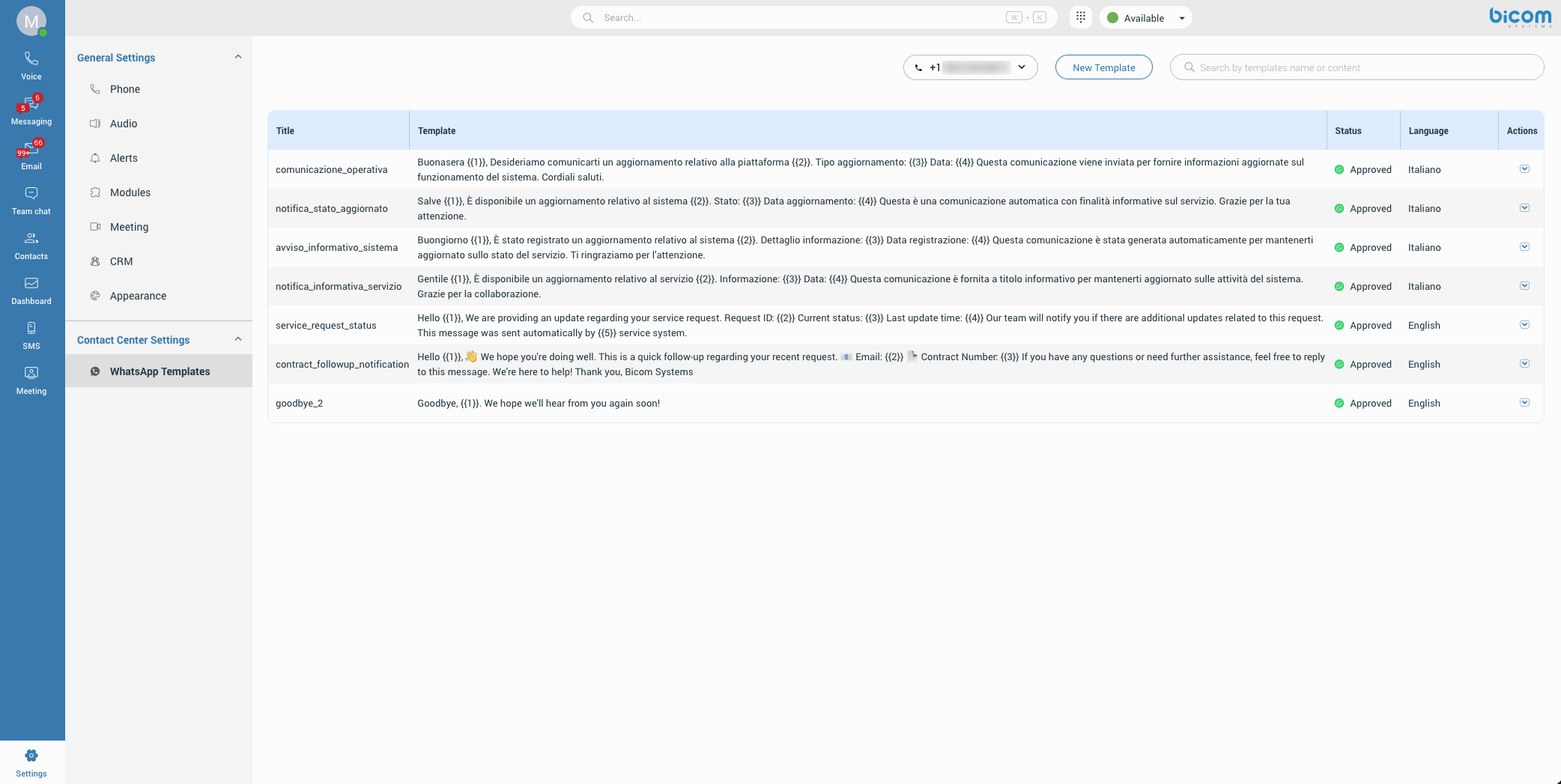
The WhatsApp Templates section allows you to create, manage, and review pre-approved message templates used for customer communication.
¶ Viewing Templates
- Open the Templates section to view available WhatsApp templates.
- Select a WhatsApp number from the dropdown to display its templates.
- Use the search bar to filter templates by title, message, or language.
Each template shows:
- Title
- Message
- Status (Approved, Pending, Rejected, etc.)
- Language
Note: If no templates are available, a “No templates” message will be displayed.
¶ Creating a Template
- Click New Template (Supervisor only).
- Enter the following:
- Title (lowercase, numbers, underscores only, max 100 characters)
- Language
- Message (max 1,024 characters)
Note: The title must be in lowercase and cannot contain spaces.
-
Use placeholders for dynamic values:
- Format:
{{1}}, {{2}}, {{3}} - Must start from
{{1}}and be sequential
- Format:
-
Click Preview to review your template before submission.
Tip: Emojis and placeholders can be inserted directly into the message.
¶ Submitting a Template
- Provide example values for each placeholder.
- Review the final preview.
- Click Save to submit the template.
Note: All placeholder values must be filled before submission.
¶ Template Actions
- Preview – View template content (available to all users)
- Delete – Remove template (Supervisor only)
Note: Deleted templates are removed from all endpoints and cannot be restored.
¶ Draft Saving
- Your progress (title, message, placeholders) is saved automatically during creation
Drafts are cleared after:
- Successful submission
- Cancel action
- Logout
¶ Logs and Diagnostics
The application includes a built-in log viewer to assist with troubleshooting and technical support.
¶ Accessing the Log Viewer
- Navigate to the Help menu in the application header.
- Select the Logs option to open the integrated Log Viewer.
¶ Log Viewer Features
- Category Filtering: Use the category dropdown to isolate specific types of events.
- Search: Use the search bar to find specific keywords or error codes within the log entries.
- Log Management: You can manually Clear the current view, Copy log content to your clipboard, or Download the logs as a file for external review.
- Console Logs: Note that
console.logsare disabled in the browser dev tools on production and test servers; all activity must be viewed through the internal log viewer.
Tip: For more detailed troubleshooting, you can enable Verbose mode.