¶ Creating a Bootable USB on Windows Using Rufus
Rufus is a lightweight and easy-to-use tool for creating bootable USB drives from ISO or IMG files. It is widely recommended for installing operating systems or software that require bootable media, such as SERVERware.
The following guide walks through the steps to create a bootable USB using Rufus on a Windows machine.
Steps to Create a Bootable USB Using Rufus
-
Download Rufus
Download Rufus on the Windows machine from https://rufus.ie . -
Prepare the USB Drive
Insert a USB drive (8 GB or larger).
Backup any important data — the drive will be erased.
Download SERVERware v5.0 installation iso file from https://www.bicomsystems.com/download#serverware . -
Open Rufus
After downloading, simply run Rufus — no installation is necessary.
-
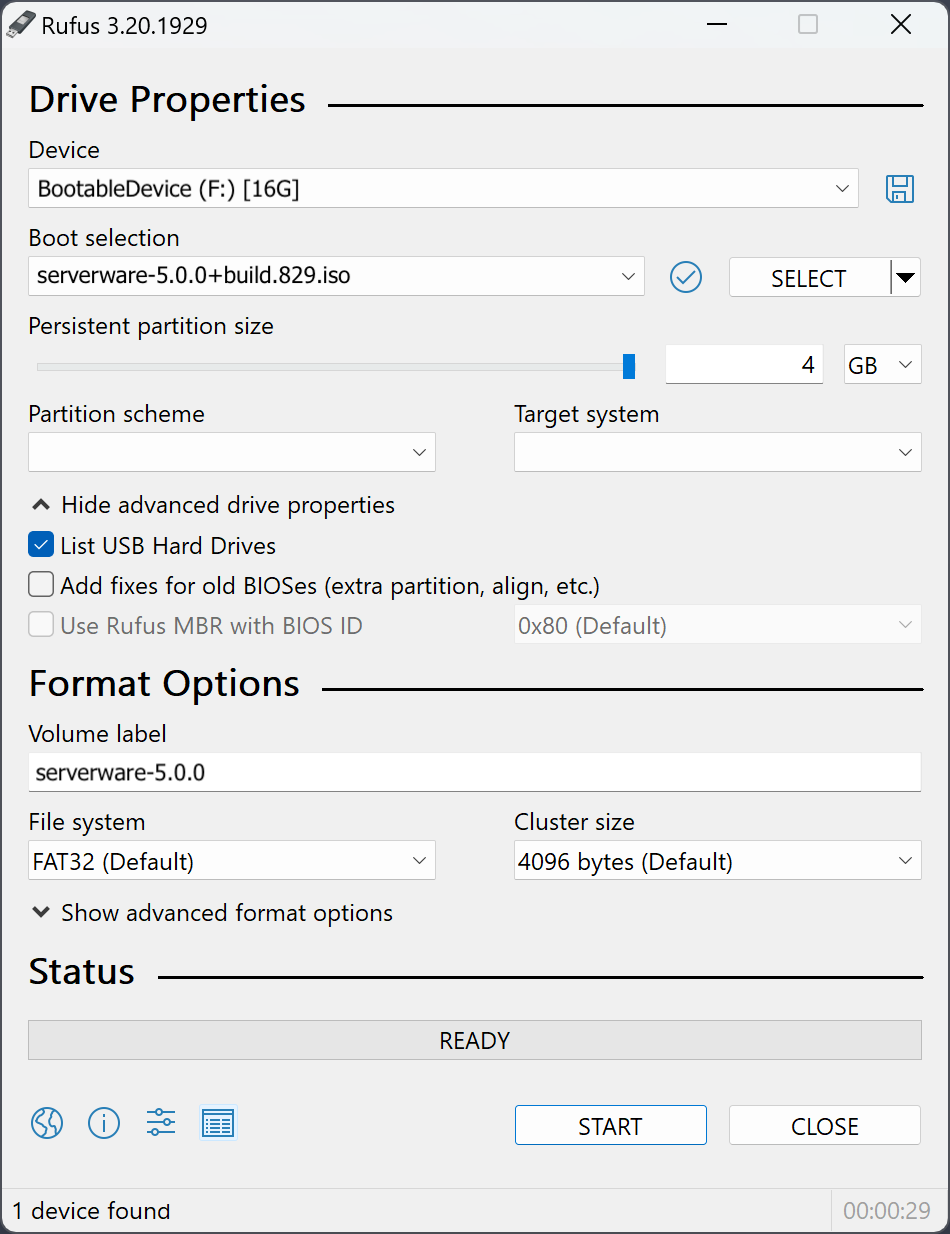
Select the USB Drive and ISO
In the Device dropdown, select the USB drive.
Click Select and choose the SERVERware ISO file. -
Check Settings
Partition scheme: select MBR (for legacy BIOS) or GPT (for UEFI).
File system: select FAT32.
Note: FAT32 is recommended for SERVERware installation media and works with both BIOS and UEFI systems. It ensures smooth booting and compatibility. Only consider NTFS if the ISO file is larger than 4 GB.
-
Start the Process
Click Start, confirm any prompts, and wait until Rufus finishes writing the image.
-
USB Ready
Safely eject the USB drive. It is now ready for installation.
¶ Creating a Bootable USB on Linux / MacOS
BalenaEtcher is a free, cross-platform tool for creating bootable USB drives or SD cards from ISO or IMG files. It is simple to use, reliable, and works on Windows, macOS, and Linux, making it an ideal choice for users of all skill levels.
The following guide walks through each step to create a bootable USB using BalenaEtcher.
-
Download the SERVERware 5 ISO
Go to Bicom Systems Download Page https://www.bicomsystems.com/download#serverware .
From the drop-down menu, select SERVERware 5 and download the latest ISO image. -
Download and Install BalenaEtcher
Download BalenaEtcher from https://www.balena.io/etcher/
Install it on the system (available for Windows, macOS, and Linux). -
Prepare the USB Drive
Insert a USB drive into the computer.
Make sure to backup any important data — the drive will be erased. -
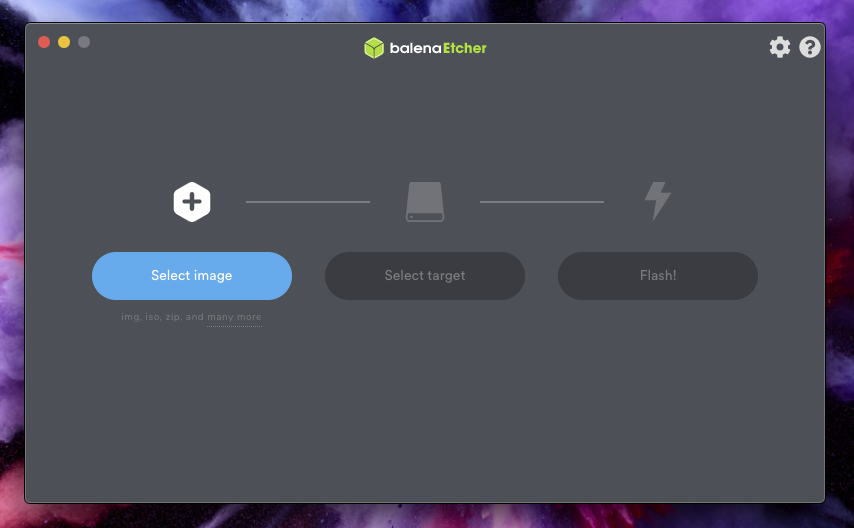
Open BalenaEtcher
Launch the application after installation.
-
Select the SERVERware ISO
Click Flash from file and choose the ISO downloaded in Step 1.
-
Select the USB Drive
Ensure the correct USB drive is selected as the target.
-
Flash the USB Drive
Click Flash! and wait for the process to complete (usually 2-5 minutes).
-
Ready to Use
Once finished, safely eject the USB drive. The USB is now bootable and ready to install SERVERware 5.