¶ SERVERware Updates
Regular updates ensure SERVERware remains secure, stable, and compatible with the latest features and improvements. Keeping the system up to date helps maintain optimal performance and reliability across all components.
The Updates section in System Settings is used to keep SERVERware up to date. It includes two main services: the SERVERware Connector and the SERVERware Web Control Panel, which manage the backend and frontend of the system.
How It Works?
The SERVERware controller automatically checks for new package updates every day. When an update is available, a notification appears at the top of the GUI after the admin logs in. The message stays visible for about 10 seconds and includes a link (Update Now) to open the update page.
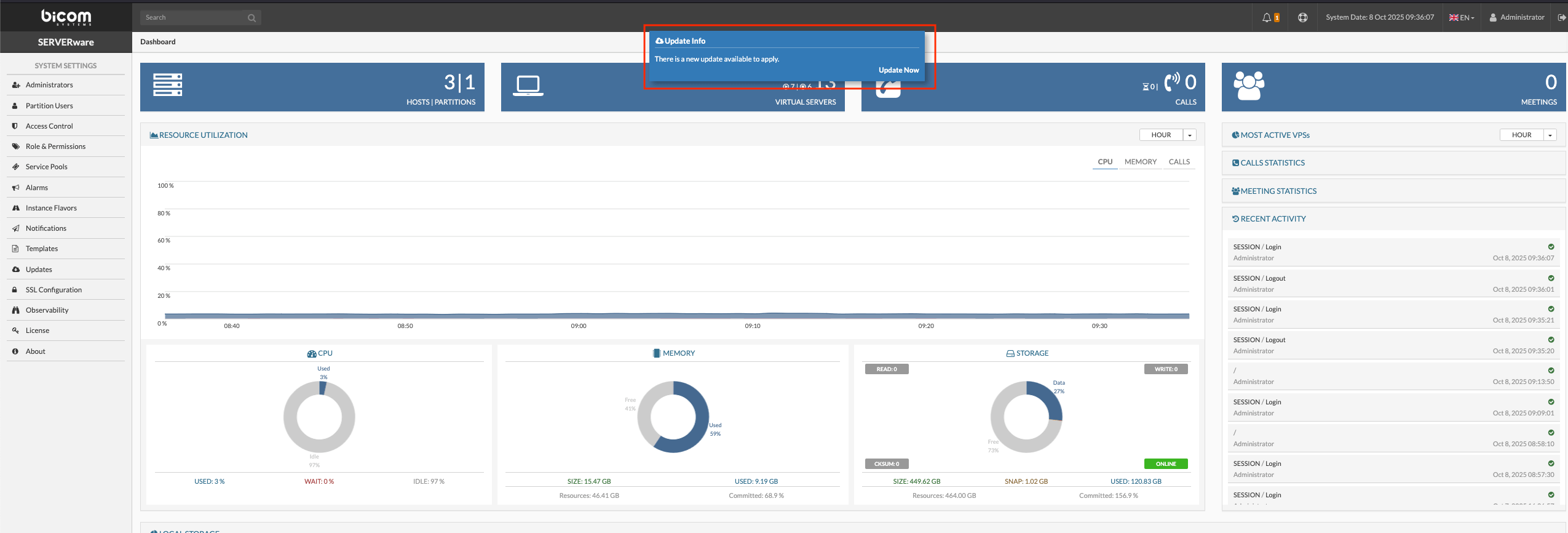
Email notifications about available updates are automatically sent to system administrators, ensuring they are informed as soon as new versions are released. This allows timely planning and coordination of update procedures to keep the system secure and up to date.
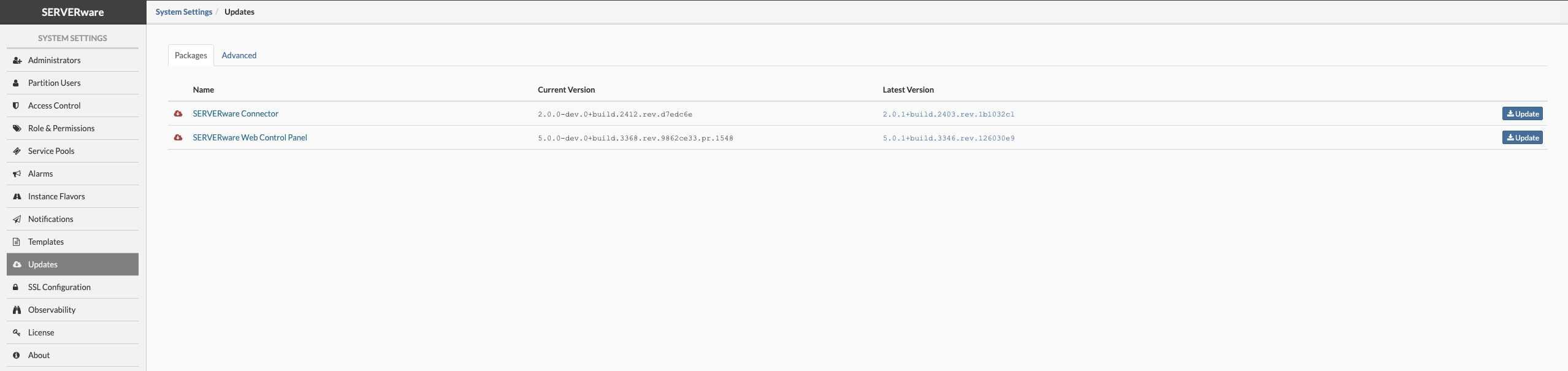
When the administrator clicks the Update Now link or navigates to System Settings > Updates, the landing page shows the available services, their current and latest versions, and provides update buttons to start the process.
Do not perform a SERVERware update while a Backup or Geo-Redundancy task is running or scheduled. Before starting the update, make sure all backup and Geo-Redundancy processes are paused or disabled to prevent data loss or service disruption.
Important: GUI updates to SERVERware 5.x.x are available for systems running version 4.8.x and above.
For older versions (4.7.x and below), a core update is required before applying GUI updates to ensure proper functionality.
¶ GUI Update for SERVERware
Before proceeding with the SERVERware GUI update, note that if multiple components require updating, the SERVERware Connector must be updated first on all hosts, and the SERVERware Web Control Panel should be updated last.
¶ Updating the SERVERware Connector
-
After navigating to Updates, click the Update button and download the script for the SERVERware Connector. The administrator must then run the script (next step) to update the connector service.
-
In the Hosts section, an icon will appear next to the host indicating that an update is available. Before starting the update, put the host into Maintenance Mode — the host status will change to “Maint” (required).

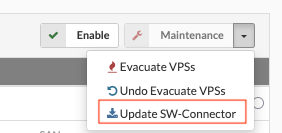
- From the dropdown menu next to the Maintenance button, select Update SW-Connector. The installation time depends on the machine's performance and storage usage, so allow enough time for the process to complete.
- While the update is in progress, the Memory status indicator in the Hosts section will show red, and the System Logs can be used to track the update's progress.
Important: Ensure the SW-Connector installation runs uninterrupted. Do not perform any server actions such as creating or editing VPSs, adding subnets, domains, or other configurations during the update.
- Once the update is complete, click the Enable button to bring the host back online. The host status will turn green (UP).
This GUI update procedure is essentially the same for all three SERVERware editions. The main difference is that Standalone and Mirror editions typically have only one host to update, while Cluster editions may have two or more hosts. For Cluster editions, it is best practice to update the backup host first (if available), then update the processing hosts one by one, from lowest to highest priority, and finally update the connector on the storage host.
¶ Updating the SERVERware Web Control Panel
Before updating the SERVERware Web Control Panel (SW_WCP), ensure that all hosts are running the latest version of the SW_Connector and their status is UP.
Navigate to System Settings > Updates and click the Update button for the SW_WCP service. The update script will be downloaded and executed immediately, and the process will be logged in the admin GUI.
After logging in again, the administrator can verify within the Updates section that the Current and Latest version numbers are correct.